How to format messages in Slack
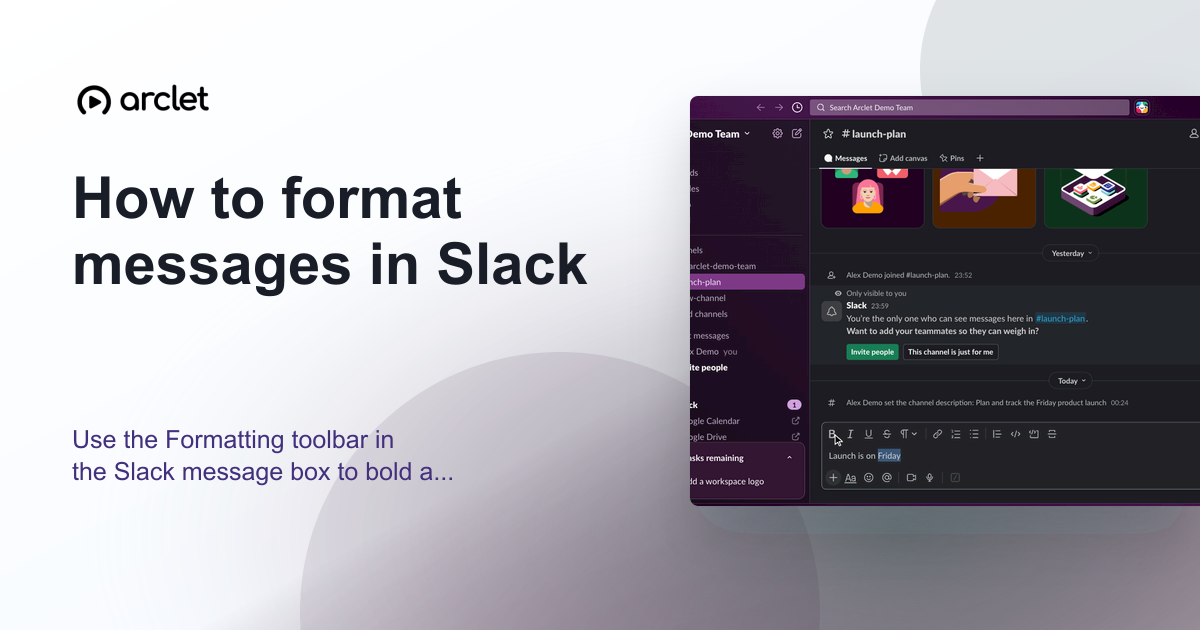
Use the Formatting toolbar in the Slack message box to bold a word, turn a line into a bulleted list, and send the formatted message to a channel.
Quick answer
Type your message in the message box of a channel, then use the Formatting toolbar above it. Double-click a word to select it and click Bold, click Bullet-point list to turn the line into a bullet, then click Send now to post the formatted message to the channel.
Steps at a glance
- Open a channel and click its message box.
- Type your message in the message box.
- Double-click a word, then click Bold.
- Click Bullet-point list to make a bullet.
- Click Send now to post the message.
Interactive demo
Summary
Slack's Formatting toolbar sits above the message box and lets you style text before you send it. Bold and bulleted lists make announcements and plans easier to scan.
Step-by-step guide
Step 1
Make the selected text bold
Open the channel and type your message in the message box, for example "Launch is on Friday". Double-click a word such as Friday to select it, then click Bold in the Formatting toolbar above the message box.
Step 2
Turn the line into a bulleted list
With the cursor in the message, click Bullet-point list in the toolbar. The line becomes a bullet and the bold word stays bold.
Step 3
Send the formatted message
Click Send now at the bottom right of the message box. The message appears in the channel with the bullet and the bold word.
Why this matters
You are posting a launch date in a channel and want the key word to stand out instead of getting lost in the thread. Formatting it before you send makes the date easy to spot at a glance.
Frequently asked questions
Can I format text before I send it?
Yes. Select the text in the message box and click a button in the Formatting toolbar, then click Send now.
Does the formatting stay after I send the message?
Yes. In this capture the sent message showed the bullet and the bold word.
Related guides
Continue with more step-by-step guides for getting work done.
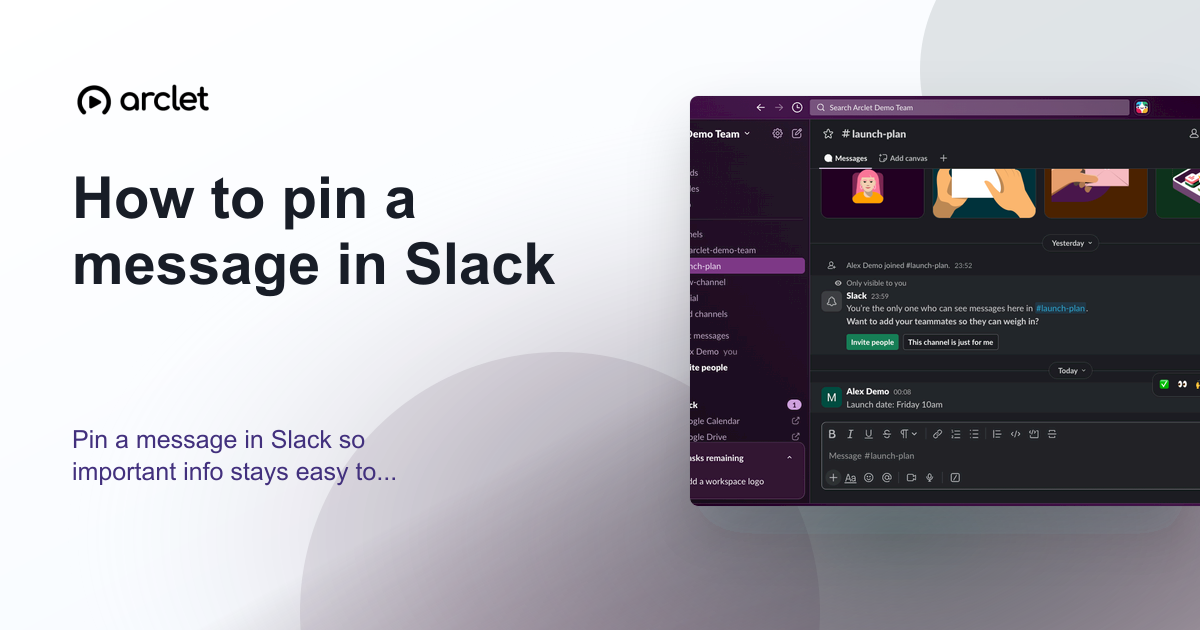 How to pin a message in SlackPin a message in Slack so important info stays easy to find. Open More actions on the message, choose Organise, then select Pin to channel.
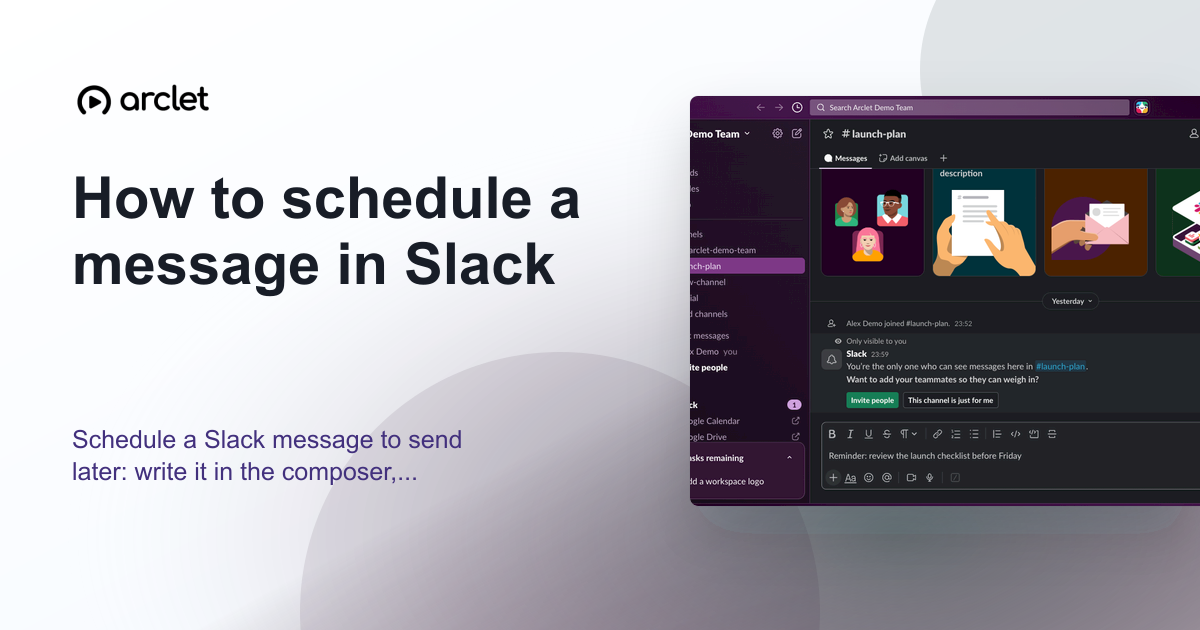 How to schedule a message in SlackSchedule a Slack message to send later: write it in the composer, pick a preset or custom time, then review it under Drafts & sent before it goes out.
 How to add a description to a Slack channelAdd a description to a Slack channel so everyone knows what it is for. Open channel details, edit the Description on the About tab, and save it.
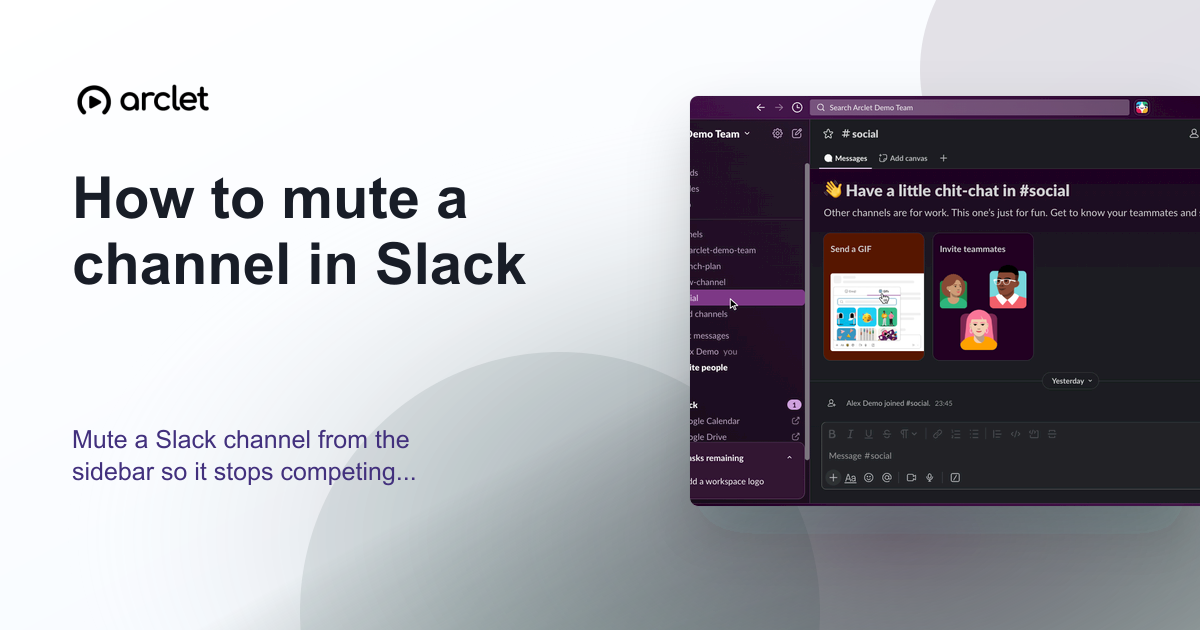 How to mute a channel in SlackMute a Slack channel from the sidebar so it stops competing for your attention. Right-click the channel and pick Mute and hide, then check the icon.
 How to react to messages with emoji in SlackAdd an emoji reaction to any Slack message: hover it, open Add reaction, search the emoji picker, and pick one to acknowledge without replying.
 How to set a reminder in SlackSet a reminder on any Slack message: open More actions, choose Add a reminder, pick a time such as In 1 hour, and Slack adds it to your to-dos.
Create interactive demos like this one — free, no coding required.
Start for free →