How to set a reminder in Slack
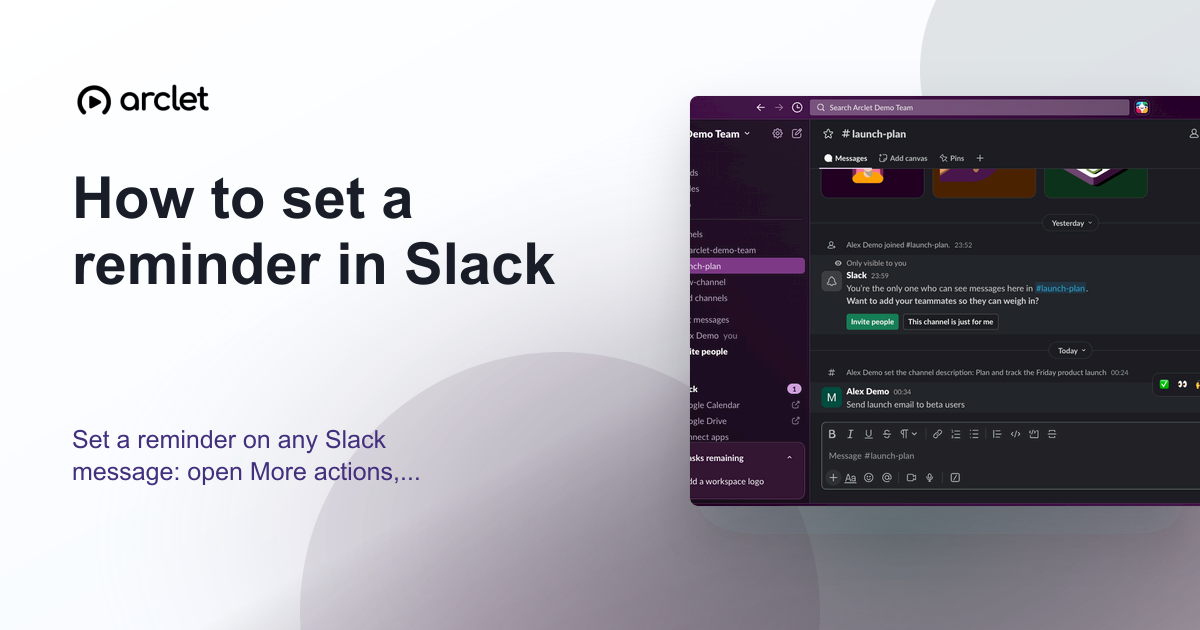
Set a reminder on any Slack message: open More actions, choose Add a reminder, pick a time such as In 1 hour, and Slack adds it to your to-dos.
Quick answer
Hover over the message you want to come back to and open More actions. Choose Add a reminder, then pick a preset such as In 1 hour from the submenu. Slack marks the message with a to-do due time and links to View to-dos, so you can confirm it was set.
Steps at a glance
- Hover over the message and open More actions.
- Point at Add a reminder to open the time options.
- Pick a preset such as In 1 hour.
- Check the to-do due label above the message.
- Use View to-dos to see the reminder.
Interactive demo
Summary
Slack reminders turn any message into a to-do that comes back to you at the time you choose. They keep follow-ups from getting buried in a busy channel.
Step-by-step guide
Step 1
Open More actions on the message
Hover over the message you want to be reminded about. A row of message actions appears at the right edge. Click More actions (the three dots) to open the message menu.
Step 2
Choose Add a reminder
In the menu, point at Add a reminder. A submenu opens beside it with the time options: In 30 mins, In 1 hour, In 3 hours, Tomorrow at 09:00, Monday at 09:00 and Custom…. Move the cursor straight across so the submenu stays open.
Step 3
Pick a reminder time
Click In 1 hour, or any other preset that suits you. Slack sets the reminder immediately, so there is no confirmation dialog to complete.
Step 4
Confirm the reminder is set
A line above the message now reads To-do due in 1 hour, with a View to-dos link beside it. Click View to-dos to see the reminder in your To-dos list.
Why this matters
You post a task in a channel, such as sending a launch email, and you cannot do it right now. Setting a reminder on that message brings it back to you later, so the follow-up does not get lost.
Frequently asked questions
Which reminder times can I choose?
The submenu offers In 30 mins, In 1 hour, In 3 hours, Tomorrow at 09:00, Monday at 09:00 and Custom….
How do I know the reminder was set?
A To-do due label appears above the message, with a View to-dos link that opens your list.
Related guides
Continue with more step-by-step guides for getting work done.
 How to schedule a message in SlackSchedule a Slack message to send later: write it in the composer, pick a preset or custom time, then review it under Drafts & sent before it goes out.
 How to pin a message in SlackPin a message in Slack so important info stays easy to find. Open More actions on the message, choose Organise, then select Pin to channel.
 How to add a description to a Slack channelAdd a description to a Slack channel so everyone knows what it is for. Open channel details, edit the Description on the About tab, and save it.
 How to set your status in SlackSet a Slack status in a few clicks: open your profile menu, pick a preset like In a meeting, choose how long it lasts, and save it so teammates see it.
 How to use threads in SlackLearn how to use threads in Slack: open Reply in thread on a message, write your reply in the thread panel, and send it so the reply stays with the message.
 How to archive a channel in SlackLearn how to archive a Slack channel from its details panel: open the Settings tab, choose Archive channel for everyone and confirm the prompt.
Create interactive demos like this one — free, no coding required.
Start for free →