How to schedule a message in Slack
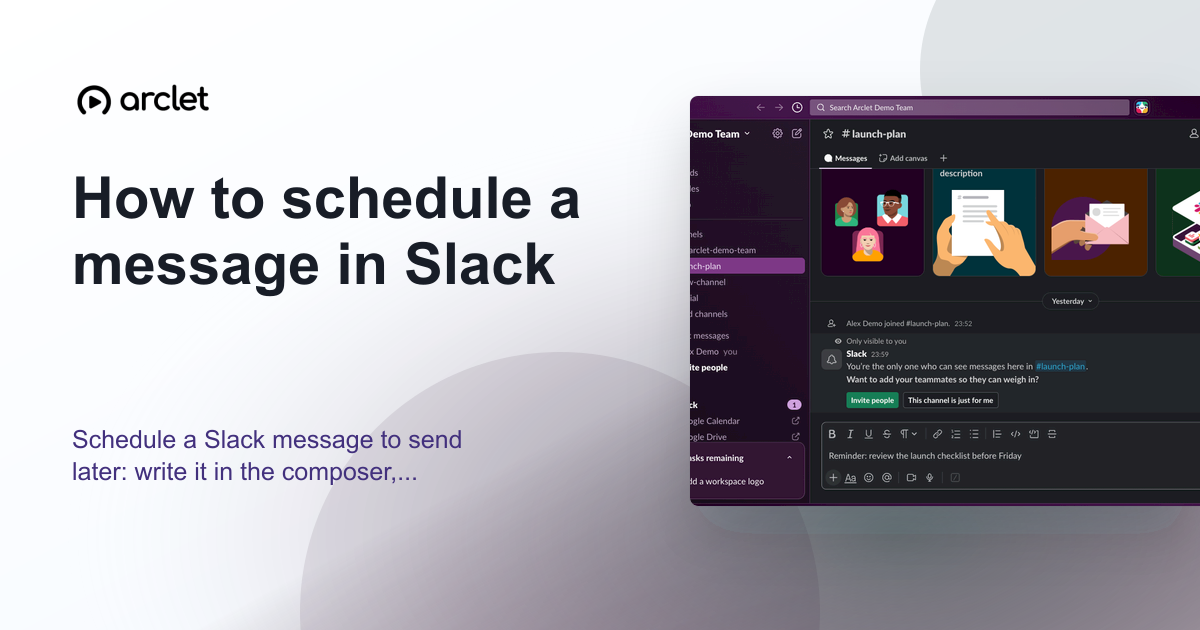
Schedule a Slack message to send later: write it in the composer, pick a preset or custom time, then review it under Drafts & sent before it goes out.
Quick answer
Type your message in the composer, then click the Schedule for later arrow next to Send. Pick a preset such as Tomorrow at 09:00, or choose Custom time, and Slack confirms when the message will be sent. Open See all scheduled messages to review it in Drafts & sent.
Steps at a glance
- Type your message in the channel composer
- Click Schedule for later next to Send now
- Pick a preset such as Tomorrow at 09:00
- Or choose Custom time for another slot
- Read the confirmation under the composer
- Click See all scheduled messages to review it
Interactive demo
Summary
Scheduling lets you write a Slack message now and have it posted at a time you choose. It keeps updates landing when people are online without you being at your desk.
Step-by-step guide
Step 1
Open the send options
Open the channel you want to post in, such as launch-plan, and type your message in the composer. Next to the Send now button, click the arrow labeled Schedule for later to open the timing menu.
Step 2
Pick a send time
The menu lists presets: Later today at 09:00, Tomorrow at 09:00 and Monday at 09:00. Click the one that fits, or choose Custom time to set your own slot. The message is scheduled as soon as you pick.
Step 3
Review your scheduled messages
Slack shows "Your message will be sent tomorrow at 09:00." above the composer. Click See all scheduled messages to open Drafts & sent, where the message is listed under the Scheduled tab with its send time.
Why this matters
You finish a launch update late in the evening, but your team reads Slack in the morning. Scheduling lets you write it while it is fresh and have it arrive at 09:00, so it appears at the top of the channel when people start work.
Frequently asked questions
Where do I see messages I have scheduled?
Click See all scheduled messages in the notice above the composer, or open Drafts & sent and select the Scheduled tab.
Can I choose a time other than the presets?
Yes. The Schedule for later menu includes Custom time, alongside the Later today, Tomorrow and Monday presets.
Related guides
Continue with more step-by-step guides for getting work done.
 How to use threads in SlackLearn how to use threads in Slack: open Reply in thread on a message, write your reply in the thread panel, and send it so the reply stays with the message.
 How to create a Slack channelLearn how to create a Slack channel: open Add channels, name it, choose Public visibility, and select Create so your team has a focused place to talk.
 How to set your status in SlackSet a Slack status in a few clicks: open your profile menu, pick a preset like In a meeting, choose how long it lasts, and save it so teammates see it.
 How to set a reminder in SlackSet a reminder on any Slack message: open More actions, choose Add a reminder, pick a time such as In 1 hour, and Slack adds it to your to-dos.
 How to add a description to a Slack channelAdd a description to a Slack channel so everyone knows what it is for. Open channel details, edit the Description on the About tab, and save it.
 How to archive a channel in SlackLearn how to archive a Slack channel from its details panel: open the Settings tab, choose Archive channel for everyone and confirm the prompt.
Create interactive demos like this one — free, no coding required.
Start for free →