How to add a page break in SurveyMonkey
Split a SurveyMonkey survey into separate pages with a page break. Add a new page after your questions, then build the next page's questions.
Quick answer
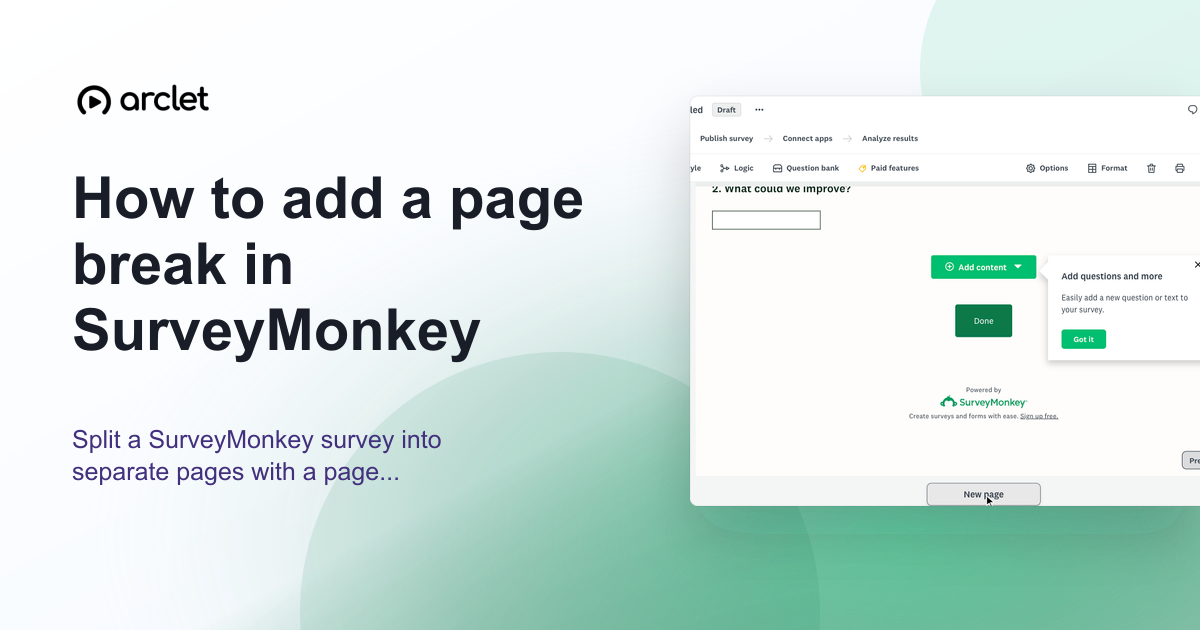
Open your survey in the builder, scroll to the bottom of the last page, and click New page. SurveyMonkey adds a second page and shows Prev and Done buttons. Open the Build menu to add a question to the new page, then save it. Your survey now has two pages.
Steps at a glance
- Open your survey in the builder.
- Click New page below your last question.
- Open the Build menu on the new page.
- Choose a question type such as Single text box.
- Type the question text.
- Click Save to finish page 2.
Interactive demo
Summary
A page break splits a survey into separate pages, so respondents see a few questions at a time. In SurveyMonkey you add one with the New page button in the survey builder, and it works on the free plan.
Step-by-step guide
Step 1
Add a new page
In the survey builder, scroll below your last question and click New page. SurveyMonkey adds a second page after your existing questions.
Step 2
Open the Build menu to add a question to the new page
The new page is empty and shows Prev and Done buttons. Click Build in the toolbar to open the list of question types.
Step 3
Choose a question type
Pick a type from the list. This guide uses Single text box, which adds a question to the new page.
Step 4
Save the question on page 2
Type your question text, then click Save. The question appears on page 2, and the survey now has two pages.
Why this matters
You have a survey with a rating question followed by an open-ended one, and showing both at once feels long. Adding a page break puts each on its own page, so respondents move through shorter screens and are more likely to finish.
Frequently asked questions
Does the new page show a Prev button?
Yes. The new page shows Prev and Done buttons, so respondents can move back to the page before.
Can I add a page break on the free plan?
Yes. The New page button and the Build menu both worked on a free Basic account.
Related guides
Continue with more step-by-step guides for getting work done.
 How to add a new page in SurveyMonkeyAdd a new page to a draft survey in SurveyMonkey: open it in the Design survey tab, select New page, and start a question on the new page.
 How to delete a page in SurveyMonkeyDelete an empty page from a SurveyMonkey survey in the editor: open the page's More actions menu, choose Delete page, and confirm that only P1 remains.
 How to activate a survey in SurveyMonkeyLearn how to activate a SurveyMonkey survey by opening the Publish survey step, copying your survey link, and heading to Analyze results.
 How to add a rating scale in SurveyMonkeyAdd a star rating question to a SurveyMonkey survey: pick the Star rating type, write your question, review the scale and shape, then save it.
 How to add a text box in SurveyMonkeyAdd a text box question to a SurveyMonkey survey: open the Build menu, choose Single text box, type your question and save it in the editor.
 How to add a Likert scale in SurveyMonkeyAdd a Likert scale to a SurveyMonkey survey with the Matrix / Rating scale question type: enter a statement, add rows, label five columns, and save.
Create interactive demos like this one — free, no coding required.
Start for free →