How to add a response deadline in SurveyMonkey
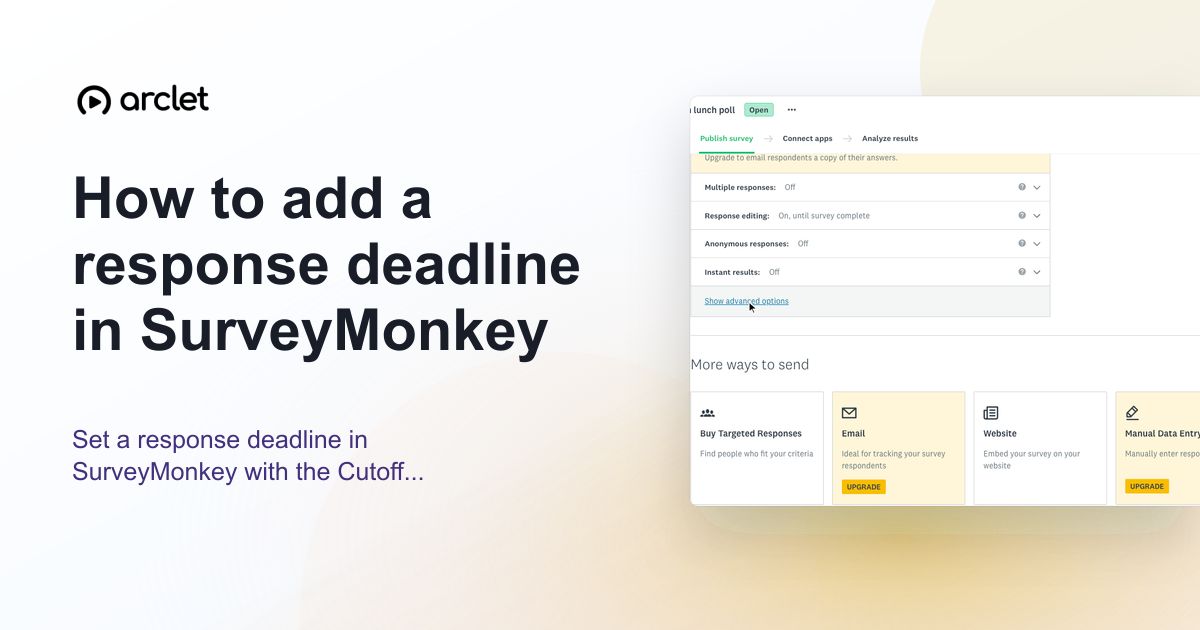
Set a response deadline in SurveyMonkey with the Cutoff date and time setting on your Web Link collector, so it closes on a date and time you choose.
Quick answer
Open your survey's Web Link collector from the Publish survey step, choose Show advanced options, and expand Cutoff date and time. Select On, close this collector on a specified date and time, then set the Date and the Time. The collector stops accepting responses once that moment passes.
Steps at a glance
- Open the survey's Web Link collector.
- Click Show advanced options.
- Expand Cutoff date and time.
- Choose the close-on-a-date option.
- Set the Date and Time.
Interactive demo
Summary
Cutoff date and time closes a collector automatically on a date you pick, so late responses never come in. It is part of the advanced options on the Web Link collector page and works on a free plan.
Step-by-step guide
Step 1
Show advanced options
Open your survey's Web Link collector from the Publish survey step and scroll below the basic settings. Click Show advanced options to reveal the extra settings, including Cutoff date and time.
Step 2
Open Cutoff date and time
Click the Cutoff date and time row to expand it. It explains that the collector will close and stop accepting responses at the time you set, and it starts on Off, accept responses until you manually close this collector.
Step 3
Close on a specified date
Select On, close this collector on a specified date and time. Date and Time fields appear underneath. The option to assign an expiration date for each response is greyed out with a premium icon on a free plan.
Step 4
Check the date and time
Look at the Date field and the Time dropdowns below it. SurveyMonkey fills them in with a default, so change the date to the day you want responses to stop. A Time Zone note beside the time shows which zone applies.
Step 5
Confirm the cutoff
Collapse the Cutoff date and time row to check the setting. Switch back to the Off, accept responses until you manually close this collector option any time you want to remove the deadline.
Why this matters
You are collecting votes or feedback by a hard deadline, like a lunch booking or a planning meeting. A cutoff closes the survey for you at the right moment, so you do not have to remember to switch it off by hand.
Frequently asked questions
Is the response deadline free?
Yes. Closing the collector on a specified date and time worked on a free plan, but the per-response expiration date option is locked.
How do I remove the deadline?
Expand Cutoff date and time again and choose Off, accept responses until you manually close this collector.
Related guides
Continue with more step-by-step guides for getting work done.
 How to close a survey in SurveyMonkeyStop new responses to a SurveyMonkey survey by closing its collector: open Send survey, pick the web link, and confirm Close collector in a few clicks.
 How to reopen a closed survey in SurveyMonkeyReopen a closed SurveyMonkey survey so people can respond again: open Send survey, pick the closed collector, and confirm Open collector in a few clicks.
 How to get a web link for a SurveyMonkey surveyGet a shareable web link for a SurveyMonkey survey from the Surveys list, then copy it to paste into an email, a website, or a social media post.
 How to add section titles in SurveyMonkeyAdd a section title to a SurveyMonkey survey with the Text block. Open Build, choose Text, type your heading and save it to group your questions.
 How to allow multiple responses in SurveyMonkeyLearn how to let people take your SurveyMonkey survey more than once from one device by changing the Multiple responses setting on a Web Link collector.
 How to change the language in SurveyMonkeyChange the language your SurveyMonkey survey shows respondents: open Options, pick a Default survey language, and check that the buttons are translated.
Create interactive demos like this one — free, no coding required.
Start for free →