How to do skip logic in SurveyMonkey
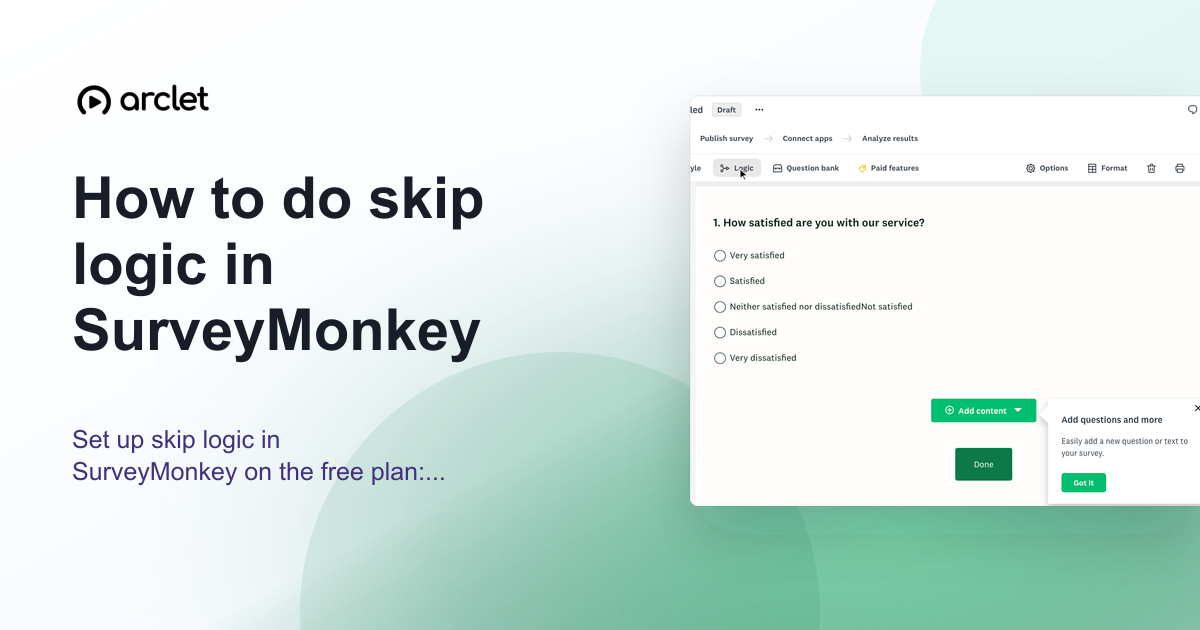
Set up skip logic in SurveyMonkey on the free plan: open the Logic menu, choose Page skip logic, pick a destination page, and apply the rule.
Quick answer
Open the Logic menu in the survey editor, choose Page skip logic, select the page, and click Next. Then pick a destination from the Choose page list, such as End of survey, and click Apply. After that page is completed, respondents skip straight to the destination you picked.
Steps at a glance
- Open the Logic menu in the survey editor
- Choose Page skip logic
- Select the page and click Next
- Open the Choose page list
- Pick a destination such as End of survey
- Click Apply to save the rule
Interactive demo
Summary
Skip logic sends respondents to a page you choose once they finish the current one. It keeps surveys short by skipping content that does not apply to a respondent.
Step-by-step guide
Step 1
Open the Logic menu
In the survey editor, click Logic in the toolbar under the Design survey tab. A panel opens on the left listing the logic options.
Step 2
Choose Page skip logic
Click Page skip logic in the panel. It shows as Off until you add a rule.
Step 3
Select the page and continue
The panel asks you to Select page. Leave Page 1 selected, or pick the page the rule should apply to, then click Next.
Step 4
Open the Choose page list
In the Page skip logic box, open the list under "After the current page is completed, skip to this page...". It offers End of survey and Disqualify respondent.
Step 5
Apply the skip rule
Select End of survey from the list, then click Apply. Respondents who complete that page now skip to the destination you chose.
Why this matters
You have a survey where some respondents should stop early, for example after one key question. Setting a skip rule means they finish at the right point instead of wading through pages that do not apply to them.
Frequently asked questions
Is skip logic available on the free plan?
Page skip logic opened and could be edited on a free account, with no lock icon next to it in the Logic panel.
Where do I find skip logic?
Click Logic in the toolbar of the survey editor, then choose Page skip logic from the panel.
Related guides
Continue with more step-by-step guides for getting work done.
 How to add a new page in SurveyMonkeyAdd a new page to a draft survey in SurveyMonkey: open it in the Design survey tab, select New page, and start a question on the new page.
 How to add multiple choice in SurveyMonkeyAdd a multiple choice question to a new SurveyMonkey survey: confirm the question type, type the question and answers, and save it to the draft.
 How to activate a survey in SurveyMonkeyLearn how to activate a SurveyMonkey survey by opening the Publish survey step, copying your survey link, and heading to Analyze results.
 How to duplicate a SurveyMonkey surveyDuplicate a SurveyMonkey survey from your Surveys list with Make a copy, then open the draft copy in the editor and edit it freely.
 How to edit a live survey in SurveyMonkeyEdit a survey that is already collecting responses in SurveyMonkey: open it in the editor, reword a question, and save the change without rebuilding.
 How to embed a SurveyMonkey survey in a websiteEmbed a SurveyMonkey survey in your website: open Send survey, add a Website collector, pick an embed type and copy the embed code to paste.
Create interactive demos like this one — free, no coding required.
Start for free →