How to make questions anonymous in SurveyMonkey
Make a SurveyMonkey survey anonymous from its Web Link collector settings: open Anonymous responses and choose the anonymous option on a free plan.
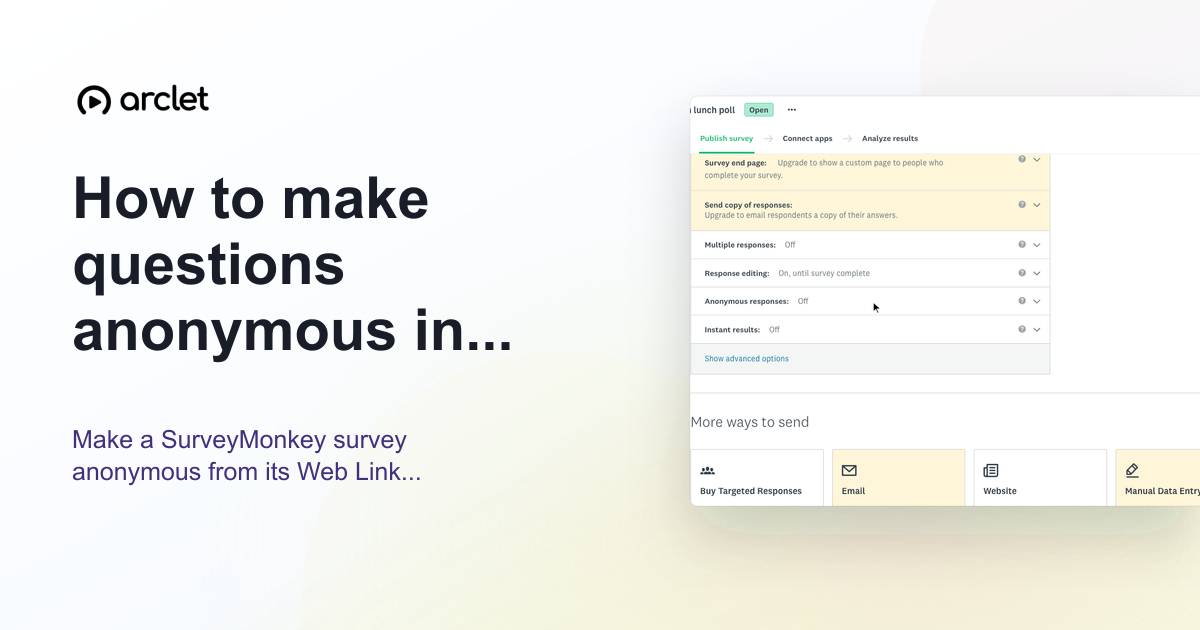
Quick answer
Open your survey's Web Link collector from the Publish survey step, scroll to the Anonymous responses setting, and expand it. Choose On, your respondents will be anonymous. The setting applies to responses collected through that link, so respondents' IP addresses are no longer included in your survey results.
Steps at a glance
- Open the survey's Web Link collector.
- Scroll to the Anonymous responses setting.
- Expand Anonymous responses.
- Choose the anonymous option.
- Check the setting reads On.
Interactive demo
Summary
Anonymous responses is a collector setting that stops SurveyMonkey from including respondents' IP addresses in your survey results. It lives on the Web Link collector page, and it is available on the free plan.
Step-by-step guide
Step 1
Find the collector settings
Open your survey's Web Link collector on the Publish survey step. Scroll down past the link box to the list of settings, where Anonymous responses currently shows Off.
Step 2
Open Anonymous responses
Click the Anonymous responses row to expand it. Two choices appear under it, one for anonymous responses and one that includes respondents' IP addresses in your results.
Step 3
Turn on anonymous responses
Select On, your respondents will be anonymous. The selection takes effect straight away, so there is no Save button for this setting.
Step 4
Confirm the setting
Check that the On option is selected. When the row is collapsed, the heading now reads Anonymous responses with On beside it.
Why this matters
You are asking colleagues for honest feedback on something sensitive, like a team change or a manager. People answer more openly when they know no identifying details are attached, and this one setting delivers that promise.
Frequently asked questions
Is anonymous responses a free feature?
Yes. The Anonymous responses setting was available and could be changed on a free plan with no upgrade prompt.
Can I switch it back off?
Yes. Expand the row again and choose Off, include respondents' IP addresses in your survey results.
Related guides
Continue with more step-by-step guides for getting work done.
 How to allow multiple responses in SurveyMonkeyLearn how to let people take your SurveyMonkey survey more than once from one device by changing the Multiple responses setting on a Web Link collector.
 How to get a web link for a SurveyMonkey surveyGet a shareable web link for a SurveyMonkey survey from the Surveys list, then copy it to paste into an email, a website, or a social media post.
 How to close a survey in SurveyMonkeyStop new responses to a SurveyMonkey survey by closing its collector: open Send survey, pick the web link, and confirm Close collector in a few clicks.
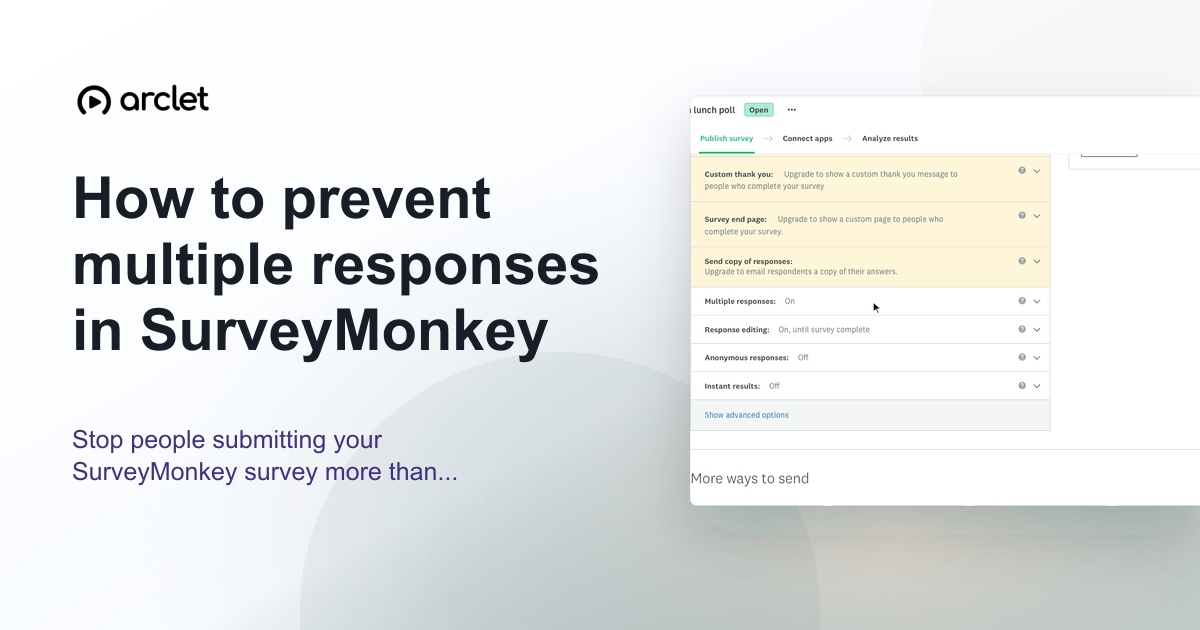 How to prevent multiple responses in SurveyMonkeyStop people submitting your SurveyMonkey survey more than once from the same device using the Web Link collector's Multiple responses setting.
 How to publish a survey in SurveyMonkeyPublish a finished SurveyMonkey survey from the Publish survey tab, copy its link, and find the Share a link option for posting it online.
 How to reopen a closed survey in SurveyMonkeyReopen a closed SurveyMonkey survey so people can respond again: open Send survey, pick the closed collector, and confirm Open collector in a few clicks.
Create interactive demos like this one — free, no coding required.
Start for free →