How to prevent multiple responses in SurveyMonkey
Stop people submitting your SurveyMonkey survey more than once from the same device using the Web Link collector's Multiple responses setting.
Quick answer
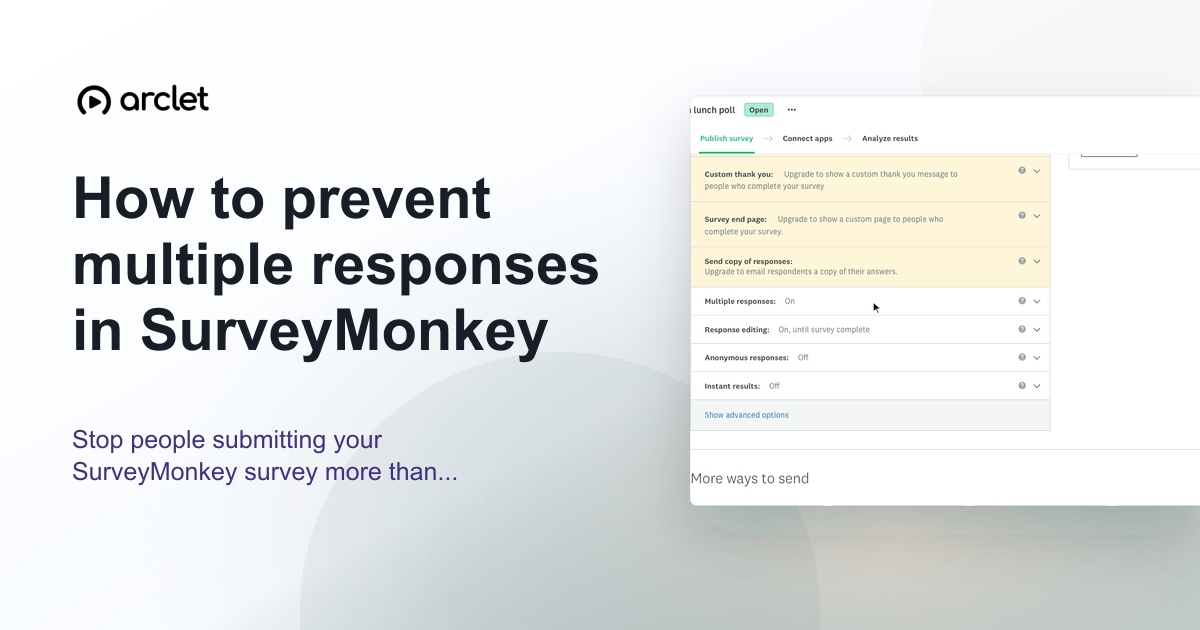
Open your survey's Web Link collector, scroll to Multiple responses, and expand it. Choose Off, only allow the survey to be taken once from the same device. SurveyMonkey saves the change and shows a confirmation, so each device can submit the survey a single time through that link.
Steps at a glance
- Open the survey's Web Link collector.
- Scroll to Multiple responses.
- Expand the Multiple responses row.
- Choose the once-per-device option.
- Check for the saved confirmation.
Interactive demo
Summary
The Multiple responses setting controls whether the same device can submit your survey more than once. It sits on the Web Link collector page, and the once-per-device option is free.
Step-by-step guide
Step 1
Find Multiple responses
Open your survey's Web Link collector from the Publish survey step. Scroll down past the link box to the settings list and find the Multiple responses row, which shows the current choice beside its name.
Step 2
Open Multiple responses
Click the Multiple responses row to expand it. The choices appear below, starting with On, allow the survey to be taken more than once from the same device.
Step 3
Allow one response per device
Select Off, only allow the survey to be taken once from the same device. The choice that uses custom variables is greyed out with a premium icon, so leave it alone on a free plan.
Step 4
Confirm the setting
A Your changes have been saved message appears briefly at the top of the page. Click the Multiple responses row again to collapse it and check that it now reads Off.
Why this matters
You are running a quick team vote or poll and do not want one person tipping the result by submitting repeatedly. Limiting each device to a single response keeps your numbers honest without any extra tools.
Frequently asked questions
Is limiting responses a free feature?
Yes. Choosing Off, only allow the survey to be taken once from the same device worked on a free plan.
Do I need to press Save?
No. The setting saved as soon as it was selected, and SurveyMonkey showed Your changes have been saved.
Related guides
Continue with more step-by-step guides for getting work done.
 How to allow multiple responses in SurveyMonkeyLearn how to let people take your SurveyMonkey survey more than once from one device by changing the Multiple responses setting on a Web Link collector.
 How to get a web link for a SurveyMonkey surveyGet a shareable web link for a SurveyMonkey survey from the Surveys list, then copy it to paste into an email, a website, or a social media post.
 How to close a survey in SurveyMonkeyStop new responses to a SurveyMonkey survey by closing its collector: open Send survey, pick the web link, and confirm Close collector in a few clicks.
 How to publish a survey in SurveyMonkeyPublish a finished SurveyMonkey survey from the Publish survey tab, copy its link, and find the Share a link option for posting it online.
 How to reopen a closed survey in SurveyMonkeyReopen a closed SurveyMonkey survey so people can respond again: open Send survey, pick the closed collector, and confirm Open collector in a few clicks.
 How to share survey results in SurveyMonkeyShare SurveyMonkey survey results through a public shared data page: open Analyze results, create a shared data link, get the link and save it.
Create interactive demos like this one — free, no coding required.
Start for free →