How to share survey results in SurveyMonkey
Share SurveyMonkey survey results through a public shared data page: open Analyze results, create a shared data link, get the link and save it.
Quick answer
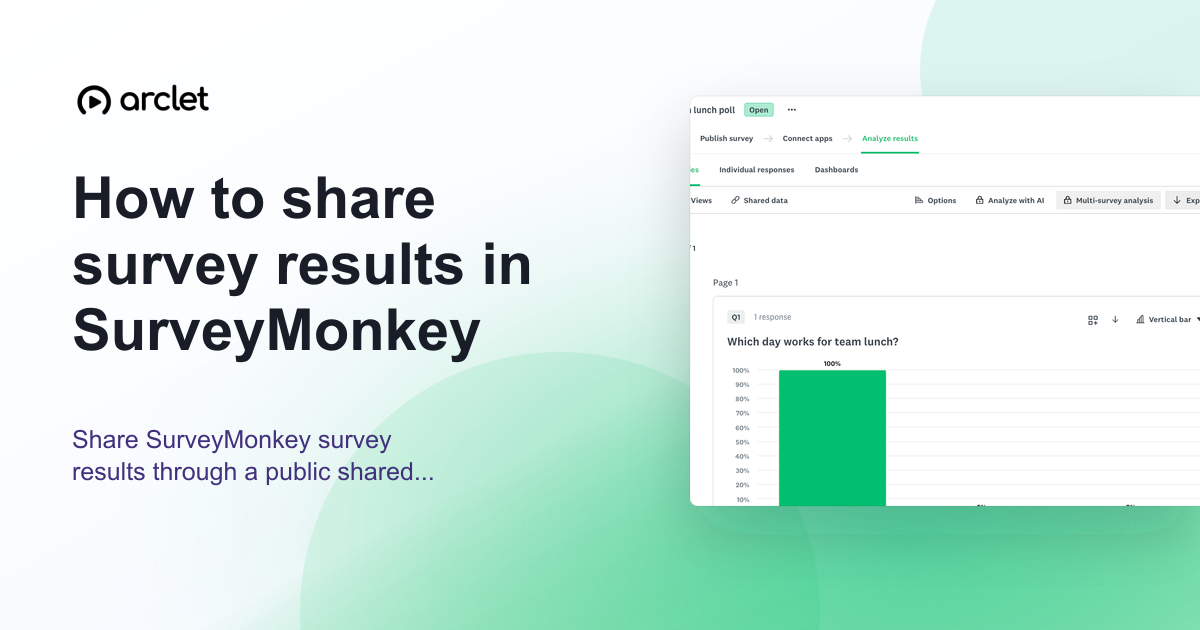
To share survey results in SurveyMonkey, open your survey's Analyze results step, click Share, and choose New shared data link. In the Share Data window, review the page title and options, click GET LINK to generate a web link, then click SAVE. Anyone with the link can view your results.
Steps at a glance
- Open your survey and go to Analyze results
- Click Share
- Choose New shared data link
- Review the page title and options in Share Data
- Click GET LINK to generate the web link
- Click SAVE to keep the shared link
Interactive demo
Summary
A shared data link gives people a web page showing your survey results without needing a SurveyMonkey login. You create it from the Analyze results step, and it works on the free plan.
Step-by-step guide
Step 1
Open the Share menu
Open your survey and go to the Analyze results step. Click Share in the toolbar at the top right of the results.
Step 2
Create a shared data link
In the menu that opens, click New shared data link. The menu also lists Previous shared data link and Dashboard link options.
Step 3
Review what the shared page includes
A Share Data window opens with the page title already set to your survey name. Check the page title and the options before you continue. The Password option shows an Upgrade button, so it is not free.
Step 4
Get the shared link
Click GET LINK. SurveyMonkey generates the web link to your shared results page.
Step 5
Save the shared link
Click SAVE to keep the link. You can then share the web link with anyone who should see the results.
Why this matters
Your team lunch poll has results and your team wants to see them. Instead of exporting data or taking screenshots, you create one link that shows the results page, which you can post wherever your team already talks.
Frequently asked questions
Do I need a paid plan to share results?
No. Creating a shared data link worked on a free account. Only the Password and branding options in the window showed Upgrade buttons.
Who can see the shared results?
The Share Data window says anyone with the link can access the data when Password is off.
Related guides
Continue with more step-by-step guides for getting work done.
 How to get a web link for a SurveyMonkey surveyGet a shareable web link for a SurveyMonkey survey from the Surveys list, then copy it to paste into an email, a website, or a social media post.
 How to publish a survey in SurveyMonkeyPublish a finished SurveyMonkey survey from the Publish survey tab, copy its link, and find the Share a link option for posting it online.
 How to activate a survey in SurveyMonkeyLearn how to activate a SurveyMonkey survey by opening the Publish survey step, copying your survey link, and heading to Analyze results.
 How to use a template in SurveyMonkeyStart from a ready-made SurveyMonkey template: open Start with a template, pick one without a paid lock, and review its questions in the editor.
 How to use SurveyMonkey for RSVPCollect event RSVPs in SurveyMonkey with the free RSVP Form template: pick it, review the attendance and guest questions, then move on to publishing.
 How to use question logic in SurveyMonkeyUse question logic in SurveyMonkey: open a question's Logic tab, send each answer to a page or the end of the survey, and save the rule.
Create interactive demos like this one — free, no coding required.
Start for free →