How to use question logic in SurveyMonkey
Use question logic in SurveyMonkey: open a question's Logic tab, send each answer to a page or the end of the survey, and save the rule.
Quick answer
To use question logic in SurveyMonkey, open a multiple-choice question, switch to its Logic tab, pick a destination for an answer under Then skip to, such as End of survey, and click Save. That answer then sends respondents to the page you chose, and the survey shows that the logic was applied.
Steps at a glance
- Select the question in the survey editor
- Open the Logic tab on the question
- Open the -- Choose page -- menu next to an answer
- Pick a destination such as End of survey
- Click Save to apply the logic
Interactive demo
Summary
Question logic lets each answer choice send respondents somewhere specific in your survey. It keeps people from answering questions that do not apply to them, and it is available on the free plan. Page skip logic, which moves everyone who finishes a page, is a separate setting.
Step-by-step guide
Step 1
Select the question
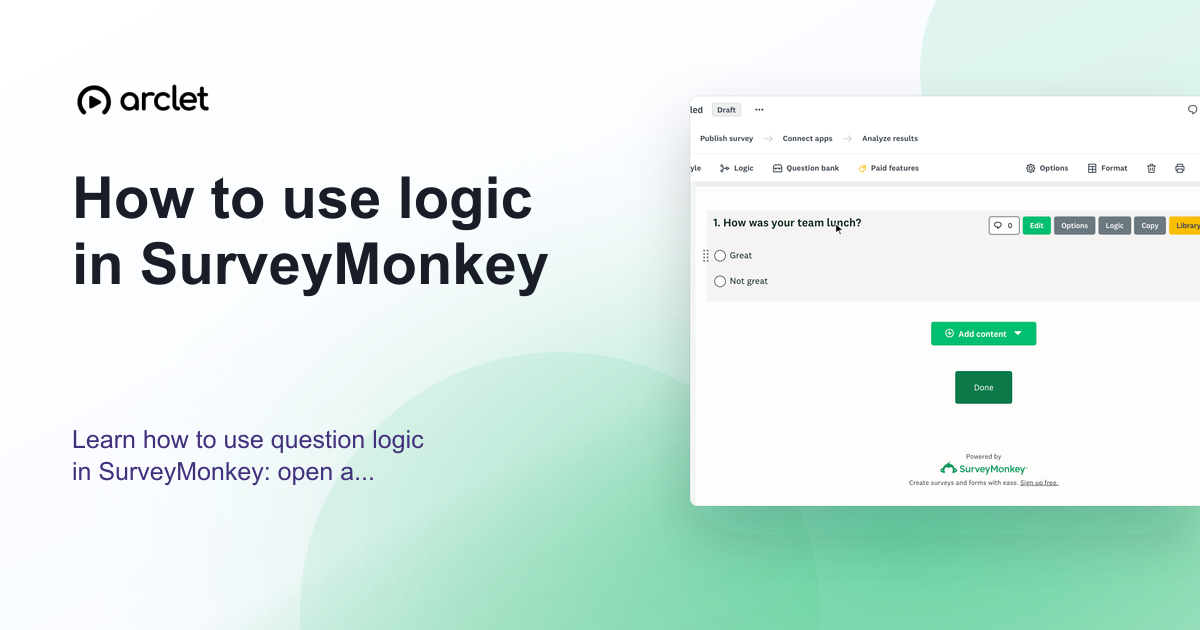
Open your survey in the editor and click the question you want to add logic to, such as 1. How was your team lunch?. The question opens in edit mode with its own tabs.
Step 2
Open the Logic tab
In the question editor, click Logic. The tab lists each answer choice under If answer is ... with a matching Then skip to ... column.
Step 3
Open the skip menu for an answer
Find the answer you want to control, for example Great, and click its -- Choose page -- menu to see the available destinations.
Step 4
Choose where respondents skip to
Pick a destination from the list. The menu shows Page 1, End of survey and Disqualification page. Choose End of survey to finish the survey for people who pick that answer.
Step 5
Save the logic
Click Save to apply the rule. SurveyMonkey confirms with Logic applied: Changes to this question will be limited. and the row now reads End of survey.
Why this matters
You are running a short team lunch poll and some people have nothing more to say after the first question. Setting an answer to skip to the end of the survey spares them the extra questions and keeps your completion rate up.
Frequently asked questions
Can I set a different destination for each answer?
Yes. The Logic tab lists every answer choice in its own row, each with its own Choose page menu.
Do I need a paid plan to use question logic?
No. The Logic tab appeared on a free account without any upgrade prompt.
Related guides
Continue with more step-by-step guides for getting work done.
 How to add a new page in SurveyMonkeyAdd a new page to a draft survey in SurveyMonkey: open it in the Design survey tab, select New page, and start a question on the new page.
 How to add multiple choice in SurveyMonkeyAdd a multiple choice question to a new SurveyMonkey survey: confirm the question type, type the question and answers, and save it to the draft.
 How to do skip logic in SurveyMonkeySet up skip logic in SurveyMonkey on the free plan: open the Logic menu, choose Page skip logic, pick a destination page, and apply the rule.
 How to view survey results in SurveyMonkeySee how to open a survey's results in SurveyMonkey, read the Question summaries chart for each question, and review Individual responses one by one.
 How to activate a survey in SurveyMonkeyLearn how to activate a SurveyMonkey survey by opening the Publish survey step, copying your survey link, and heading to Analyze results.
 How to add a Likert scale in SurveyMonkeyAdd a Likert scale to a SurveyMonkey survey with the Matrix / Rating scale question type, from strongly disagree to strongly agree, step by step.
Create interactive demos like this one — free, no coding required.
Start for free →