How to view survey results in SurveyMonkey
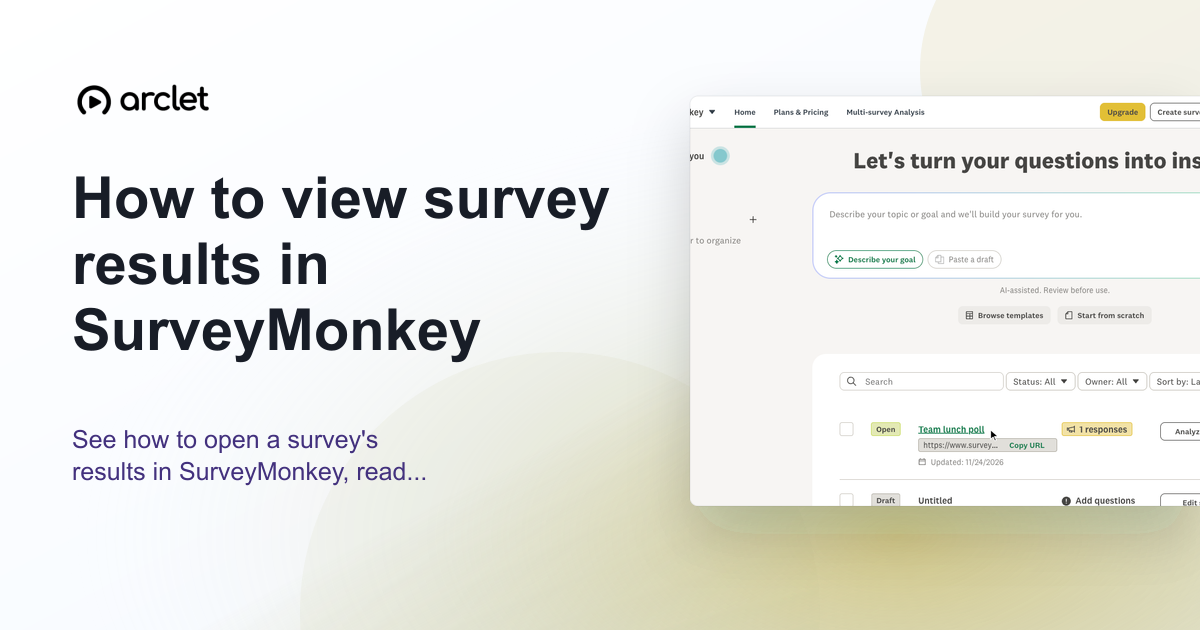
See how to open a survey's results in SurveyMonkey, read the Question summaries chart for each question, and review Individual responses one by one.
Quick answer
Open your survey from the Surveys list, select the Analyze results tab, and stay on Question summaries to see a bar chart for each question with its response count. Then open Individual responses to review answers respondent by respondent. The page shows how many people responded out of the total.
Steps at a glance
- Open your survey from the Surveys list.
- Select the Analyze results tab.
- Read the chart under Question summaries.
- Check the response count for each question.
- Open Individual responses to review each respondent.
Interactive demo
Summary
SurveyMonkey puts every result under the Analyze results tab. Question summaries charts each question, and Individual responses lists each respondent. Together they show what people answered and how many responded.
Step-by-step guide
Step 1
Open your survey
On the home page, find your survey in the Surveys list. Click its title to open it. The row also shows how many responses the survey has so far.
Step 2
Open the Analyze results tab
In the step bar at the top, click Analyze results. It sits after Design survey, Publish survey and Connect apps.
Step 3
Read the Question summaries chart
The Question summaries tab opens first. Under RESPONDENTS: 1 of 1 each question gets its own chart. Hover a bar to see the share and number of responses for that answer.
Step 4
Open Individual responses
Click Individual responses to review answers respondent by respondent instead of as a chart. Use this view to check what one person answered.
Why this matters
You sent a survey and now need to know what people said. Opening the results gives you a chart per question for the headline answer, plus a respondent-level view to check a single reply before you share the outcome with your team.
Frequently asked questions
Where do I find my survey results?
Open the survey and click Analyze results in the step bar at the top.
What is the difference between the two views?
Question summaries charts each question, while Individual responses shows answers respondent by respondent.
Related guides
Continue with more step-by-step guides for getting work done.
 How to publish a survey in SurveyMonkeyPublish a finished SurveyMonkey survey from the Publish survey tab, copy its link, and find the Share a link option for posting it online.
 How to get a web link for a SurveyMonkey surveyGet a shareable web link for a SurveyMonkey survey from the Surveys list, then copy it to paste into an email, a website, or a social media post.
 How to activate a survey in SurveyMonkeyLearn how to activate a SurveyMonkey survey by opening the Publish survey step, copying your survey link, and heading to Analyze results.
 How to add a Likert scale in SurveyMonkeyAdd a Likert scale to a SurveyMonkey survey with the Matrix / Rating scale question type, from strongly disagree to strongly agree, step by step.
 How to add a link in SurveyMonkeyAdd a clickable link to a SurveyMonkey question: use the text toolbar to insert a link, set the display text and address, then save the question.
 How to add multiple choice in SurveyMonkeyAdd a multiple choice question to a new SurveyMonkey survey: confirm the question type, type the question and answers, and save it to the draft.
Create interactive demos like this one — free, no coding required.
Start for free →