How to use SurveyMonkey for RSVP
Collect event RSVPs in SurveyMonkey with the free RSVP Form template: pick it, review the attendance and guest questions, then move on to publishing.
Quick answer
Open Browse templates, choose the free RSVP Form, and click Use this template. The editor opens a draft with an attendance question, a guest count question, and name, email and phone fields. Review them, adjust as needed, then go to Publish survey to share the form.
Steps at a glance
- Open the templates page and find RSVP Form
- Click the RSVP Form template
- Click Use this template
- Review the guest count question
- Check the contact detail questions
- Go to Publish survey
Interactive demo
Summary
SurveyMonkey's RSVP Form template gives you a ready-made event response form on the free plan. It asks whether guests will attend, how many are coming, and how to reach them, so you skip building each question by hand.
Step-by-step guide
Step 1
Pick the RSVP Form template
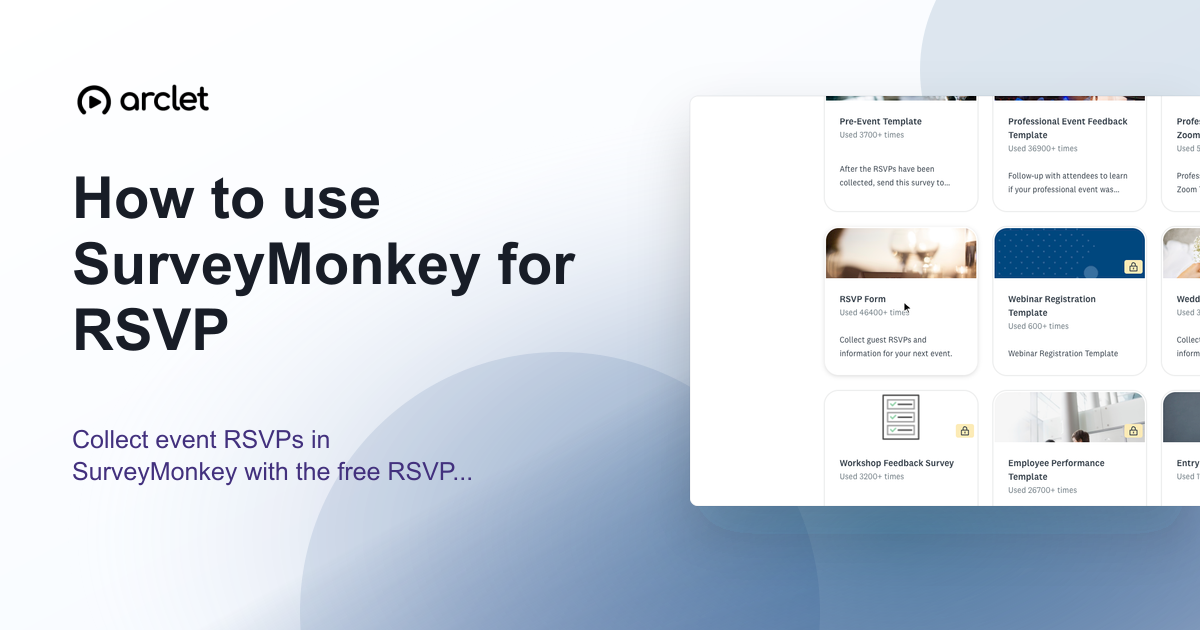
On the templates page, find the RSVP Form card that reads "Collect guest RSVPs and information for your next event." Choose the one without a lock icon, since locked templates need an upgrade. Click it to open its preview.
Step 2
Use this template
The preview shows the RSVP Form title and welcome message. Click Use this template in the right panel to copy it into the survey editor as a new draft.
Step 3
Review the guest count question
The editor opens with the draft marked Draft. Question 1 asks "Will you be attending this event?" with Yes and No answers. Question 2 asks "How many guests will be joining you?". Hover a question to see its Edit button if you want to change the wording.
Step 4
Collect guest contact details
Further down, the template asks for first name, last name, email address and phone number. Each question is marked required, so every guest has to fill them in before submitting.
Step 5
Go to Publish survey
When the questions look right, click Publish survey in the top navigation to move on to sharing the form with your guests.
Why this matters
You are planning an event and need a head count fast. Starting from the RSVP Form template gives you attendance, guest numbers and contact details in one form, so you can spend your time on the invitation instead of survey setup.
Frequently asked questions
Can I edit the RSVP questions?
Yes. The template opens as an editable draft, and each question shows an Edit button when you hover it.
Which questions does the RSVP Form include?
It asks whether the guest will attend, how many guests will join, and the guest's first name, last name, email address and phone number.
Related guides
Continue with more step-by-step guides for getting work done.
 How to use a template in SurveyMonkeyStart from a ready-made SurveyMonkey template: open Start with a template, pick one without a paid lock, and review its questions in the editor.
 How to publish a survey in SurveyMonkeyPublish a finished SurveyMonkey survey from the Publish survey tab, copy its link, and find the Share a link option for posting it online.
 How to create a survey in SurveyMonkeyCreate a survey in SurveyMonkey from scratch: name it, type your first question, and save it. A step-by-step guide for the free plan editor.
 How to view survey results in SurveyMonkeySee how to open a survey's results in SurveyMonkey, read the Question summaries chart for each question, and review Individual responses one by one.
 How to activate a survey in SurveyMonkeyLearn how to activate a SurveyMonkey survey by opening the Publish survey step, copying your survey link, and heading to Analyze results.
 How to add a Likert scale in SurveyMonkeyAdd a Likert scale to a SurveyMonkey survey with the Matrix / Rating scale question type, from strongly disagree to strongly agree, step by step.
Create interactive demos like this one — free, no coding required.
Start for free →