How to add a cover image in Trello
Add a cover to a Trello card from the card back: open Cover, pick a colour or Unsplash photo, and choose the size so the card stands out on the board.
Quick answer
To add a cover to a Trello card, open the card, click Cover in the card header, then pick a colour from the Colors section or a photo from Photos from Unsplash. Choose Title under cover or Title on cover for the size, and the cover shows at the top of the card.
Steps at a glance
- Open the card you want to decorate.
- Click Cover in the card header.
- Pick a colour from the Colors section.
- Choose a cover size at the top of the popover.
- Click Remove cover if you want to undo it.
Interactive demo
Summary
A card cover adds a colour or photo to the top of a card so it stands out among its neighbours. Trello offers colour swatches, Unsplash photos, and an upload option from the same Cover popover.
Step-by-step guide
Step 1
Open the cover options
Open the card by clicking its title on the board. In the card header, click Cover to open the Cover popover.
Step 2
Pick a cover colour
In the Colors section, click a swatch such as blue. The card back shows the colour straight away. For a photo instead, scroll to Photos from Unsplash and click an image.
Step 3
Choose the cover size
At the top of the popover, Size offers Title under cover and Title on cover. Click the one you want. A Remove cover button appears once a cover is set.
Why this matters
You have a board full of similar-looking cards and one of them needs to catch your team's eye at a glance. A cover colour or photo makes that card easy to spot without changing its title or position.
Frequently asked questions
Can I use a photo instead of a colour?
Yes. The Cover popover lists Photos from Unsplash below the Colors section, and also an Upload a cover image button.
Can I change how the title sits on the cover?
Yes. The Size options at the top of the popover are Title under cover and Title on cover.
Related guides
Continue with more step-by-step guides for getting work done.
 How to add a card in TrelloAdd a card to any list on your Trello board in four steps: click Add a card, name it, confirm with Add card, then open the card to add detail.
 How to add a label in TrelloLearn how to add a label in Trello: open a card, create a new label with a title and colour, and see it appear on the card in a few clicks.
 How to change the background in TrelloChange your Trello board background in four steps: open the board menu, choose Change background, then pick a gradient or solid color from Colors.
 How to add a due date in TrelloSet a due date on a Trello card in four steps: open the card, click Dates, pick a day in the calendar, save it and see the date on the card.
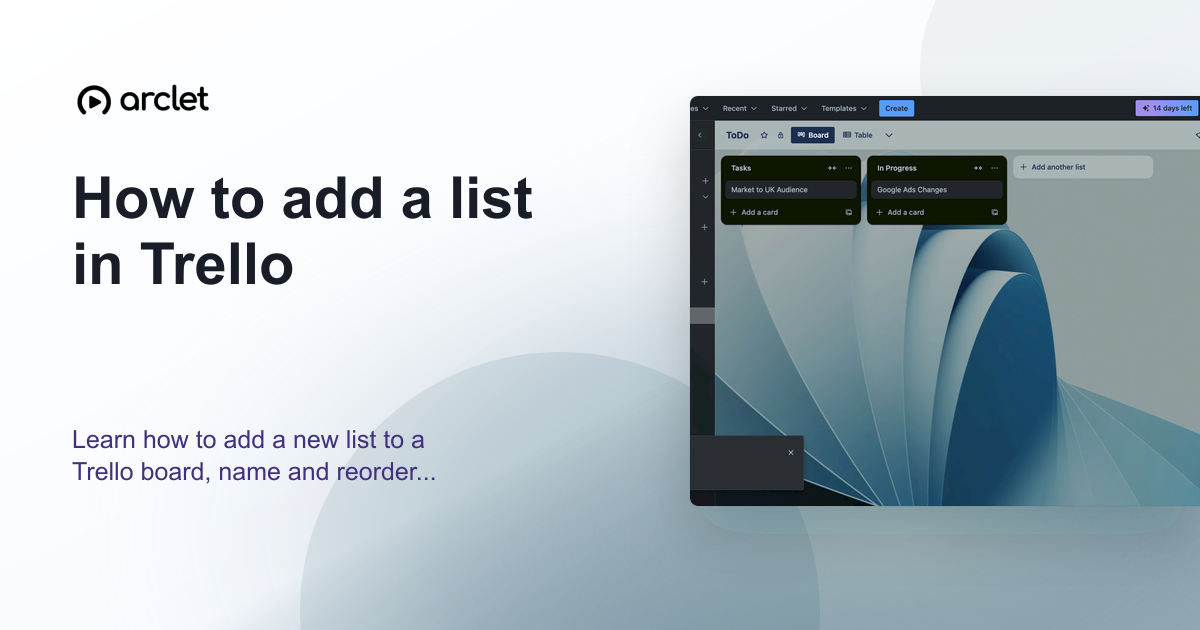 How to add a list in TrelloLearn how to add a new list to a Trello board, name and reorder lists, and use them to structure your project workflow stages.
 How to add an attachment in TrelloLearn how to add an attachment to a Trello card by pasting a link, so related pages and references stay attached to the work they belong to.
Create interactive demos like this one — free, no coding required.
Start for free →