How to add a label in Trello
Learn how to add a label in Trello: open a card, create a new label with a title and colour, and see it appear on the card in a few clicks.
Quick answer
Open a card in Trello, click Labels in the Add to card section, then choose Create a new label. Type a title, pick a colour from the Select a color palette, and click Create. Trello applies the new label to the card, so it shows in the card's Labels group straight away.
Steps at a glance
- Open the card you want to label.
- Click Labels on the card.
- Choose Create a new label.
- Type a title and pick a colour.
- Click Create to add the label.
Interactive demo
Summary
Labels are coloured tags you attach to cards so you can group and spot work at a glance. In Trello you create a label from the card itself, give it a title and a colour, and it is added to that card.
Step-by-step guide
Step 1
Open the card
Go to your board and click the title of the card you want to label. The card opens in a dialog with its details.
Step 2
Open the Labels menu
In the card dialog, find the Add to card options and click Labels. A Labels popover opens with a search box and a list of existing labels.
Step 3
Create a new label
At the bottom of the popover, click Create a new label. This opens the Create label screen.
Step 4
Pick a colour
Type a short name in the Title box, such as Urgent. Then click a swatch under Select a color. The preview at the top of the screen updates to show your choice.
Step 5
Create the label
Click Create. Trello saves the label, and it appears under Labels on the card.
Why this matters
You have a list full of cards and cannot tell the urgent ones from the rest. Adding a coloured label such as Urgent to a card makes priority visible on the card itself, so you can scan the board and know where to start.
Frequently asked questions
Do I need to name a label?
The Create label screen has a Title box, so you can give the label a name such as Urgent. Add one so the label is easy to recognise on the card.
Does the new label go on the card automatically?
Yes. After clicking Create, the label appeared in the Labels group on the card we had open.
Related guides
Continue with more step-by-step guides for getting work done.
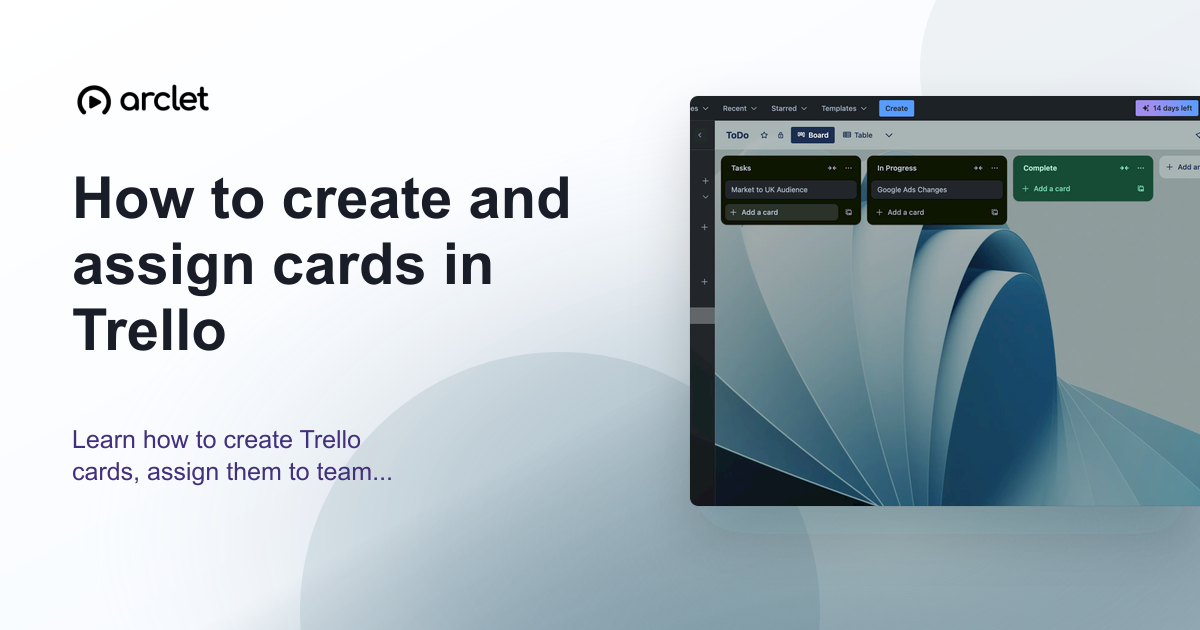 How to create and assign cards in TrelloLearn how to create Trello cards, assign them to team members, set due dates, and organise tasks across your board lists.
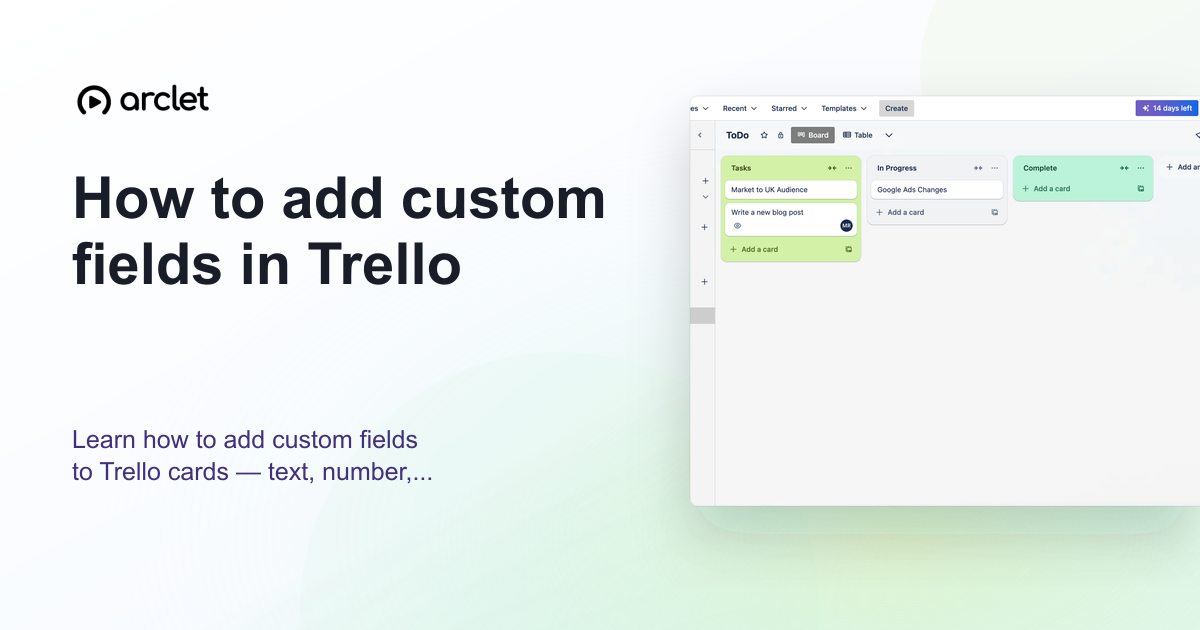 How to add custom fields in TrelloLearn how to add custom fields to Trello cards — text, number, date, checkbox, and dropdown types — to track extra card data.
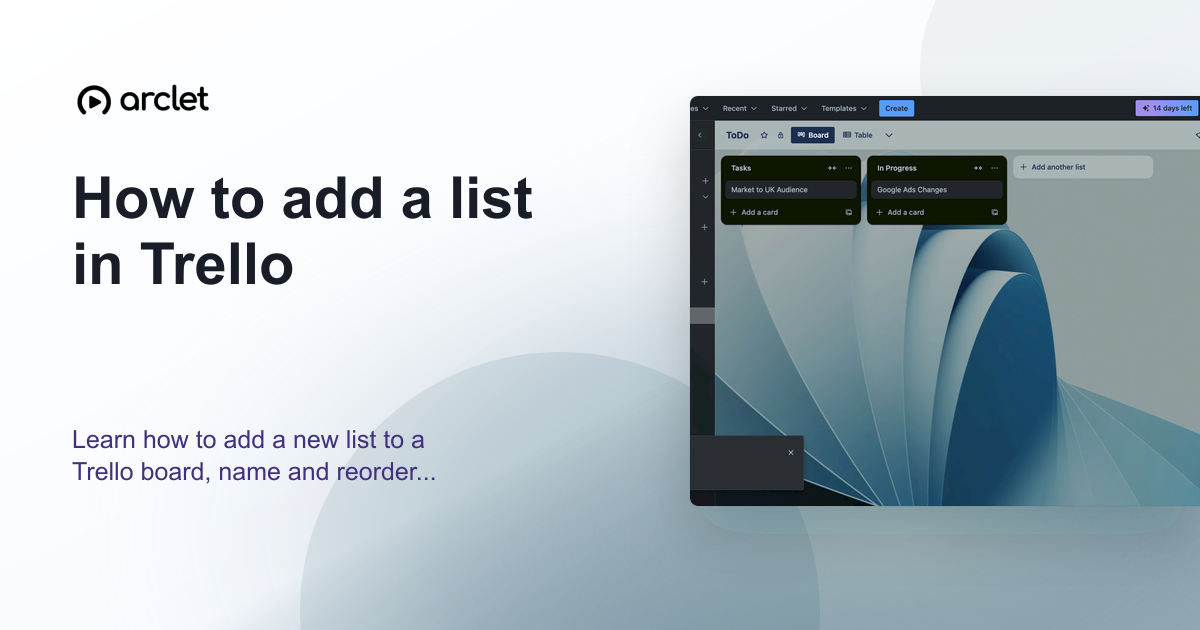 How to add a list in TrelloLearn how to add a new list to a Trello board, name and reorder lists, and use them to structure your project workflow stages.
 How to add an attachment in TrelloLearn how to add an attachment to a Trello card by pasting a link, so related pages and references stay attached to the work they belong to.
 How to add automation buttons in TrelloAdd a Trello board button from the Automation dashboard: name it, give it an action that creates a card in a list, and save it to run on one click.
 How to add Power-Ups in TrelloAdd Power-Ups to a Trello board from the board menu: open the Power-Ups directory, browse Made by Trello options, and click Add to enable one.
Create interactive demos like this one — free, no coding required.
Start for free →