How to create and assign cards in Trello
Learn how to create Trello cards, assign them to team members, set due dates, and organise tasks across your board lists.
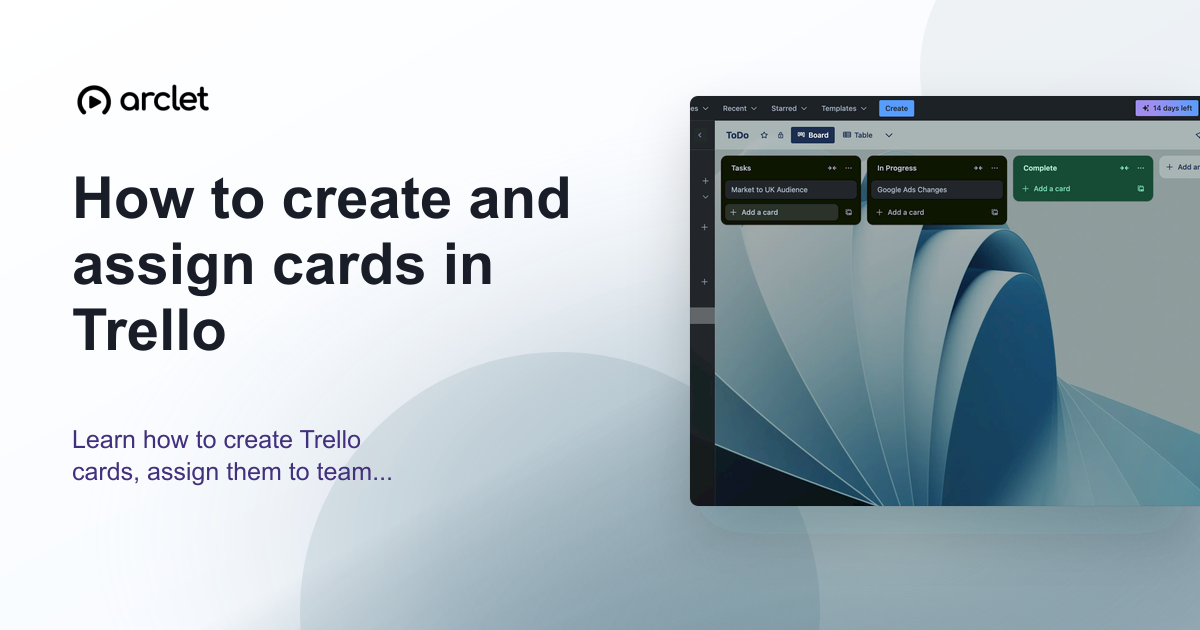
Quick answer
To create a card in Trello, click + Add a card at the bottom of a list, type a name, and press Enter. To assign it, open the card by clicking on it, then click Members in the card sidebar and select the team member to assign.
Steps at a glance
- Click + Add a card at the bottom of a list.
- Type the card name and press Enter.
- Click the card to open it.
- Click Members in the right sidebar.
- Search for and click a team member to assign them.
Interactive demo
This interactive demo was created free with Arclet in 3 minutes.
Create your own demo →Summary
Cards in Trello represent individual tasks or items. Each card can have a description, attachments, checklist, due date, labels, and one or more assigned members. Assigned members receive notifications when the card is updated and can filter the board to see only their cards.
Step-by-step guide
Step 1
Click Add a card
Scroll to the bottom of the list where you want to add the card. Click + Add a card. An input field appears.
Step 2
Name the card and press Enter
Type a short, descriptive name for the card and press Enter. The card is created and added to the list.
Step 3
Open the card
Click on the card name to open the card detail view. This is where you can add descriptions, attachments, due dates, and members.
Step 4
Assign a member
In the card sidebar on the right, click Members. A search field appears. Type the team member's name and click their avatar to assign them to the card.
Step 5
Add a description (optional)
Click on the Description field in the card body and type details about the task. Markdown formatting is supported for bold, italic, and bullet points.
Why this matters
You've just come out of a meeting where tasks were handed out, and you need to get each action item into Trello and assigned to the right person before momentum fades and things get forgotten.
Troubleshooting
I cannot assign a member — the person does not appear in the Members search
Only workspace members can be assigned to cards. Invite the person to the workspace first, or share the board with them via email.
The Add a card button is not visible
You may not have edit access to this board. Cards can only be created with edit permissions. Ask the board owner to adjust your access level.
Frequently asked questions
Can a card be assigned to multiple people?
Yes. Open the card, click Members, and select multiple team members. All assignees appear on the card front and receive notifications.
How do I filter the board to see only cards assigned to me?
Click Filter in the top-right toolbar of the board, then click your avatar under Members. The board dims all cards not assigned to you.
Related guides
Continue with more step-by-step guides for getting work done.
 How to delete a card in TrelloLearn how to archive and permanently delete a card in Trello, and when to choose each option to keep your board organised.
 How to see archived cards in TrelloLearn how to view archived cards in Trello, search for specific ones, and restore or permanently delete them from the archive.
 How to add custom fields in TrelloLearn how to add custom fields to Trello cards — text, number, date, checkbox, and dropdown types — to track extra card data.
Create interactive demos like this one — free, no coding required.
Start for free →