How to delete a board in Trello
Delete a Trello board for good: close it from the board menu, then use Permanently delete board and confirm. Closing comes first, and deleting has no undo.
Quick answer
Open the board, click Show menu, and choose Close board, then confirm by clicking Close. On the closed board, open the menu again and choose Permanently delete board. Confirm with Delete. Deleting removes all lists, cards and actions, and there is no undo, so reopen instead if unsure.
Steps at a glance
- Open the board menu with Show menu
- Choose Close board
- Confirm by clicking Close
- Open the menu on the closed board
- Choose Permanently delete board
- Confirm by clicking Delete
Interactive demo
Summary
Trello deletes a board in two stages. You close the board first, then permanently delete it from the closed board's menu. Closing is reversible, and permanent deletion is not.
Step-by-step guide
Step 1
Open the board menu
Open the board you want to remove and click Show menu at the top right. The board menu slides open with its options.
Step 2
Click Close board
Scroll to the bottom of the menu and click Close board. A small confirmation popover opens.
Step 3
Confirm by clicking Close
The Close board? popover explains that you can find and reopen closed boards at the bottom of your boards page. Click Close to confirm.
Step 4
Open the board menu on the closed board
The board now shows a banner that says it is closed, with a Reopen board link. Click Show menu again to open the menu for the closed board.
Step 5
Click Permanently delete board
The closed board's menu lists extra options. Click Permanently delete board to start the deletion.
Step 6
Confirm by clicking Delete
The Delete board? popover warns that all lists, cards and actions will be deleted and that there is no undo. Click Delete only if you are sure.
Why this matters
You have a finished or test board cluttering your workspace and you want it gone for good, not just hidden. Knowing the two-stage path lets you remove it safely and avoid deleting a board you still need.
Frequently asked questions
Can I undo deleting a board?
No. The confirmation popover says you won't be able to re-open the board and there is no undo.
What is the difference between closing and deleting a board?
A closed board can be found and reopened from the bottom of your boards page. A deleted board is gone for good, along with its lists, cards and actions.
Related guides
Continue with more step-by-step guides for getting work done.
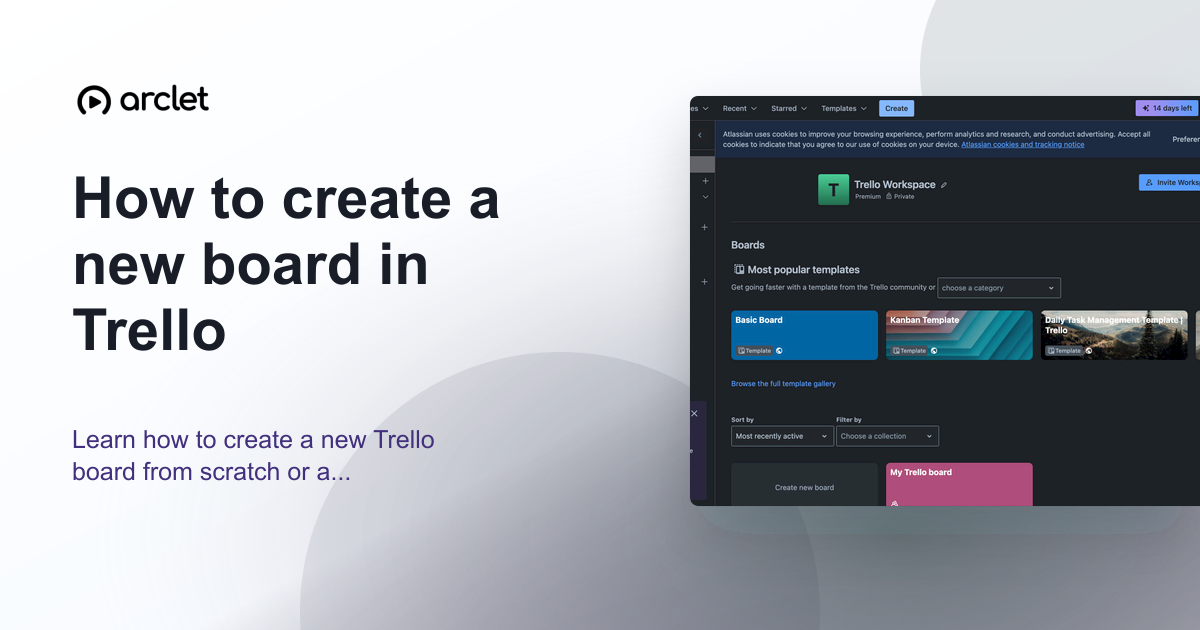 How to create a new board in TrelloLearn how to create a new Trello board from scratch or a template, set a background colour or image, and configure visibility.
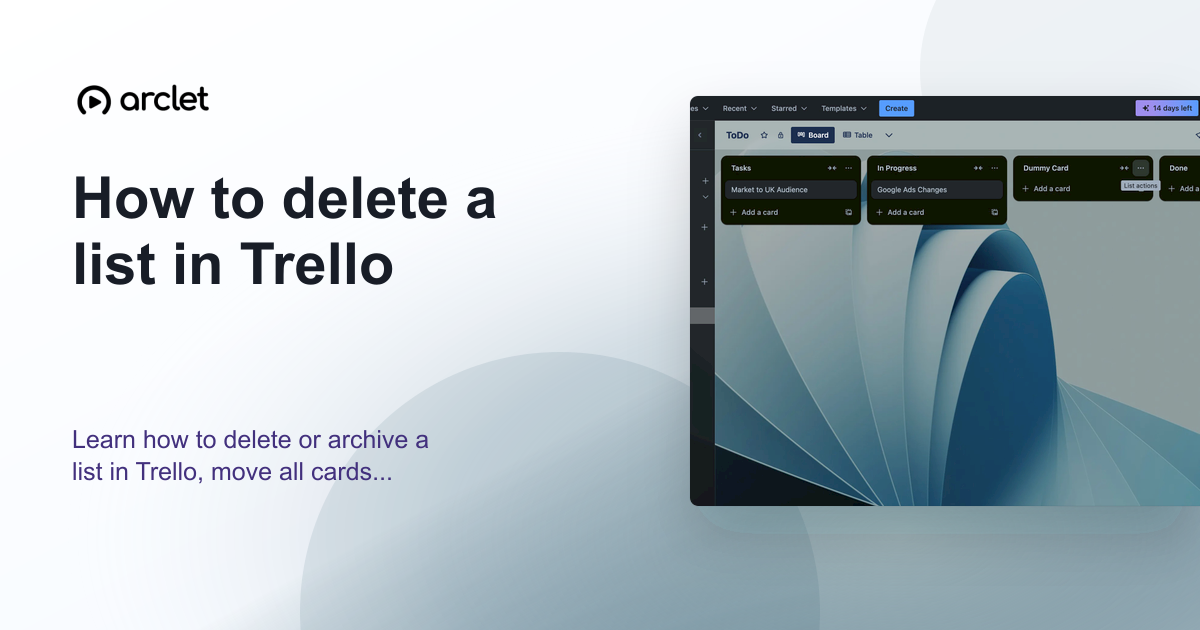 How to delete a list in TrelloLearn how to delete or archive a list in Trello, move all cards to another list first, and recover a list from the archive.
 How to add a label in TrelloLearn how to add a label in Trello: open a card, create a new label with a title and colour, and see it appear on the card in a few clicks.
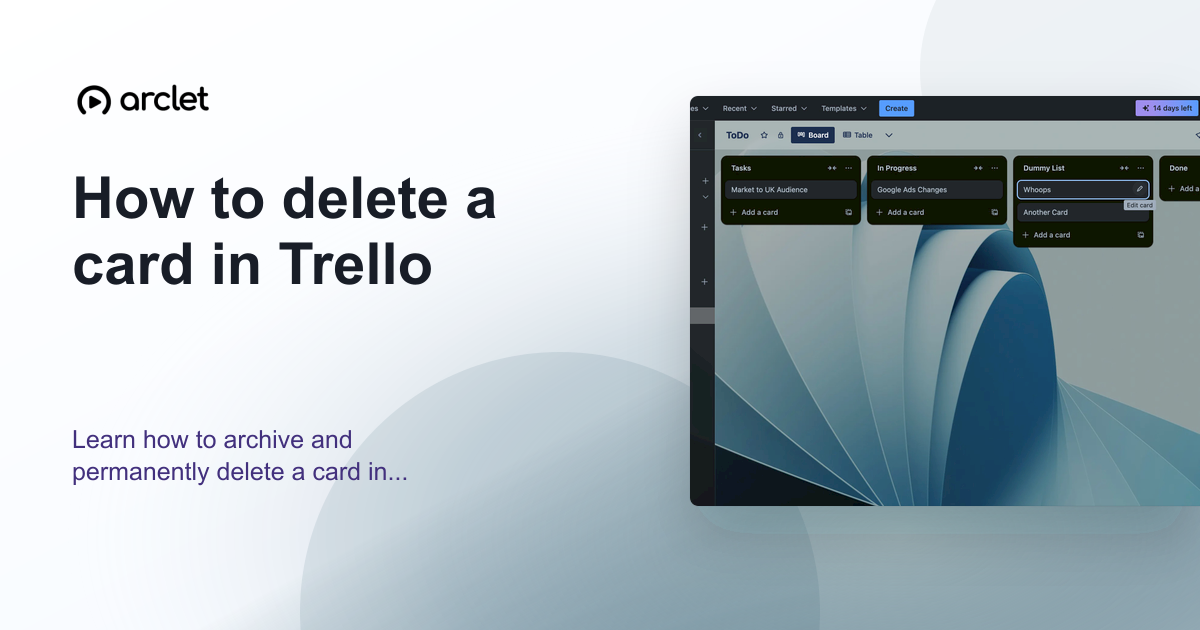 How to delete a card in TrelloLearn how to archive and permanently delete a card in Trello, and when to choose each option to keep your board organised.
 How to export a Trello boardFind the export options for a Trello board: open the board menu, choose Print, export, and share, and pick Export as JSON from the list of options.
 How to filter cards in TrelloFilter cards on a Trello board with the Filter button: type a keyword in the Filter popover, see which lists match, and use Clear all to reset the view.
Create interactive demos like this one — free, no coding required.
Start for free →