How to create a new board in Trello
Learn how to create a new Trello board from scratch or a template, set a background colour or image, and configure visibility.
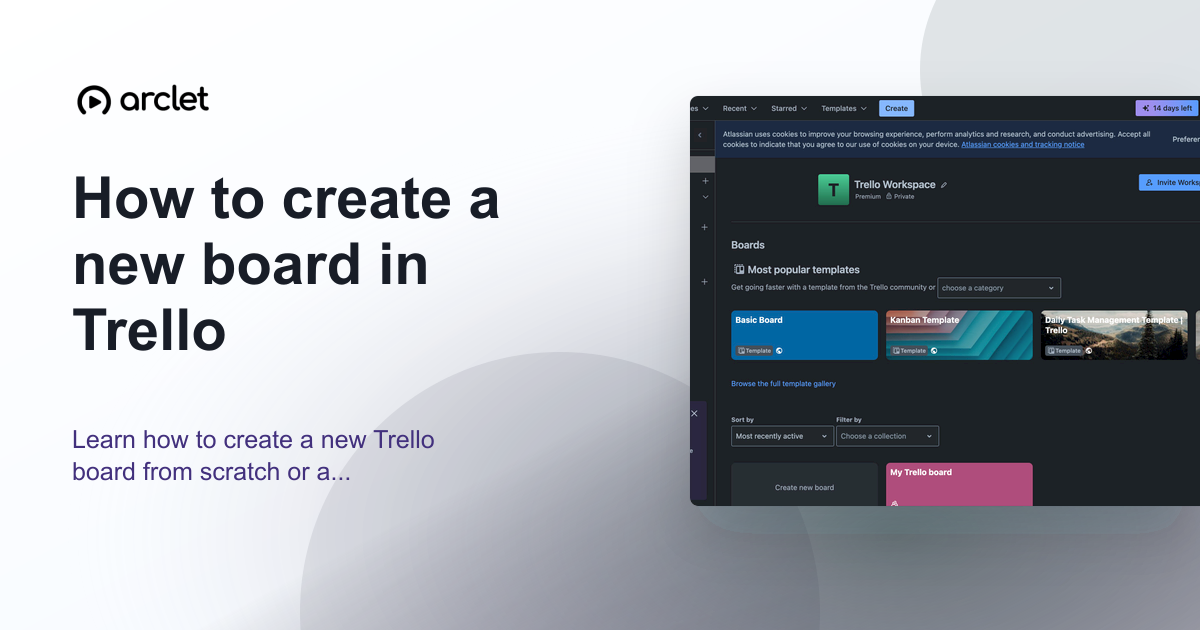
Quick answer
To create a new Trello board, click the + icon in the top navigation bar or click Create new board on the home screen. Give the board a name, choose a background color or image, select a workspace, and click Create. Your board opens with default lists ready to use.
Steps at a glance
- Click + in the top navigation bar.
- Click Create board.
- Type a board name.
- Choose a background and workspace.
- Click Create — your board is ready.
Interactive demo
This interactive demo was created free with Arclet in 2 minutes.
Create your own demo →Summary
A Trello board is a project workspace that holds lists and cards. Boards can be personal or shared with a team workspace. When you create a board, Trello adds three starter lists (To Do, Doing, Done) that you can rename or delete. You can create up to 10 boards per workspace on the free plan.
Step-by-step guide
Step 1
Open the Create board dialog
Click the + icon in the top navigation bar, then click Create board. Or click the Create new board tile on your Trello home screen.
Step 2
Name the board
Type a descriptive name for the board in the Board title field. The name should reflect the project or workflow it will track.
Step 3
Choose a background
Select a background color or image from the options shown. You can choose from solid colors or photo backgrounds. This is purely visual.
Step 4
Select a workspace
Choose which Trello workspace the board belongs to. On the free plan, boards in a workspace can be shared with workspace members.
Step 5
Create the board
Click Create board. The board opens with three default lists: To Do, Doing, and Done. You can rename or delete these and add new lists.
Why this matters
A new project is kicking off and you need a Trello board set up before work starts. You want it named correctly, placed in the right workspace, and ready for the team to start adding cards.
Troubleshooting
Create board is greyed out
You may have reached the 10-board limit on the free plan for this workspace. Archive or delete an existing board to create a new one, or upgrade to Standard or Premium for unlimited boards.
I cannot add the board to a specific workspace
You must be a member of the workspace to add boards to it. Ask the workspace admin to invite you.
Frequently asked questions
How many boards can I create on the Trello free plan?
The free plan allows up to 10 open boards per workspace. Archived boards do not count toward this limit.
Can I copy an existing board to create a new one?
Yes. On the existing board, click the three-dot board menu (top-right), choose More, then Copy board. You can include cards or just copy the list structure.
Related guides
Continue with more step-by-step guides for getting work done.
 How to add a list in TrelloLearn how to add a new list to a Trello board, name and reorder lists, and use them to structure your project workflow stages.
 How to create and assign cards in TrelloLearn how to create Trello cards, assign them to team members, set due dates, and organise tasks across your board lists.
 How to add custom fields in TrelloLearn how to add custom fields to Trello cards — text, number, date, checkbox, and dropdown types — to track extra card data.
Create interactive demos like this one — free, no coding required.
Start for free →