How to add custom fields in Trello
Learn how to add custom fields to Trello cards — text, number, date, checkbox, and dropdown types — to track extra card data.
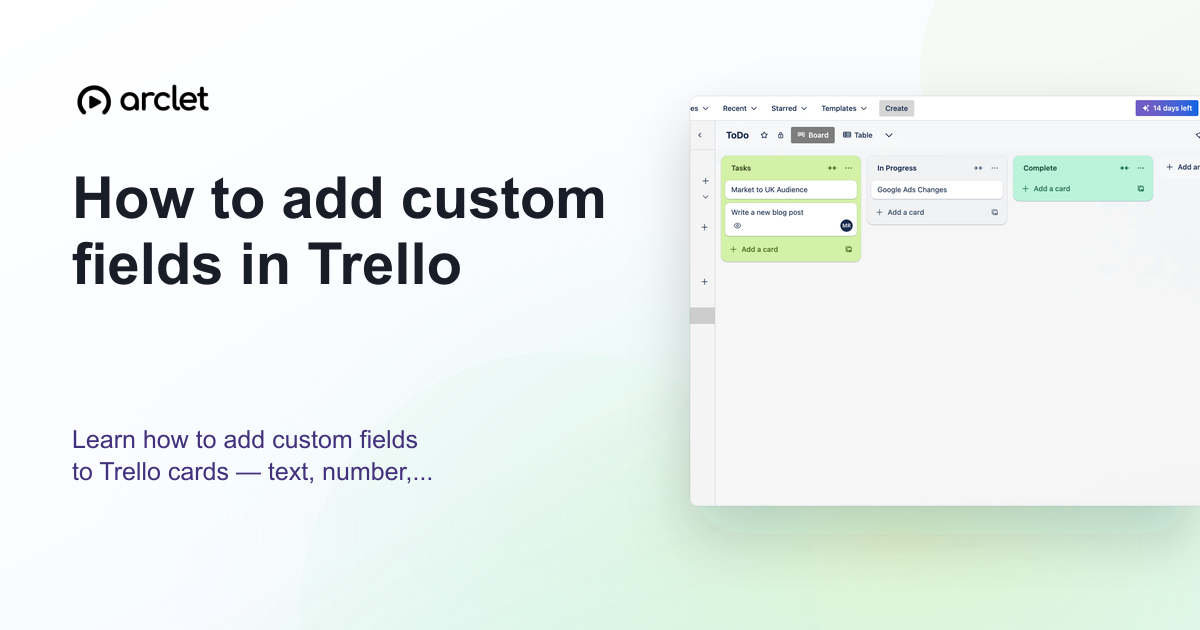
Quick answer
To add custom fields in Trello, enable the Custom Fields Power-Up on your board, then click the Custom Fields option in the board menu. Create a new field by giving it a name and choosing a type: Text, Number, Date, Checkbox, or Dropdown. The field appears on all cards on the board.
Steps at a glance
- Click the three-dot board menu and go to Power-Ups.
- Search for Custom Fields and click Add.
- Open the board menu again and click Custom Fields.
- Click + Add a new field.
- Name the field, choose a type, and click Create.
Interactive demo
This interactive demo was created free with Arclet in 3 minutes.
Create your own demo →Summary
Custom Fields let you add structured data to Trello cards — useful for tracking priority, story points, deadlines, status labels, or any attribute your workflow needs. Custom fields are board-wide: once created, they appear on every card in the board. You can show field values on the card front by enabling the Show on front option.
Step-by-step guide
Step 1
Enable the Custom Fields Power-Up
Click the three-dot board menu, then Power-Ups. Search for Custom Fields and click Add. You may need to confirm the connection.
Step 2
Open Custom Fields settings
Once the Power-Up is added, click Custom Fields in the board menu (or click the Custom Fields button that appears in the board toolbar).
Step 3
Add a new field
Click + Add a new field. Choose a field type: Text, Number, Date, Checkbox, or Dropdown.
Step 4
Name and configure the field
Type a name for the field (e.g., Priority, Story Points, Status). For Dropdown, add the options users can choose from. Click Create.
Step 5
Fill in the field on a card
Open any card on the board. The custom field appears in the right sidebar. Click it to enter or select a value. Enable Show on front to display the value on the card thumbnail.
Why this matters
Your cards have titles and due dates, but you need to track more — a priority level, a budget, a client name, or an effort estimate. The default fields don't fit the way your team actually works.
Troubleshooting
Custom Fields is not in the Power-Ups list
Custom Fields is a built-in Trello Power-Up. Search specifically for 'Custom Fields' in the Power-Ups marketplace. If your workspace plan restricts Power-Ups, contact your admin.
The field I created is not showing on cards
Custom fields appear in the card detail view automatically. To show the value on the card thumbnail (front), open the card and toggle Show on front next to the field.
Frequently asked questions
Are custom fields available on the Trello free plan?
Custom Fields are available on all Trello plans including free. The free plan allows a limited number of Power-Ups per board.
Can I reorder custom fields on a card?
Yes. In the Custom Fields settings panel, drag the field rows to reorder them. The order in settings reflects the order they appear on cards.
Related guides
Continue with more step-by-step guides for getting work done.
 How to create and assign cards in TrelloLearn how to create Trello cards, assign them to team members, set due dates, and organise tasks across your board lists.
 How to create a new board in TrelloLearn how to create a new Trello board from scratch or a template, set a background colour or image, and configure visibility.
 How to add a list in TrelloLearn how to add a new list to a Trello board, name and reorder lists, and use them to structure your project workflow stages.
Create interactive demos like this one — free, no coding required.
Start for free →