How to close a board in Trello
Close a Trello board you no longer need: open the board menu, choose Close board, and confirm with Close. Closed boards can be reopened from your boards page.
Quick answer
To close a Trello board, open it, click Show menu at the top right, and choose Close board near the bottom of the Menu. A Close board? popover appears; click the red Close button to confirm. Closed boards can be found and reopened at the bottom of your boards page.
Steps at a glance
- Open the board you want to close.
- Click Show menu at the top right.
- Choose Close board in the Menu.
- Click the red Close button to confirm.
- Use your boards page to reopen it later.
Interactive demo
Summary
Closing a board takes it off your active boards without deleting it straight away. It is the tidy way to retire a finished project while keeping the option to bring it back.
Step-by-step guide
Step 1
Open the board menu
Open the board and click Show menu, the three dots at the top right of the board header, to open the Menu panel.
Step 2
Choose Close board
In the Menu panel, find Close board near the bottom, above Report abuse, and click it.
Step 3
Confirm with Close
A Close board? popover explains that you can find and reopen closed boards at the bottom of your boards page. Click the red Close button to finish.
Why this matters
You finished a project and its board still sits among your active boards. Closing it clears your boards page of old work, and you can still reopen it if the project returns.
Frequently asked questions
Can I get a closed board back?
Yes. The Close board? popover says closed boards can be found and reopened at the bottom of your boards page.
Where is Close board in the menu?
It is one of the last items in the board Menu, just above Report abuse.
Related guides
Continue with more step-by-step guides for getting work done.
 How to delete a board in TrelloDelete a Trello board for good: close it from the board menu, then use Permanently delete board and confirm. Closing comes first, and deleting has no undo.
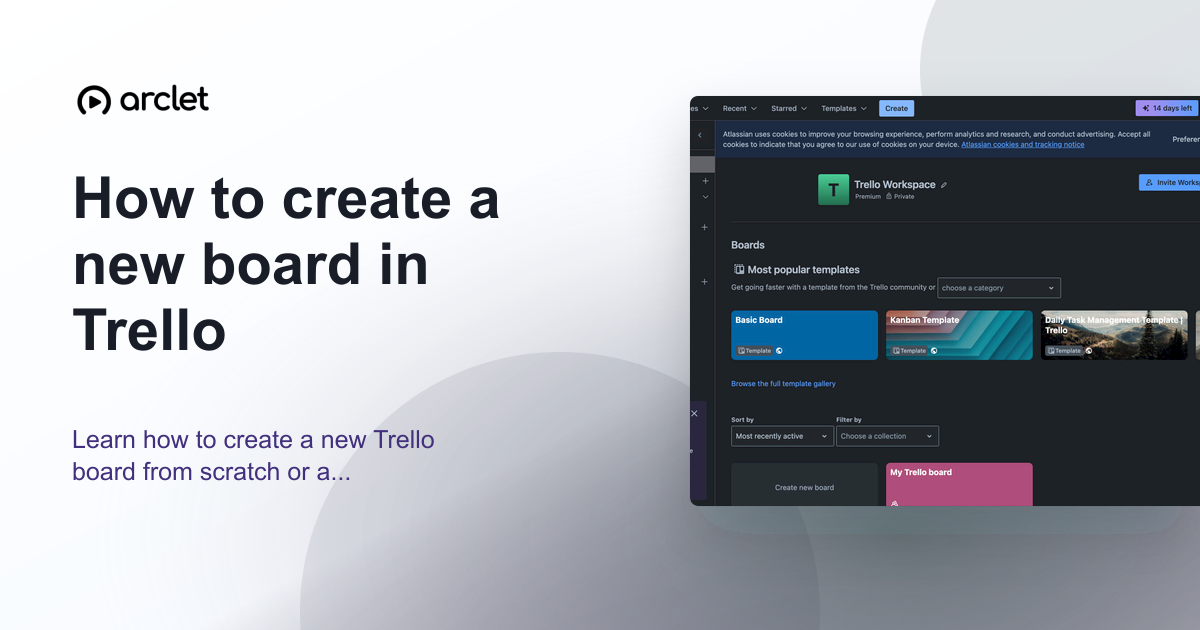 How to create a new board in TrelloLearn how to create a new Trello board from scratch or a template, set a background colour or image, and configure visibility.
 How to copy a board in TrelloLearn how to copy a Trello board from the board menu, keeping its lists and cards so you can reuse a setup without building it again from scratch.
 How to create an automation in TrelloCreate a Trello automation rule from the board menu: pick a trigger, add an action that creates a card in a list, and save it so the board does the work.
 How to create and assign cards in TrelloLearn how to create Trello cards, assign them to team members, set due dates, and organise tasks across your board lists.
 How to delete a card in TrelloLearn how to archive and permanently delete a card in Trello, and when to choose each option to keep your board organised.
Create interactive demos like this one — free, no coding required.
Start for free →