Free toolNo signup · Nothing leaves your browser
LinkedIn post preview: see your post before you publish
Write or paste your post, format it with bold, italic and bullets, and see where LinkedIn cuts it with "…see more" on desktop and on mobile.
- Bold and italic text
- Desktop and mobile
- Your photo and name
Try it now
Write your post. Watch the feed update.
Show your product as an interactive demo people can click through, free to get started.
Start for freeHow it works
Preview a LinkedIn post
Write or paste your post, format it with bold, italic and bullets, and see where LinkedIn cuts it with "…see more" on desktop and on mobile.
Step 1
Write or paste your post
Type into Post text, or paste a draft over the example. The box stops at 3,000 characters, the limit LinkedIn states for a post.
Step 2
Read both previews
The desktop and mobile previews show where the text is cut and the "see more" marker. Rewrite until the first lines carry the point. Switch on Post has an image to see the layout with a picture.
Step 3
Copy the text
Select Copy post text, then paste it into LinkedIn and check the result there before you publish.
The example the tool opens with
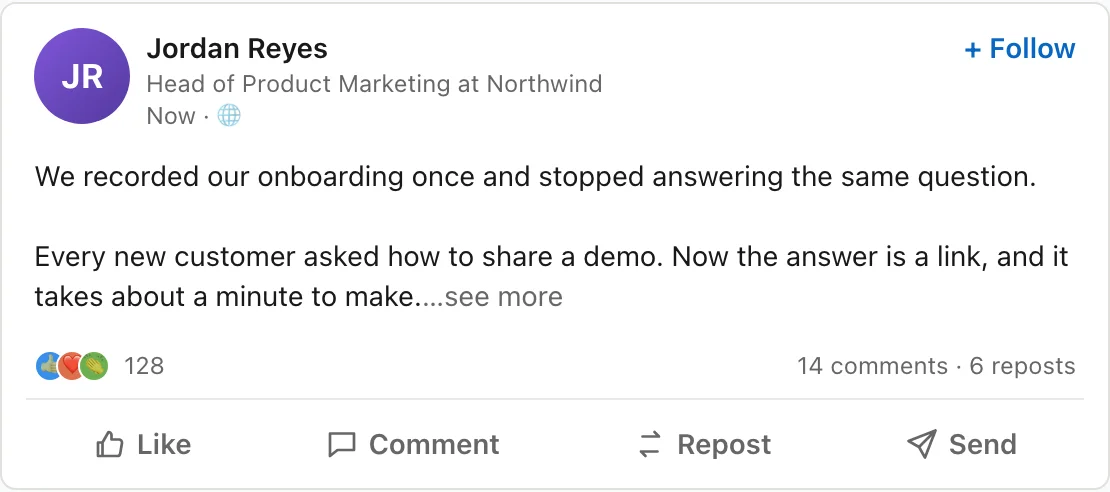
The tool opens with a short sample post, so both previews show a cut. Replace it with your draft.
- Opening line
- We recorded our onboarding once and stopped answering the same question.
- Body
- Two short paragraphs and a three-step list.
- Desktop cut
- About 3 lines or 210 characters, whichever ends first
- Mobile cut
- About 140 characters
Where a LinkedIn post gets cut
What the preview shows
A long LinkedIn post is shortened in the feed, with a "see more" control at the cut. Readers decide there whether to open the rest, so the start of the post is the only part everyone sees.
LinkedIn's Help Center says a post can contain up to 3,000 characters (linkedin.com/help/linkedin/answer/a528176, checked 2026-11-16). That page gives no figure for where the feed cuts a post, and this tool's text box stops at the stated limit.
Where the cut falls
The figures below are approximate. They come from third-party guides, checked 2026-11-16, and the guides do not agree with each other. LinkedIn can change the cut without notice.
| Viewport | Estimate used here | What the guides report |
|---|---|---|
| Desktop | About 3 lines or 210 characters, whichever ends first | Most say about 210 characters. One reports about 250. One preview tool describes the cut as line-based. |
| Mobile | About 140 characters, and also 3 lines | Most say about 140 characters. Others say about 150. The line count here is our assumption. |
Line breaks use up your lines
Because the cut is described as line-based as well as character-based, each line break and each blank line spends part of the visible space. A post that opens with a short line, a blank line and another short line can show barely a sentence before the marker.
This tool counts a blank line as a line. If the preview cuts earlier than the character count suggests, line breaks are the reason.
Write the first lines for the cut
Put the point before the cut. A reader who sees only the first two lines should know who the post is for and what they get. A result, a number or a specific problem does more than a greeting.
Check both cards. The mobile cut comes earlier, so a hook that works on desktop can lose its second half on a phone. A line that stops mid-thought works as a hook only if the next line pays it off, and many readers will never see the next line.
Keep the opening lines short enough to read on a phone without wrapping three times. Put the link or the ask below the hook, where the readers who open the post will find it.
Read the preview like a reader
Read only the text above the "see more" marker and ask whether you would open the rest. If you would not, rewrite those lines until you would. Then look at the mobile card, which is the stricter test, and shorten again if the hook loses its point. Two or three passes is normal.
Most of the work is in the first lines. They are the only part the preview shows, and the only part every reader sees.
Emoji and special characters
The tool counts each emoji or combined character as one, the way a person would count. LinkedIn may count some of them differently, so a post built mostly from emoji is where the preview is least reliable.
The counter and the image switch
The counter turns to a warning in the last 100 characters before the 3,000 limit. Post has an image adds a picture area under the text in both previews. It does not change where the text is cut.
The previews are original mock-ups with no platform styling. Use them to judge the opening lines, then paste the post into LinkedIn and look at the draft there.
Frequently asked questions
Everything you need to know to get started today.
Screenshots show a moment. Demos show the whole flow.
Record a workflow once in your browser and share a demo people can click through.