Free toolNo signup · Checks any public page
Meta tag preview: check your title and description
Check a live page or type a title tag and meta description, and see where a Google result is likely to cut them, on desktop and on mobile.
- Pixel-width cut check
- Desktop and mobile
- Copy-ready tags
Try it now
Load a page or type. See the cut as you edit.
Show your product as an interactive demo people can click through, free to get started.
Start for freeHow it works
Preview a title and description
Check a live page or type a title tag and meta description, and see where a Google result is likely to cut them, on desktop and on mobile.
Step 1
Load or enter your title and description
Enter a page address and select Check page to load its title and meta description. Or type or paste into Title tag and Meta description yourself.
Step 2
Check the cut
The desktop and mobile results show the text cut at the estimated width, and the line under them shows how much of the width you used. Shorten whatever is cut.
Step 3
Copy the tags
Select Copy tags to copy a title element and a meta description tag, with your text escaped for HTML, and paste them into the head of your page.
The example the tool opens with
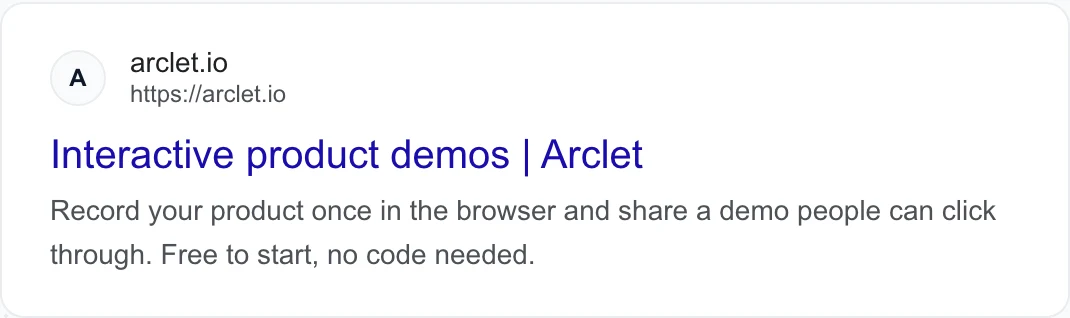
The tool opens with a title and description that fit, so you can see the uncut result first. Lengthen either one to find the cut.
- Title tag
- Interactive product demos | Arclet
- Meta description
- Record your product once in the browser and share a demo people can click through. Free to start, no code needed.
- Title width used here
- About 600 px at 20px Arial
- Description width used here
- About 920 px at 14px Arial
Title tags and meta descriptions in search results
Width, not characters
Google sets no length limit for either tag. Its title link documentation says the title link is "truncated in Google Search results as needed, typically to fit the device width" (developers.google.com/search/docs/appearance/title-link, checked 2026-11-16). Its snippet documentation says there is no limit on how long a meta description can be, and that the snippet is truncated as needed (developers.google.com/search/docs/appearance/snippet, checked 2026-11-16).
Because the cut follows width, a line of narrow letters shows more characters than a line of wide ones. That is why this tool measures pixels where your browser allows it, and counts characters only as a fallback.
The widths used here
Google publishes none of these figures. They are commonly used estimates for a desktop result, set in this tool and checked 2026-11-16, and they are not Google's. Google can change how results look without notice.
| Item | Font measured | Width used | Characters if pixels cannot be measured |
|---|---|---|---|
| Title | 20px Arial | About 600 px | 60 |
| Description | 14px Arial | About 920 px | 158 |
Why Google may show something else
Google writes the result it shows. For titles it says that if it detects an issue on the page, it may generate an improved title link from anchors, on-page text or other sources. For descriptions it says snippets are primarily created from the page content itself, that it sometimes uses the meta description when that describes the page more accurately, and that it might show different snippets for different searches.
So the description you write is an offer. If the page content answers a search better than your description does, Google can use the page content. Write the description to describe the page truthfully, and check Search Console for what Google actually shows.
Write for the cut
Put the words that matter first. If your title ends with the brand, as "Interactive product demos | Arclet" does, the brand is the part that goes when the title runs long.
Google says to make descriptions truly descriptive and to summarise the page, and that a string of keywords is less likely to be shown. Write one or two plain sentences that tell the reader what they get on the page.
A practical order is to write the description first, as plain sentences about the page, then trim it to the width, then write the title. Keep the first sentence of the description complete on its own, so a cut after it still reads well. Give each page its own title, since near-identical titles make results hard to tell apart. Check the cut in both result cards before you copy the tags.
Mobile and desktop
The mobile result here shows the same cut text in a narrower box. Google may use different widths on a phone, and this tool does not model that. If a title is close to the limit, shorten it so both results read well.
Controls Google documents
Google documents three controls for snippets: the nosnippet meta tag stops a snippet from showing, max-snippet sets a maximum length, and the data-nosnippet attribute keeps part of a page out of a snippet. None of them lets you choose the text. To influence it, change the page content and the meta description.
Copy tags gives you a title element and a meta description tag with your text escaped for HTML. Paste them into the head of the page, publish, and compare with the result in search after Google has recrawled the page.
Frequently asked questions
Everything you need to know to get started today.
Screenshots show a moment. Demos show the whole flow.
Record a workflow once in your browser and share a demo people can click through.