How to add a drop shadow in Canva
Add a drop shadow to text in Canva: open Effects, choose Drop, tune the Offset slider, and pick a shadow colour to make your heading stand out.
Quick answer
Select your text, click Effects in the toolbar, and choose Drop to add a drop shadow. Then adjust the shadow with the Direction, Offset, Blur and Transparency sliders, and open the Colour swatch to pick a shadow colour. Click Remove effect any time to undo it.
Steps at a glance
- Select the text you want to shadow.
- Click Effects in the toolbar.
- Choose Drop in the Effects panel.
- Adjust the Offset slider to move the shadow.
- Open the Colour swatch and pick a shadow colour.
Interactive demo
Summary
A drop shadow lifts text off the page and keeps it readable on busy or light backgrounds. In Canva it is one click in the Effects panel, with sliders to fine-tune how it looks.
Step-by-step guide
Step 1
Open the Effects menu
Click your text on the canvas so the toolbar appears above it. Click Effects at the right of the toolbar to open the Effects panel on the left.
Step 2
Choose the Drop shadow style
In the Effects panel, click Drop. Canva adds a shadow to your text straight away, and the shadow controls appear below the style tiles.
Step 3
Adjust the shadow offset
Find the Offset slider. Drag it, or select it and press the arrow keys, to change how far the shadow sits from the text. The Direction, Blur and Transparency sliders work the same way.
Step 4
Open the shadow colour
Scroll to Colour at the bottom of the shadow controls and click the swatch. A palette opens with the colours used in your design and a set of default solid colours.
Step 5
Pick a shadow colour
Click a swatch in the palette, such as #545454 for a soft grey. The shadow changes colour at once. Click Remove effect if you want to start over.
Why this matters
You have a heading that blends into its background, or a design that feels flat. A drop shadow adds depth and contrast in seconds, so your title reads clearly without changing the layout or the font.
Frequently asked questions
Can I change the shadow after adding it?
Yes. With the text selected, open Effects again and move the Direction, Offset, Blur or Transparency sliders, or change the Colour.
How do I remove the drop shadow?
Select the text, open Effects, and click Remove effect.
Related guides
Continue with more step-by-step guides for getting work done.
 How to add text to a design in CanvaAdd text to a Canva design: open a blank design, use the Text panel to insert a heading, type your own words, and style them with the toolbar.
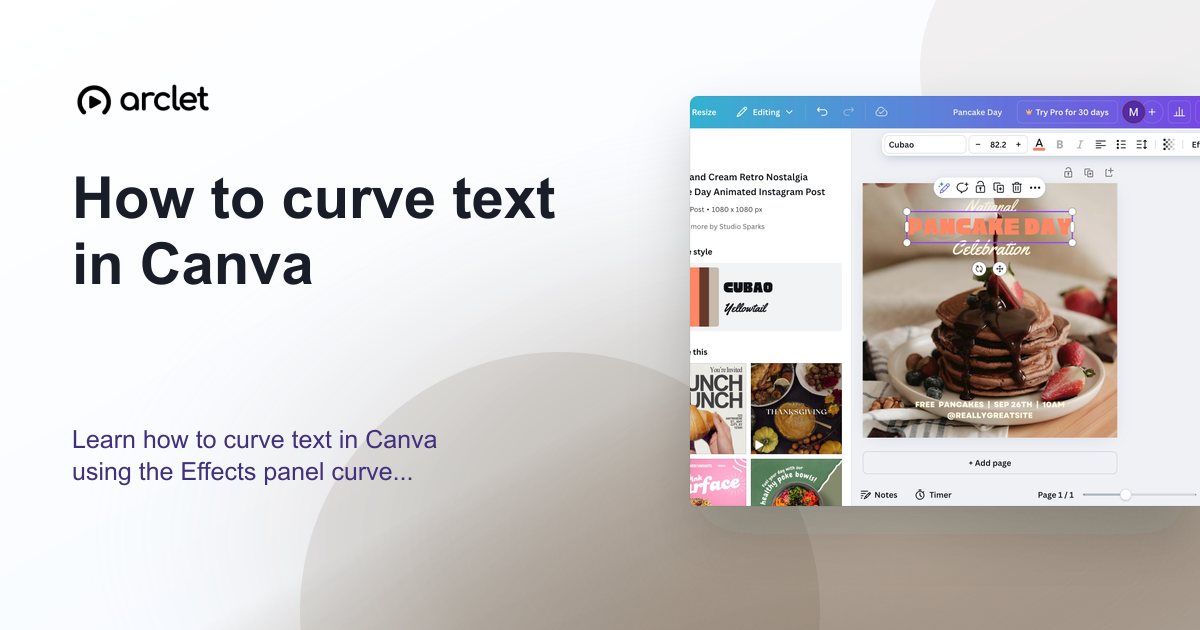 How to curve text in CanvaLearn how to curve text in Canva using the Effects panel curve slider — apply arc, bent, or wave styles to any text element.
 How to add a background in CanvaAdd a solid background colour to any Canva design: select the page, open the colour picker in the toolbar, pick a swatch, and close the panel.
 How to add a frame in CanvaAdd a frame to a Canva design from the Elements tab, then fill it with a free stock photo using Replace. Steps work on the free plan, no upgrade needed.
 How to add a QR code in CanvaAdd a QR code to a Canva design in minutes: open the Static QR codes app, enter a web address, and generate a scannable code on your page.
 How to add a texture to a design in CanvaAdd a texture to a Canva design: search the Elements panel, pick a free texture from Graphics, and soften it with the Transparency control in minutes.
Create interactive demos like this one — free, no coding required.
Start for free →