How to add a frame in Canva
Add a frame to a Canva design from the Elements tab, then fill it with a free stock photo using Replace. Steps work on the free plan, no upgrade needed.
Quick answer
Open the Elements tab in the Canva editor, search for frames, and click a frame such as Rounded Square Frame to add it to your page. Select the frame, click Replace, open the Photos tab, and choose a photo without a crown icon to fill the frame.
Steps at a glance
- Open the Elements tab and search for frames
- Click Rounded Square Frame to add it to the page
- Select the frame and click Replace
- Open the Photos tab in the Replace panel
- Click a photo without a crown icon
- Check the photo fills the frame
Interactive demo
Summary
A frame in Canva is a placeholder shape that crops any photo you put into it. Adding one keeps images neat and consistent, and the Replace option lets you swap the photo later without redoing the layout.
Step-by-step guide
Step 1
Add a frame from Elements
Open the Elements tab in the side panel and type frames into Search elements. In the Frames row, click Rounded Square Frame to place it on your page. Pick a frame without a crown icon so it stays free to use.
Step 2
Select the frame and click Replace
Click the frame on the page so its handles appear. The toolbar above the canvas shows Replace. Click it to open a panel where you can choose what goes inside the frame.
Step 3
Open the Photos tab
The Replace panel may open on the Uploads tab, which only offers your own files. Click Photos in the left column to browse stock photos instead.
Step 4
Click a free photo to fill the frame
Browse Recently used or Magic recommendations and click a photo without a crown icon, such as Scenic View of Niagara Falls on a Sunny Day. The photo drops into the frame and is cropped to its shape.
Why this matters
You are building a post or slide and want a photo cropped into a clean shape instead of a loose rectangle. Using a frame gives you that shape in a few clicks, and you can swap the picture later without resizing anything.
Frequently asked questions
Can I use frames on the free plan?
Yes. Frames such as Rounded Square Frame can be added without a crown icon, and photos without a crown icon can fill them.
How do I change the photo in a frame later?
Select the frame and click Replace in the toolbar, then pick another photo from the Photos tab.
Related guides
Continue with more step-by-step guides for getting work done.
 How to add a background in CanvaAdd a solid background colour to any Canva design: select the page, open the colour picker in the toolbar, pick a swatch, and close the panel.
 How to add a border to a design in CanvaAdd a border to a Canva design: search Elements for a border, pick a free one, add it to the page, and resize it to frame your design.
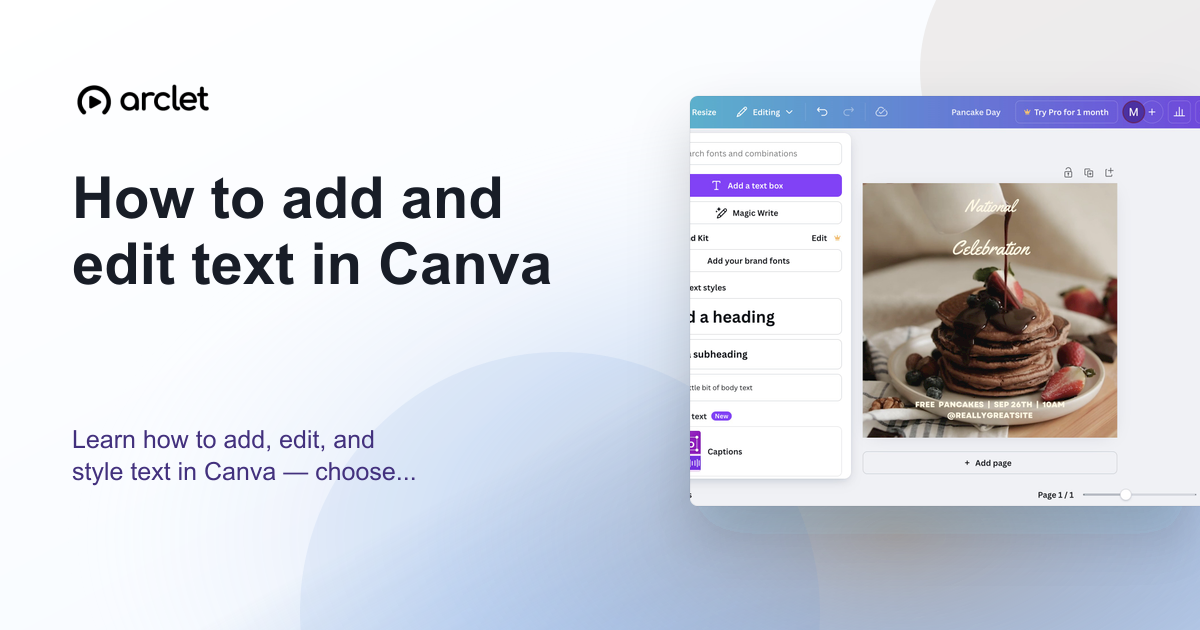 How to add and edit text in CanvaLearn how to add, edit, and style text in Canva — choose fonts, adjust size and spacing, and align text blocks in your design.
 How to add a QR code in CanvaAdd a QR code to a Canva design in minutes: open the Static QR codes app, enter a web address, and generate a scannable code on your page.
 How to add a texture to a design in CanvaAdd a texture to a Canva design: search the Elements panel, pick a free texture from Graphics, and soften it with the Transparency control in minutes.
 How to add a video to a Canva designAdd a free stock video to your Canva design from the Elements tab, then trim the clip with the toolbar so only the part you want plays in your page.
Create interactive demos like this one — free, no coding required.
Start for free →