How to change Notion to light mode
Learn how to switch Notion from dark mode to light mode on desktop, web, and mobile using the appearance settings panel.
Quick answer
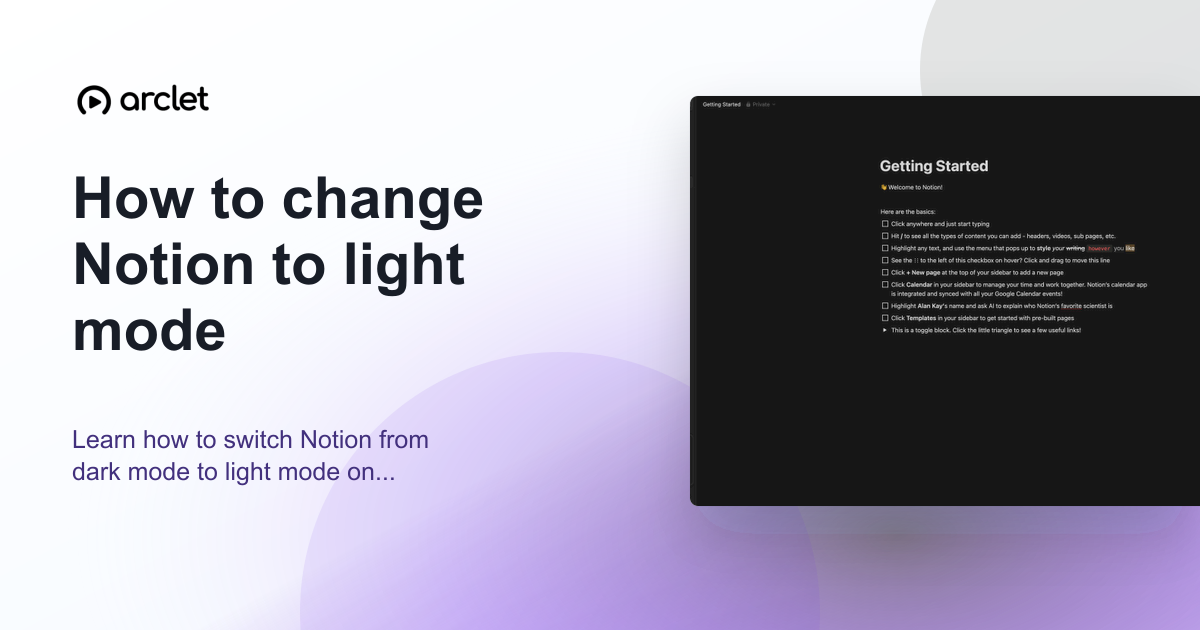
To switch Notion to light mode, click your workspace name or profile icon in the top-left sidebar, go to Settings > My settings, find the Appearance section, and choose Light. The change applies immediately across all Notion workspaces.
Steps at a glance
- Click your workspace name or avatar in the top-left corner.
- Go to Settings > My settings.
- Find the Appearance section.
- Select Light from the appearance options.
- Close settings — Notion switches to light mode immediately.
Interactive demo
This interactive demo was created free with Arclet in 2 minutes.
Create your own demo →Summary
Notion's appearance setting is per-user, not per-workspace. Switching to light mode affects only your view. Other members of the same workspace are unaffected. If you have Use system setting enabled, Notion follows your OS appearance preference automatically.
Step-by-step guide
Step 1
Open Settings
Click your workspace name or avatar in the top-left corner of Notion. The sidebar menu appears. Click Settings at the bottom of the menu.
Step 2
Go to My settings
In the Settings panel, click My settings in the left navigation. This opens your personal preferences including appearance.
Step 3
Choose Light appearance
Scroll to the Appearance section. Click Light to switch to a white background. The interface updates in real time.
Why this matters
You switched Notion to dark mode at some point and now you're in a bright room — or you need a clean screenshot of a page for a presentation — and the dark background isn't what you want anymore.
Troubleshooting
I cannot find the Appearance setting
Make sure you are in My settings, not Workspace settings. My settings controls personal preferences like appearance, language, and notifications.
Notion keeps switching back to dark mode
If Use system setting is selected, Notion follows your operating system's appearance preference. Set the appearance to Light explicitly to override the system setting.
Frequently asked questions
Does changing to light mode affect other workspace members?
No. Appearance is a personal setting. Each Notion user controls their own light/dark preference independently.
Can I set Notion to follow my system appearance automatically?
Yes. In the Appearance section of My settings, select Use system setting. Notion will switch between light and dark to match your OS setting.
Related guides
Continue with more step-by-step guides for getting work done.
 How to change Notion to dark modeLearn how to enable dark mode in Notion on desktop, web, and mobile — adjust appearance settings to switch themes in a few clicks.
 How to change font in NotionLearn how to change the font style in Notion — switch between Default, Serif, and Mono typefaces and toggle small text mode on.
 How to create a new page in NotionLearn how to create a new page in Notion from the sidebar, from a template, or as a sub-page nested inside an existing page.
Create interactive demos like this one — free, no coding required.
Start for free →