How to mark a message as unread in Slack
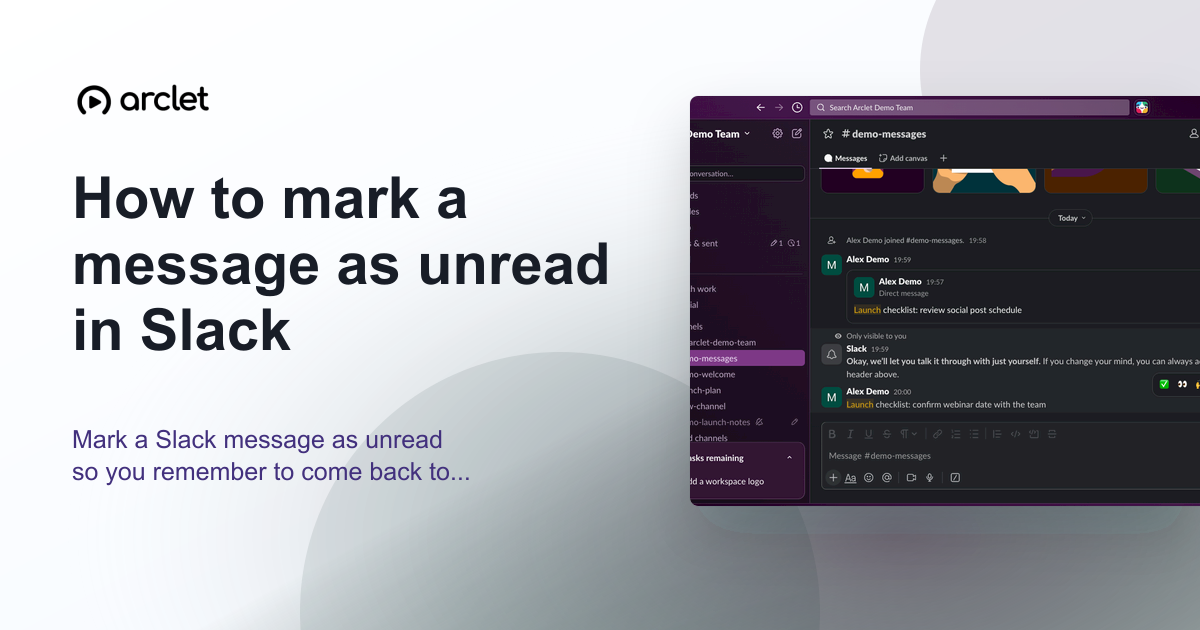
Mark a Slack message as unread so you remember to come back to it. Open the message menu, choose Mark unread, and look for the New marker in the channel.
Quick answer
Hover over a message, open More actions, and select Mark unread. Slack puts a New marker in the conversation, shows a count of new messages at the top, and flags the conversation as marked unread from that message. Select Mark as read when you are done.
Steps at a glance
- Hover over the message you want to revisit.
- Select More actions on the message toolbar.
- Select Mark unread in the menu.
- Look for the New marker in the conversation.
- Check the new messages pill at the top.
Interactive demo
Summary
Marking a message unread tells Slack to treat everything from that message onward as new again. It is a quick way to flag something you read but have not dealt with.
Step-by-step guide
Step 1
Open the message menu
Hover over the message you want to revisit to show its toolbar, then select More actions, the three-dot button at the end of the toolbar.
Step 2
Mark the message unread
The menu lists items such as Edit message, Mark unread, Add to saved and Add a reminder. Select Mark unread. A keyboard shortcut, U, is shown beside it.
Step 3
Spot the new marker
A New marker appears in the conversation, and a pill at the top of the channel shows 2 new messages with a Mark as read option. The channel is also flagged in the sidebar as having 1 unread message.
Why this matters
You skimmed a message about the launch checklist and moved on, but it still needs a reply. Marking it unread puts it back in your unread list, so it does not get lost once you switch channels.
Frequently asked questions
Is there a shortcut for marking a message unread?
The menu shows U beside Mark unread.
How can I tell the conversation is marked unread?
A New marker appears in the conversation, and the channel shows as having an unread message in the sidebar.
Related guides
Continue with more step-by-step guides for getting work done.
 How to add a description to a Slack channelAdd a description to a Slack channel so everyone knows what it is for. Open channel details, edit the Description on the About tab, and save it.
 How to archive a channel in SlackLearn how to archive a Slack channel from its details panel: open the Settings tab, choose Archive channel for everyone and confirm the prompt.
 How to bookmark a message in SlackBookmark a Slack message by saving it for later. Open the message menu, select Add to saved, then find it again from Saved in the sidebar.
 How to mute a channel in SlackMute a Slack channel from the sidebar so it stops competing for your attention. Right-click the channel and pick Mute and hide, then check the icon.
 How to pin a message in SlackPin a message in Slack so important info stays easy to find. Open More actions on the message, choose Organise, then select Pin to channel.
 How to react to messages with emoji in SlackAdd an emoji reaction to any Slack message: hover it, open Add reaction, search the emoji picker, and pick one to acknowledge without replying.
Create interactive demos like this one — free, no coding required.
Start for free →