How to turn on Do Not Disturb in Slack
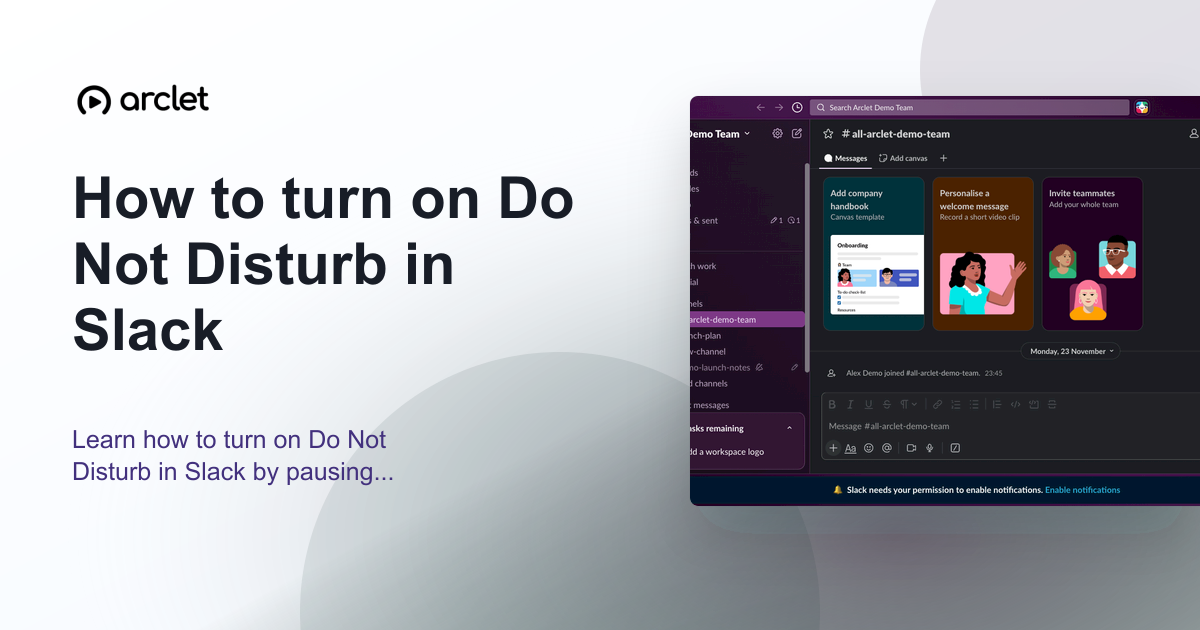
Learn how to turn on Do Not Disturb in Slack by pausing notifications from your profile menu for 30 minutes, 1 hour, 2 hours or longer.
Quick answer
To turn on Do Not Disturb in Slack, click your profile picture at the bottom left of the sidebar, hover over Notifications, and pick how long to pause, such as 30 minutes, 1 hour, 2 hours, Until tomorrow or Until next week. You can also choose Custom… for your own duration.
Steps at a glance
- Click your profile picture at the bottom left.
- Hover over Notifications in the menu.
- Read the Pause notifications for… options.
- Click a duration such as 1 hour.
- Choose Custom… if you need a different length.
Interactive demo
Summary
Do Not Disturb pauses Slack notifications for a time you choose, so you can focus without alerts. The options live in the Notifications submenu of your profile menu.
Step-by-step guide
Step 1
Open your profile menu
Click your profile picture at the bottom left of the Slack window, under the workspace icons. The menu that opens lists your status, Notifications, Profile and Preferences.
Step 2
Open the Notifications menu
Move the pointer over Notifications. A submenu opens beside it headed Pause notifications for…, with options from 30 minutes to Until next week, plus Custom….
Step 3
Pause notifications
Click a duration in the submenu, for example 1 hour. Pick 30 minutes, 2 hours, Until tomorrow or Until next week instead if you want a shorter or longer break.
Why this matters
You are in the middle of focused work and every ping pulls you away. Pausing notifications for an hour or until tomorrow silences the alerts at once, and you can pick up your messages when you are ready.
Frequently asked questions
How long can I pause notifications for?
The submenu offers 30 minutes, 1 hour, 2 hours, Until tomorrow, Until next week and Custom….
Where is the Do Not Disturb setting?
It is under Notifications in the menu that opens when you click your profile picture at the bottom left.
Related guides
Continue with more step-by-step guides for getting work done.
 How to add a description to a Slack channelAdd a description to a Slack channel so everyone knows what it is for. Open channel details, edit the Description on the About tab, and save it.
 How to archive a channel in SlackLearn how to archive a Slack channel from its details panel: open the Settings tab, choose Archive channel for everyone and confirm the prompt.
 How to create a Slack channelLearn how to create a Slack channel: open Add channels, name it, choose Public visibility, and select Create so your team has a focused place to talk.
 How to set up mention and keyword notifications in SlackLearn how to set up mention and keyword notifications in Slack by adding channel keywords in Preferences, so topics you care about get your attention.
 How to use slash commands in SlackLearn how to use slash commands in Slack: open the command list from the message box, pick /remind, add what and when, then send it to run.
 How to use threads in SlackLearn how to use threads in Slack: open Reply in thread on a message, write your reply in the thread panel, and send it so the reply stays with the message.
Create interactive demos like this one — free, no coding required.
Start for free →