How to set a meeting passcode in Zoom
Set a custom passcode on a scheduled Zoom meeting from the web portal: open the meeting, edit its Security settings, and save the change.
Quick answer
Open your meeting from Meetings, select Edit, and find the Security section. The Passcode box is ticked already on a free plan, so type your own passcode in the field next to it, then select Save. The details page then lists the Passcode as hidden asterisks, with a Show link.
Steps at a glance
- Open Meetings and select your scheduled meeting
- Select Edit on the meeting details page
- Scroll to the Security section
- Type your own passcode in the Passcode field
- Select Save at the bottom of the form
Interactive demo
Summary
A meeting passcode stops anyone who only has the meeting ID from joining. In the Zoom web portal you can replace the generated passcode with one you choose before you share the meeting.
Step-by-step guide
Step 1
Open the meeting
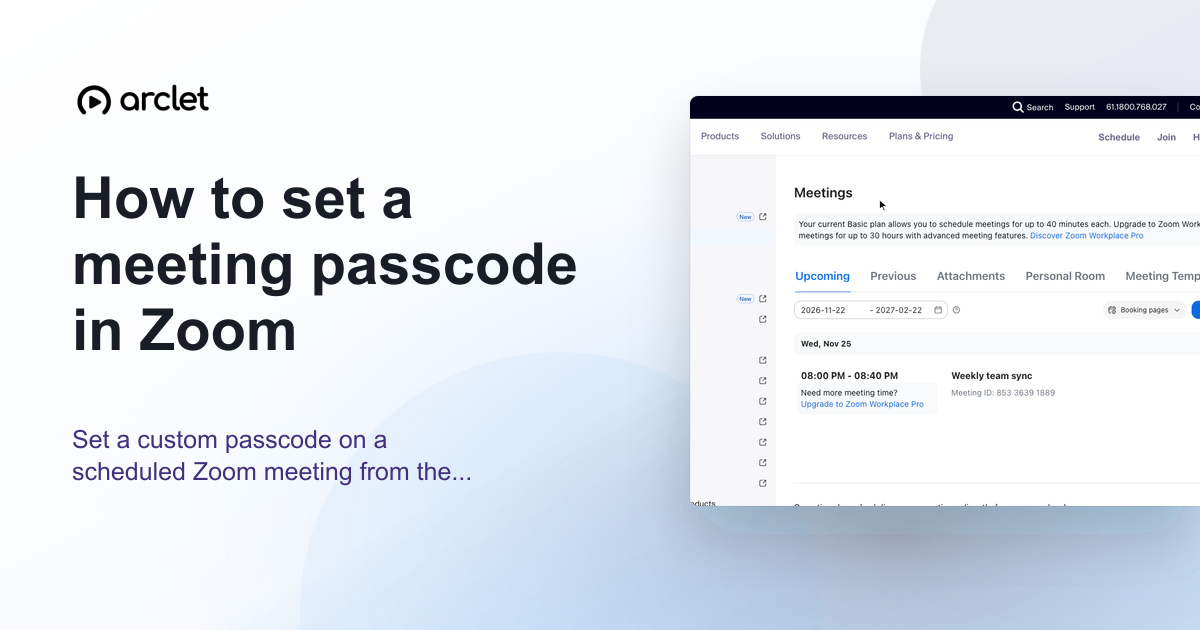
Go to Meetings in the Zoom web portal and stay on the Upcoming tab. Select the meeting name, for example Weekly team sync, to open its details page.
Step 2
Select Edit
The details page shows the Security row with the Passcode hidden as asterisks. Select Edit to open the meeting form.
Step 3
Enter a custom passcode
Scroll down to the Security section. The Passcode option is already ticked and cannot be switched off, and its field holds a generated passcode. Replace it with your own, such as Team2026.
Step 4
Save the meeting
Scroll to the bottom of the form and select Save. Zoom returns you to the meeting details page, where the passcode appears as asterisks with a Show link beside it.
Why this matters
You scheduled a weekly meeting and want a passcode your team can remember instead of a random string. Setting your own takes a minute in the web portal and keeps the meeting limited to people who have the invite link or the passcode.
Frequently asked questions
Can I see the passcode after I save?
Yes. The meeting details page shows the passcode as asterisks, and the Show link next to it reveals it.
Can I turn the passcode off?
Not on the account used here. The Passcode option was ticked and disabled, so you can only change its value.
Related guides
Continue with more step-by-step guides for getting work done.
 How to blur your background in ZoomLearn how to blur your background in Zoom from the browser: start a meeting, open the video options, and pick the Blur tile in the background picker.
 How to change your background on ZoomLearn how to change your background on Zoom from inside a meeting: open the camera menu, pick a preset virtual background, and close the settings.
 How to change your name on ZoomChange the display name other people see on Zoom from your web profile page. Open Profile, choose Edit, update the Display Name field, and save the change.
 How to set up a Zoom meetingSet up a Zoom meeting from the web portal: name it, choose a duration, turn on the Waiting Room, save, and check the settings on the meeting page.
 How to create a recurring meeting in ZoomLearn how to create a recurring meeting in the Zoom web portal: schedule it, set a weekly repeat, save it and check every occurrence on the details page.
 How to enable the waiting room in ZoomTurn on the waiting room in your Zoom web account settings so every participant waits for you to admit them before they join your meetings.
Create interactive demos like this one — free, no coding required.
Start for free →