How to blur your background in Zoom
Learn how to blur your background in Zoom from the browser: start a meeting, open the video options, and pick the Blur tile in the background picker.
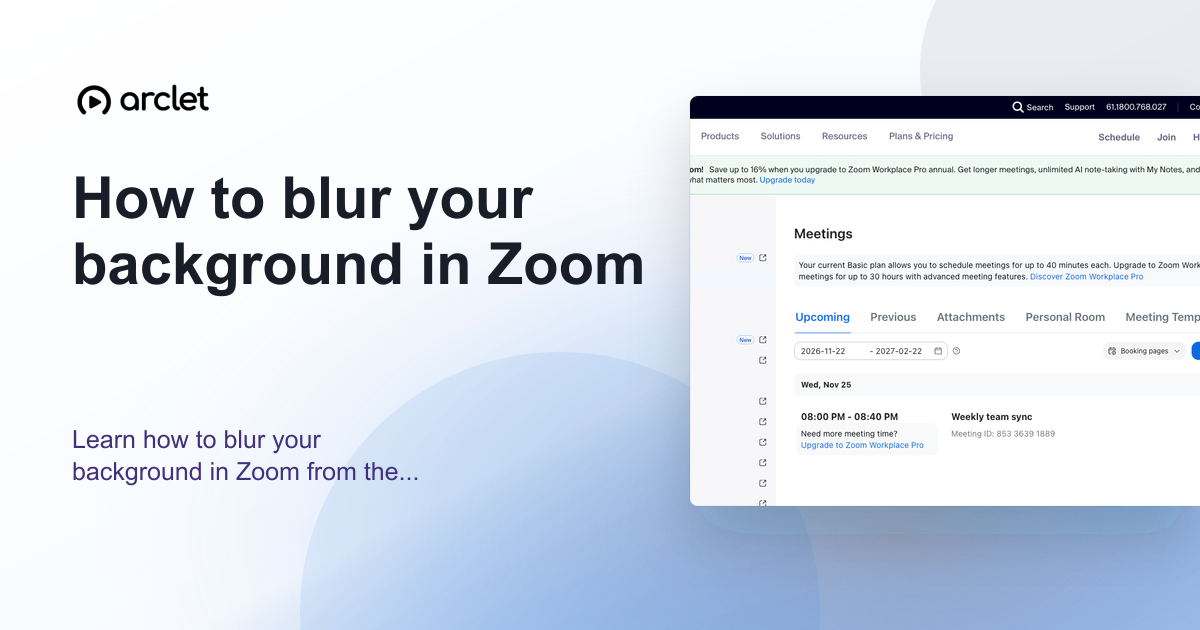
Quick answer
Start or join a Zoom meeting in your browser, open the video options menu next to the camera button, choose the background picker, and select the blur tile. Zoom applies the blurred look to your video, so your room stays hidden while you appear in the meeting.
Steps at a glance
- Open the Host menu on the Zoom Meetings page.
- Start a meeting with video off.
- Join from your browser.
- Open the video options next to the camera button.
- Open the background picker.
- Select the blur tile.
Interactive demo
Summary
Zoom lets you blur what is behind you so a messy room or a busy office stays out of view. You can set it from the video options inside a meeting, before or after you turn your camera on.
Step-by-step guide
Step 1
Open the Host menu
Sign in to the Zoom web portal and go to the Meetings page. In the top navigation bar, click Host to open the menu of ways to start a meeting.
Step 2
Start a meeting with video off
Choose With Video Off from the menu. Zoom opens a new page for the meeting you are about to start, so you can set up your background before anyone sees you.
Step 3
Join from your browser
On the join page, click Join from browser if you do not have the desktop app installed. The meeting loads in the same browser window.
Step 4
Open the video options
Once you are in the meeting, find the toolbar along the bottom. Click the small arrow beside the camera button to open the video options menu.
Step 5
Open the background picker
In the video options menu, pick the background entry. This opens the Settings window on the Background tab, where the available backgrounds appear in a grid.
Step 6
Select the Blur background
Click the blur tile in the grid. It shows a highlighted border once it is selected, and Zoom applies the blur to your video whenever your camera is on.
Why this matters
You are about to join a client call from a shared space or a cluttered room. Blurring the background takes a few clicks, keeps the focus on you, and means you do not have to tidy up or find a perfect virtual scene first.
Frequently asked questions
Do I need a camera to open the background settings?
No. The background picker opened in our capture without a camera, though the preview could not show video. You need a camera for the blur to appear to others.
Can I switch the blur off later?
Yes. The same grid has a tile for no background. Select it to go back to your normal view.
Related guides
Continue with more step-by-step guides for getting work done.
 How to change your background on ZoomLearn how to change your background on Zoom from inside a meeting: open the camera menu, pick a preset virtual background, and close the settings.
 How to change your name on ZoomChange the display name other people see on Zoom from your web profile page. Open Profile, choose Edit, update the Display Name field, and save the change.
 How to create a recurring meeting in ZoomLearn how to create a recurring meeting in the Zoom web portal: schedule it, set a weekly repeat, save it and check every occurrence on the details page.
 How to enable the waiting room in ZoomTurn on the waiting room in your Zoom web account settings so every participant waits for you to admit them before they join your meetings.
 How to find your Zoom meeting IDFind the meeting ID for any scheduled Zoom meeting in the web portal. Open Meetings, read the ID under the title, then open the meeting for its details page.
 How to host a meeting in ZoomStart a scheduled Zoom meeting from your Upcoming list, join from your browser, then open the participants list to invite people and use host controls.
Create interactive demos like this one — free, no coding required.
Start for free →