How to host a meeting in Zoom
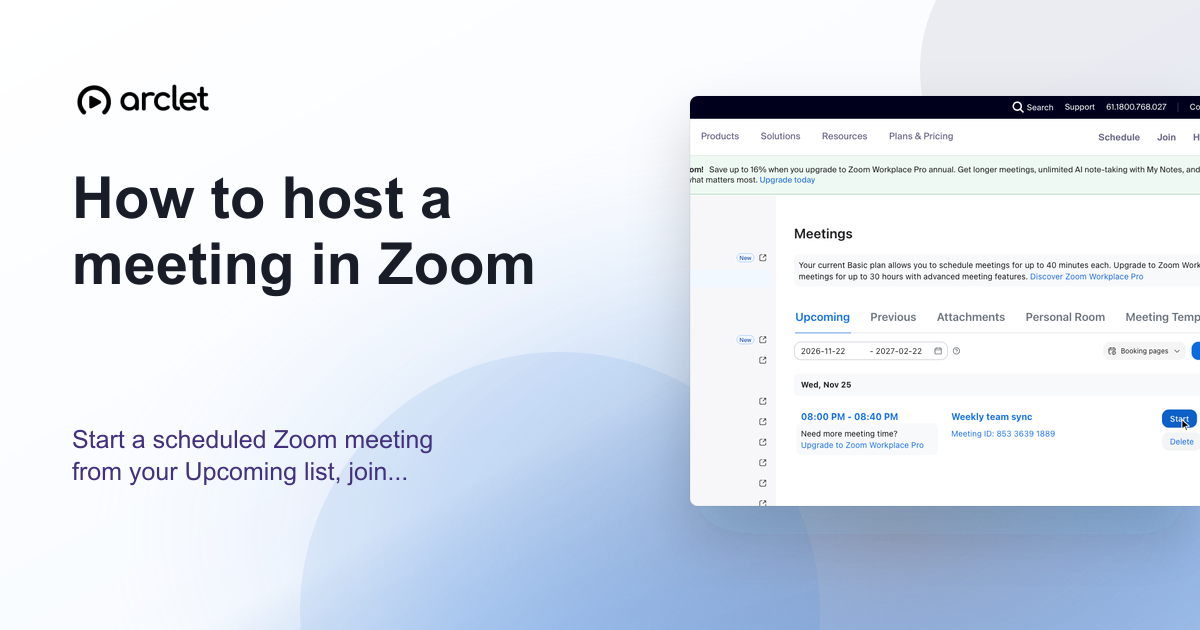
Start a scheduled Zoom meeting from your Upcoming list, join from your browser, then open the participants list to invite people and use host controls.
Quick answer
Open Meetings, find your scheduled meeting under Upcoming, and click Start. Choose Join from browser when the join page appears, then continue without a microphone or camera if you prefer. Once inside, open the participants list, use the invite option to copy the meeting link, and use the host controls to mute everyone.
Steps at a glance
- Open Meetings and find your meeting under Upcoming.
- Click Start on the meeting row.
- Choose Join from browser.
- Open the participants list from the toolbar.
- Use Invite to copy the meeting link.
- Use the host controls, such as muting everyone.
Interactive demo
Summary
Hosting a Zoom meeting from your scheduled list puts you in the host seat with controls over who joins and who can speak. You can do it entirely in the browser, with no desktop app.
Step-by-step guide
Step 1
Start your scheduled meeting
Open the Meetings page and stay on the Upcoming tab. Find your meeting, for example Weekly team sync, and click Start on its row. Zoom opens a join page in a new tab.
Step 2
Join from your browser
On the join page, click Join from browser if you do not have the desktop app installed. The meeting opens in the browser. You can continue without a microphone and camera if you only need to set the meeting up.
Step 3
Open the participants list
Once you are in the meeting, move your pointer over the bottom toolbar and click the participants button. A panel opens on the right showing everyone in the meeting, with you listed as the host.
Step 4
Invite people to the meeting
At the bottom of the participants panel, click the invite button. A dialog opens with the meeting number and tabs for contacts, rooms and email.
Step 5
Copy the meeting link to share
In the invite dialog, use the copy link option at the bottom left to copy the meeting URL. Paste it into a message or calendar invite so people can join.
Step 6
Mute everyone when needed
Back in the participants panel, the host buttons sit at the bottom, including a mute-all button. Use it to silence everyone when the meeting gets noisy. When you finish, end the meeting from the toolbar.
Why this matters
You have a recurring team meeting booked and need to run it from a laptop with no app installed. Starting it from your Upcoming list and opening the participants panel gets people in quickly and keeps you in control of the room.
Frequently asked questions
Can I host a meeting without installing the desktop app?
Yes. Choose Join from browser after clicking Start and the meeting runs in your browser.
Do I need a microphone or camera to host?
No. The browser meeting lets you continue without a microphone and camera, though a warning appears in the toolbar.
Related guides
Continue with more step-by-step guides for getting work done.
 How to blur your background in ZoomLearn how to blur your background in Zoom from the browser: start a meeting, open the video options, and pick the Blur tile in the background picker.
 How to change your background on ZoomLearn how to change your background on Zoom from inside a meeting: open the camera menu, pick a preset virtual background, and close the settings.
 How to host a Zoom meeting in a browserStart a Zoom meeting from the web portal without the desktop app. Pick Host, join from your browser, and skip the microphone and camera.
 How to join a Zoom meetingJoin a Zoom meeting from your browser: enter the meeting ID, choose Join from browser, and continue without a microphone or camera on a free account.
 How to raise your hand in ZoomRaise your hand in a Zoom meeting from the browser: open the reactions menu, pick the raise hand option, then lower it again once you have been heard.
 How to schedule a meeting in ZoomLearn how to schedule a Zoom meeting from the web portal: open Schedule a Meeting, name it, pick a date, and save it so it is ready to share.
Create interactive demos like this one — free, no coding required.
Start for free →