How to join a Zoom meeting
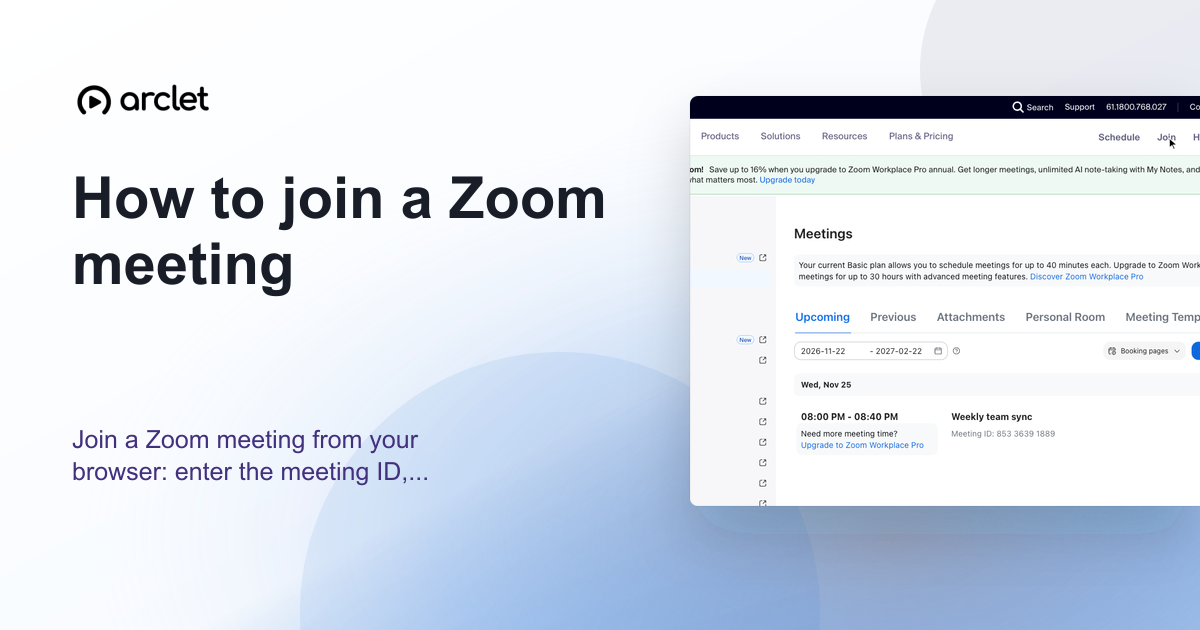
Join a Zoom meeting from your browser: enter the meeting ID, choose Join from browser, and continue without a microphone or camera on a free account.
Quick answer
To join a Zoom meeting, select Join in the Zoom header, enter the meeting ID, and select Join again. Then choose Join from browser if you have no desktop app. Continue without microphone and camera when prompted, and you land in the meeting with the toolbar at the bottom of the screen.
Steps at a glance
- Select Join in the Zoom header.
- Enter the meeting ID.
- Select Join.
- Choose Join from browser.
- Continue without microphone and camera.
- Use the toolbar once you are in the meeting.
Interactive demo
Summary
Zoom lets you join a meeting from the web with just a meeting ID. If you do not have the desktop app, the browser option gets you in. It matters because you can attend any meeting from any computer.
Step-by-step guide
Step 1
Select Join
Open your Zoom web portal and select Join in the header. This opens the Join Meeting page where you can enter the meeting details.
Step 2
Enter the meeting ID
Click the Meeting ID or Personal Link Name field and type the meeting ID the host gave you. The ID is shown on the meeting in your Upcoming list.
Step 3
Select Join
Once the ID is in the field, select Join to continue. Zoom then opens the page where you choose how to join.
Step 4
Join from your browser
Select Join from browser to join without the desktop app. The other option, Join from Zoom Workplace app, needs the app installed.
Step 5
Continue without microphone and camera
Zoom asks whether you want to use your microphone and camera. Select Continue without microphone and camera to join with both off. You may see this prompt twice, once for each.
Step 6
You are in the meeting
You are now in the meeting. The toolbar along the bottom has controls for participants, chat and sharing.
Why this matters
You have a meeting starting in a few minutes and you are on a computer without the Zoom app installed. Joining from the browser with the meeting ID gets you into the call without a download, so you are there on time.
Frequently asked questions
Do I need the Zoom desktop app to join?
No. After you select Join, choose Join from browser to attend without the app.
Can I join without a microphone or camera?
Yes. Select Continue without microphone and camera, and you join the meeting with both off.
Related guides
Continue with more step-by-step guides for getting work done.
 How to blur your background in ZoomLearn how to blur your background in Zoom from the browser: start a meeting, open the video options, and pick the Blur tile in the background picker.
 How to change your background on ZoomLearn how to change your background on Zoom from inside a meeting: open the camera menu, pick a preset virtual background, and close the settings.
 How to host a meeting in ZoomStart a scheduled Zoom meeting from your Upcoming list, join from your browser, then open the participants list to invite people and use host controls.
 How to raise your hand in ZoomRaise your hand in a Zoom meeting from the browser: open the reactions menu, pick the raise hand option, then lower it again once you have been heard.
 How to schedule a meeting in ZoomLearn how to schedule a Zoom meeting from the web portal: open Schedule a Meeting, name it, pick a date, and save it so it is ready to share.
 How to send a Zoom inviteLearn how to send a Zoom invite from the web portal: open a scheduled meeting, copy its invite link, and use Copy Invitation to share the details.
Create interactive demos like this one — free, no coding required.
Start for free →