How to schedule a meeting in Zoom
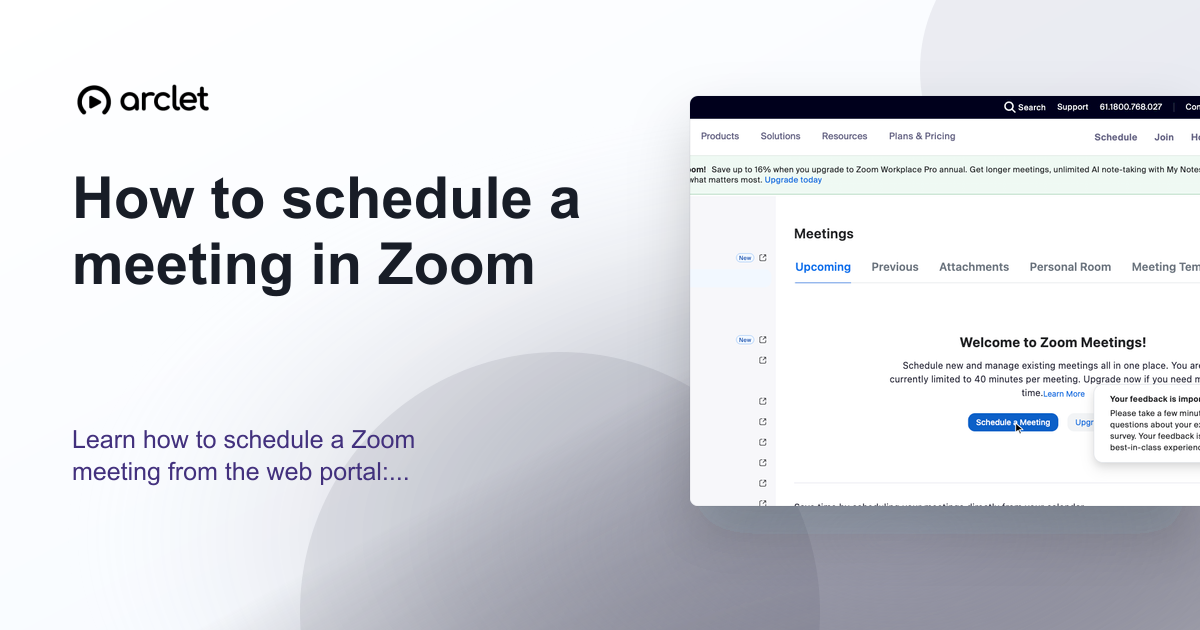
Learn how to schedule a Zoom meeting from the web portal: open Schedule a Meeting, name it, pick a date, and save it so it is ready to share.
Quick answer
To schedule a meeting on Zoom, open the Meetings page and click Schedule a Meeting. Type a name in the Topic field, open Choose date to pick the day, check the start time, duration and time zone, then click Save at the bottom of the form to create the meeting.
Steps at a glance
- Open the Meetings page in the Zoom web portal
- Click Schedule a Meeting
- Type a name in the Topic field
- Open Choose date and pick a day
- Check the start time, duration and time zone
- Click Save at the bottom of the form
Interactive demo
Summary
The Zoom web portal lets you schedule a meeting from one form with a topic, date, time, duration and security options. Scheduling ahead gives attendees a fixed time and keeps the meeting details in one place.
Step-by-step guide
Step 1
Start a new meeting
Open the Meetings page in the Zoom web portal. Click Schedule a Meeting under the Welcome to Zoom Meetings! heading. The Schedule Meeting form opens.
Step 2
Name your meeting
Click the Topic field and type a name that tells attendees what the meeting is about. The form also shows the start time, duration, time zone, Meeting ID and Passcode, which Zoom fills in for you.
Step 3
Pick the date
Click the Choose date field to open the calendar and select the day you want. Check the start time and the duration fields beside it, and confirm the time zone shown further down the form.
Step 4
Save the meeting
Scroll to the bottom of the form and click Save. Zoom creates the meeting with the topic and date you set. Click Cancel instead if you want to leave without scheduling.
Why this matters
You have a team check-in coming up and need it on the calendar before the week fills up. Scheduling it in the Zoom web portal gives the meeting a name, a date and a passcode, so you can share it with confidence.
Frequently asked questions
Does Zoom set a passcode for me?
Yes. The Schedule Meeting form shows a Passcode field with a code already filled in, and Meeting ID is set to Generate Automatically.
Can I add a description to the meeting?
Yes. The form has an Add Description button below the Topic field.
Related guides
Continue with more step-by-step guides for getting work done.
 How to blur your background in ZoomLearn how to blur your background in Zoom from the browser: start a meeting, open the video options, and pick the Blur tile in the background picker.
 How to change your background on ZoomLearn how to change your background on Zoom from inside a meeting: open the camera menu, pick a preset virtual background, and close the settings.
 How to host a meeting in ZoomStart a scheduled Zoom meeting from your Upcoming list, join from your browser, then open the participants list to invite people and use host controls.
 How to send a Zoom inviteLearn how to send a Zoom invite from the web portal: open a scheduled meeting, copy its invite link, and use Copy Invitation to share the details.
 How to set a meeting passcode in ZoomSet a custom passcode on a scheduled Zoom meeting from the web portal: open the meeting, edit its Security settings, and save the change.
 How to set up a Zoom meetingSet up a Zoom meeting from the web portal: name it, choose a duration, turn on the Waiting Room, save, and check the settings on the meeting page.
Create interactive demos like this one — free, no coding required.
Start for free →