How to send a Zoom invite
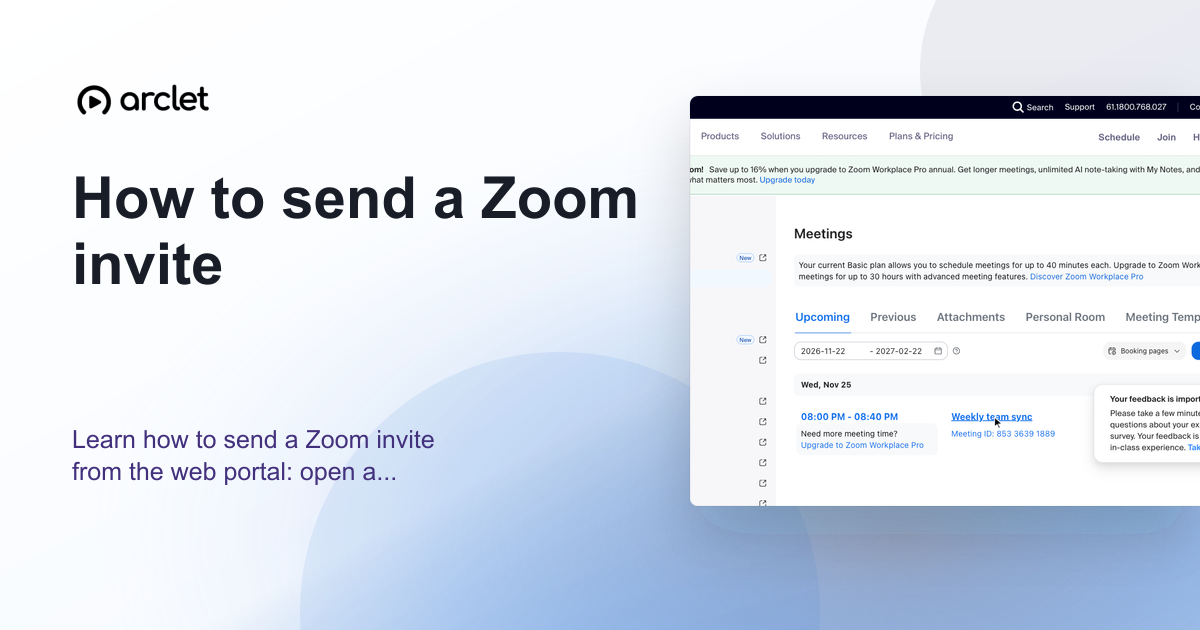
Learn how to send a Zoom invite from the web portal: open a scheduled meeting, copy its invite link, and use Copy Invitation to share the details.
Quick answer
Open the meeting you want to share from your Upcoming list in the Zoom web portal, then copy the invite link with Copy Url or select Copy Invitation. Paste the link or the invitation text into an email or chat message so guests can join your meeting.
Steps at a glance
- Open Meetings in the Zoom web portal
- Select your meeting in the Upcoming tab
- Find the Invite Link on the meeting page
- Select Copy Url to copy the link
- Select Copy Invitation for the full invite
- Paste it into an email or chat
Interactive demo
Summary
The Zoom web portal gives every scheduled meeting an invite link and a ready-made invitation. Copying them takes a few clicks, so guests get the details they need to join.
Step-by-step guide
Step 1
Open your meeting
Go to Meetings in the Zoom web portal and stay on the Upcoming tab. Select your meeting, here "Weekly team sync", to open its details page.
Step 2
Copy the invite link
On the meeting page, find the Invite Link row. It shows the join link for the meeting. Select Copy Url next to it to copy the link, then paste it wherever you want to share it.
Step 3
Select Copy Invitation
Near the bottom of the page, next to Start, Edit and Delete, select Copy Invitation. Use it when you want to send the full invitation text rather than only the link.
Why this matters
You have a meeting scheduled and your team or a client still needs the details. Copying the invite link or the full invitation from the meeting page lets you send them in one message instead of retyping times and IDs.
Frequently asked questions
Where do I find the Zoom invite link?
Open the meeting from the Upcoming tab. The Invite Link row on the meeting page shows the link, with a Copy Url button beside it.
What is the difference between Copy Url and Copy Invitation?
Copy Url copies the join link shown in the Invite Link row. Copy Invitation is a separate button at the bottom of the meeting page for sharing the full invitation.
Related guides
Continue with more step-by-step guides for getting work done.
 How to blur your background in ZoomLearn how to blur your background in Zoom from the browser: start a meeting, open the video options, and pick the Blur tile in the background picker.
 How to change your background on ZoomLearn how to change your background on Zoom from inside a meeting: open the camera menu, pick a preset virtual background, and close the settings.
 How to host a meeting in ZoomStart a scheduled Zoom meeting from your Upcoming list, join from your browser, then open the participants list to invite people and use host controls.
 How to set a meeting passcode in ZoomSet a custom passcode on a scheduled Zoom meeting from the web portal: open the meeting, edit its Security settings, and save the change.
 How to set up a Zoom meetingSet up a Zoom meeting from the web portal: name it, choose a duration, turn on the Waiting Room, save, and check the settings on the meeting page.
 How to change your name on ZoomChange the display name other people see on Zoom from your web profile page. Open Profile, choose Edit, update the Display Name field, and save the change.
Create interactive demos like this one — free, no coding required.
Start for free →