How to raise your hand in Zoom
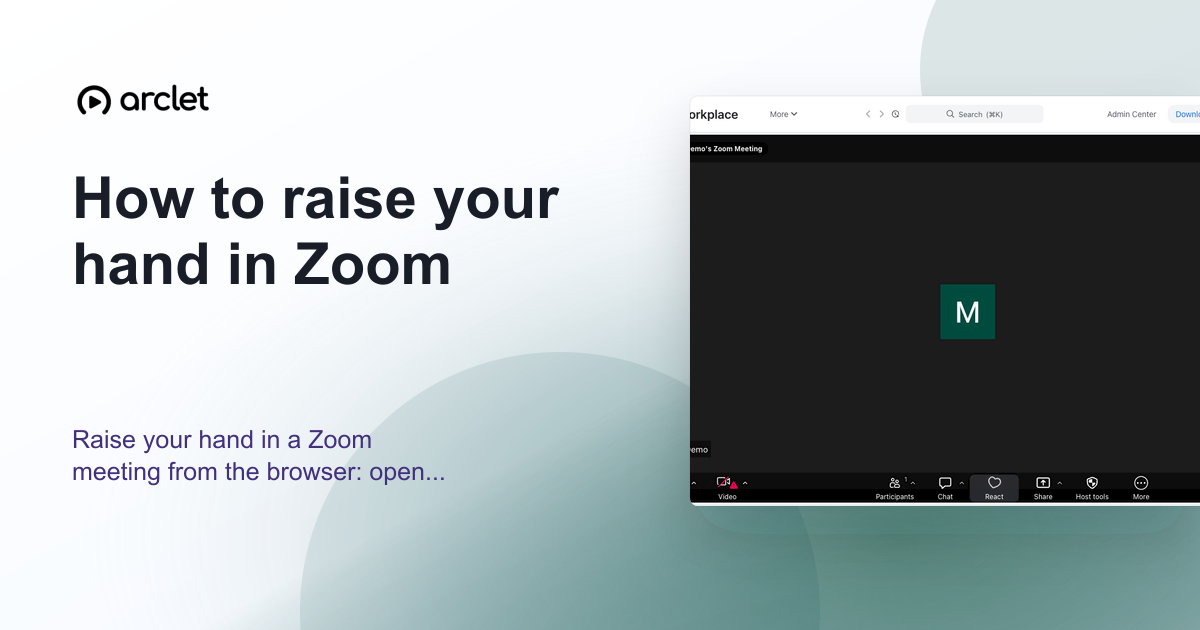
Raise your hand in a Zoom meeting from the browser: open the reactions menu, pick the raise hand option, then lower it again once you have been heard.
Quick answer
To raise your hand in a Zoom meeting, open the reactions menu from the toolbar at the bottom of the meeting window, then choose the raise hand option. A hand icon appears next to your name so the host sees it. A lower hand button replaces it when you are done speaking.
Steps at a glance
- Join or start the meeting in your browser.
- Open the reactions menu on the bottom toolbar.
- Choose the raise hand option from the menu.
- Check that the hand icon appears on your tile.
- Use the lower hand button once you have spoken.
Interactive demo
Summary
Raising your hand in Zoom signals the host that you want to speak without interrupting the conversation. It works in the browser on a free plan, and no microphone or camera is needed to use it.
Step-by-step guide
Step 1
Open the reactions menu
Move your cursor over the meeting window so the toolbar appears along the bottom. Select the reactions button in the middle of the toolbar. A small panel opens above it with emoji reactions and meeting feedback options.
Step 2
Select Raise Hand
In the panel that opened, choose the raise hand option. Zoom shows a large hand icon on your video tile straight away, so the host and other participants can see you want to speak.
Step 3
Lower your hand when you are done
Once you have spoken, a lower hand button appears above the toolbar. Select it to take the hand down. The host can also lower it for you after they call on you.
Why this matters
You are in a busy meeting and have a question, but talking over the speaker would derail them. Raising your hand tells the host you are waiting, so they can call on you at a natural pause.
Frequently asked questions
Do I need a microphone or camera to raise my hand?
No. Raising your hand worked when joining the meeting from the browser without a microphone or camera.
How do I take my hand down?
Select the lower hand button that appears above the toolbar while your hand is raised.
Related guides
Continue with more step-by-step guides for getting work done.
 How to blur your background in ZoomLearn how to blur your background in Zoom from the browser: start a meeting, open the video options, and pick the Blur tile in the background picker.
 How to change your background on ZoomLearn how to change your background on Zoom from inside a meeting: open the camera menu, pick a preset virtual background, and close the settings.
 How to change your name on ZoomChange the display name other people see on Zoom from your web profile page. Open Profile, choose Edit, update the Display Name field, and save the change.
 How to schedule a meeting in ZoomLearn how to schedule a Zoom meeting from the web portal: open Schedule a Meeting, name it, pick a date, and save it so it is ready to share.
 How to send a Zoom inviteLearn how to send a Zoom invite from the web portal: open a scheduled meeting, copy its invite link, and use Copy Invitation to share the details.
 How to set a meeting passcode in ZoomSet a custom passcode on a scheduled Zoom meeting from the web portal: open the meeting, edit its Security settings, and save the change.
Create interactive demos like this one — free, no coding required.
Start for free →