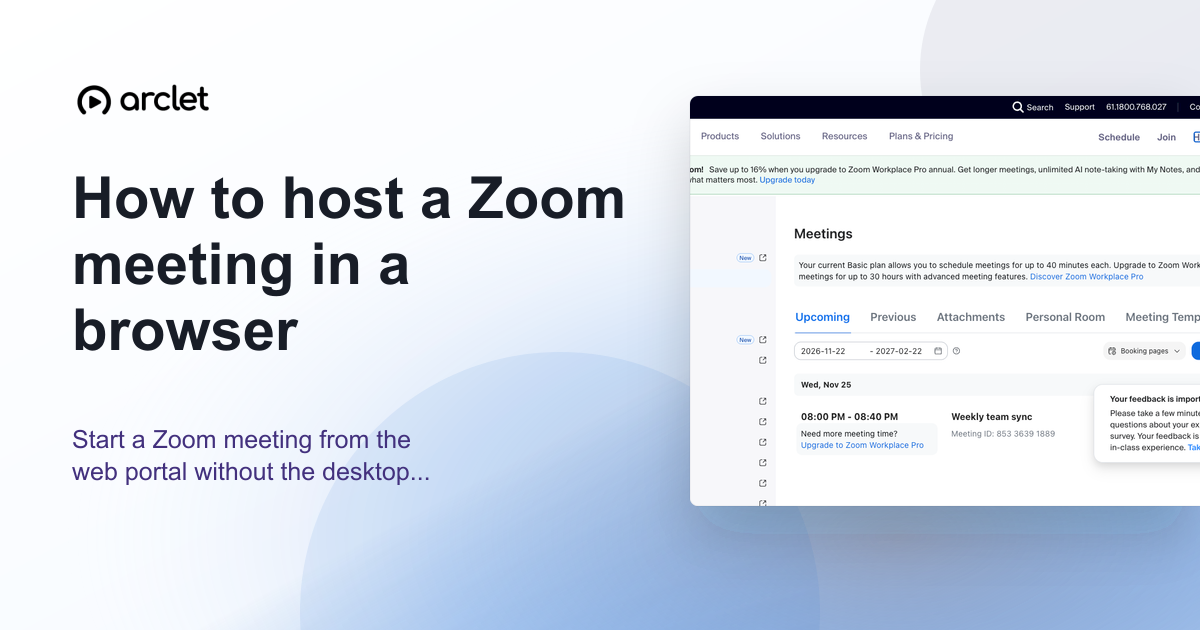
How to host a Zoom meeting in a browser
Start a Zoom meeting from the web portal without the desktop app. Pick Host, join from your browser, and skip the microphone and camera.
Quick answer
Sign in to your Zoom web portal, open the Host menu in the top navigation and choose With Video Off. On the Join meeting page, select Join from browser, then continue without microphone and camera. Your meeting opens in the browser, with Participants and End controls at the bottom.
Steps at a glance
- Open the Host menu in the top navigation
- Choose With Video Off
- Select Join from browser
- Continue without microphone and camera
- Find Participants and End in the meeting toolbar
Interactive demo
Summary
Zoom lets you start a meeting from the web portal and run it entirely in your browser. This helps when you cannot install the desktop app or are on a locked-down computer.
Step-by-step guide
Step 1
Open the Host menu
Sign in to the Zoom web portal and open the Meetings page. Click Host in the top navigation to open its menu of start options.
Step 2
Choose With Video Off
The Host menu lists With Video Off, With Video On and Screen Share Only. Choose With Video Off to start an instant meeting without turning your camera on.
Step 3
Select Join from browser
Zoom opens a Join meeting page that offers Join from Zoom Workplace app and Join from browser. Select Join from browser to run the meeting without the desktop app.
Step 4
Continue without microphone and camera
Zoom asks whether you want people to see you and hear you. If you do not want to allow access, click Continue without microphone and camera. The meeting then opens with you as host.
Step 5
Open the Participants panel
Move your mouse over the meeting to show the toolbar at the bottom. Participants sits in the middle of the toolbar, next to Chat, React and Share.
Step 6
Find End to close the meeting
End sits at the right of the toolbar. Use it when the meeting is over.
Why this matters
You are on a borrowed or locked-down computer and need to start a call in a few minutes. Hosting from the browser gets you into a live meeting without installing anything, so you can invite people straight away.
Frequently asked questions
Do I need the desktop app to host a meeting?
No. On the Join meeting page, select Join from browser and the meeting runs in your browser tab.
Can I host without a microphone or camera?
Yes. Click Continue without microphone and camera when Zoom asks, and the meeting still opens.
Related guides
Continue with more step-by-step guides for getting work done.
 How to blur your background in ZoomLearn how to blur your background in Zoom from the browser: start a meeting, open the video options, and pick the Blur tile in the background picker.
 How to change your background on ZoomLearn how to change your background on Zoom from inside a meeting: open the camera menu, pick a preset virtual background, and close the settings.
 How to change your name on ZoomChange the display name other people see on Zoom from your web profile page. Open Profile, choose Edit, update the Display Name field, and save the change.
 How to join a Zoom meetingJoin a Zoom meeting from your browser: enter the meeting ID, choose Join from browser, and continue without a microphone or camera on a free account.
 How to raise your hand in ZoomRaise your hand in a Zoom meeting from the browser: open the reactions menu, pick the raise hand option, then lower it again once you have been heard.
 How to schedule a meeting in ZoomLearn how to schedule a Zoom meeting from the web portal: open Schedule a Meeting, name it, pick a date, and save it so it is ready to share.
Create interactive demos like this one — free, no coding required.
Start for free →