How to enable the waiting room in Zoom
Turn on the waiting room in your Zoom web account settings so every participant waits for you to admit them before they join your meetings.
Quick answer
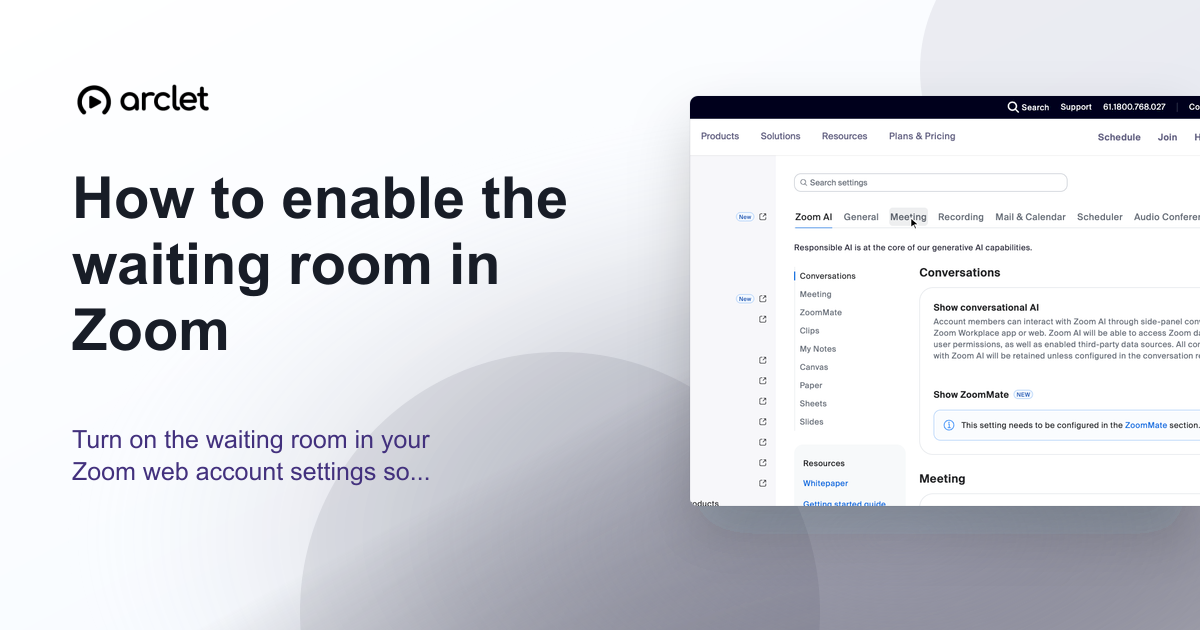
Sign in to the Zoom web portal, open Settings, and choose the Meeting tab. Go to the Security section and switch on Enable waiting room. Zoom saves the change straight away and shows a Modified label beside the setting. From then on, participants wait in a waiting room until the host admits them one by one.
Steps at a glance
- Open Settings in the Zoom web portal
- Select the Meeting tab
- Go to the Security section
- Find Enable waiting room
- Switch the toggle on
- Check the Modified label appears
Interactive demo
Summary
The waiting room holds participants in a lobby until the host lets them in. Turning it on at the account level applies it to your meetings by default, so uninvited people cannot walk straight in.
Step-by-step guide
Step 1
Open the Meeting settings tab
Open the Settings page in the Zoom web portal. Along the row of tabs near the top, click Meeting to show your meeting options.
Step 2
Go to the Security section
In the menu beside the settings, click Security. The page scrolls to the Security group, where Enable waiting room sits just above Meeting Passcode.
Step 3
Turn on Enable waiting room
Click the toggle beside Enable waiting room. Zoom describes it as placing participants in a waiting room and requiring the host to admit them individually.
Step 4
Check the waiting room is on
The toggle turns blue and a Modified label appears under the description. Zoom saves the change automatically, so there is no separate save button to press.
Why this matters
You are about to host a meeting with people you do not all know. Turning on the waiting room gives you a checkpoint, so you decide who joins and when, instead of discovering a stranger in the call.
Frequently asked questions
Do I need to press a save button after turning it on?
No. Zoom saves the toggle straight away and shows a Modified label under the setting once it is on.
What does the waiting room do?
Zoom says it places participants in a waiting room when they join and requires the host to admit them individually.
Related guides
Continue with more step-by-step guides for getting work done.
 How to blur your background in ZoomLearn how to blur your background in Zoom from the browser: start a meeting, open the video options, and pick the Blur tile in the background picker.
 How to change your background on ZoomLearn how to change your background on Zoom from inside a meeting: open the camera menu, pick a preset virtual background, and close the settings.
 How to change your name on ZoomChange the display name other people see on Zoom from your web profile page. Open Profile, choose Edit, update the Display Name field, and save the change.
 How to find your Zoom meeting IDFind the meeting ID for any scheduled Zoom meeting in the web portal. Open Meetings, read the ID under the title, then open the meeting for its details page.
 How to host a meeting in ZoomStart a scheduled Zoom meeting from your Upcoming list, join from your browser, then open the participants list to invite people and use host controls.
 How to host a Zoom meeting in a browserStart a Zoom meeting from the web portal without the desktop app. Pick Host, join from your browser, and skip the microphone and camera.
Create interactive demos like this one — free, no coding required.
Start for free →