How to download a Canva design as PDF
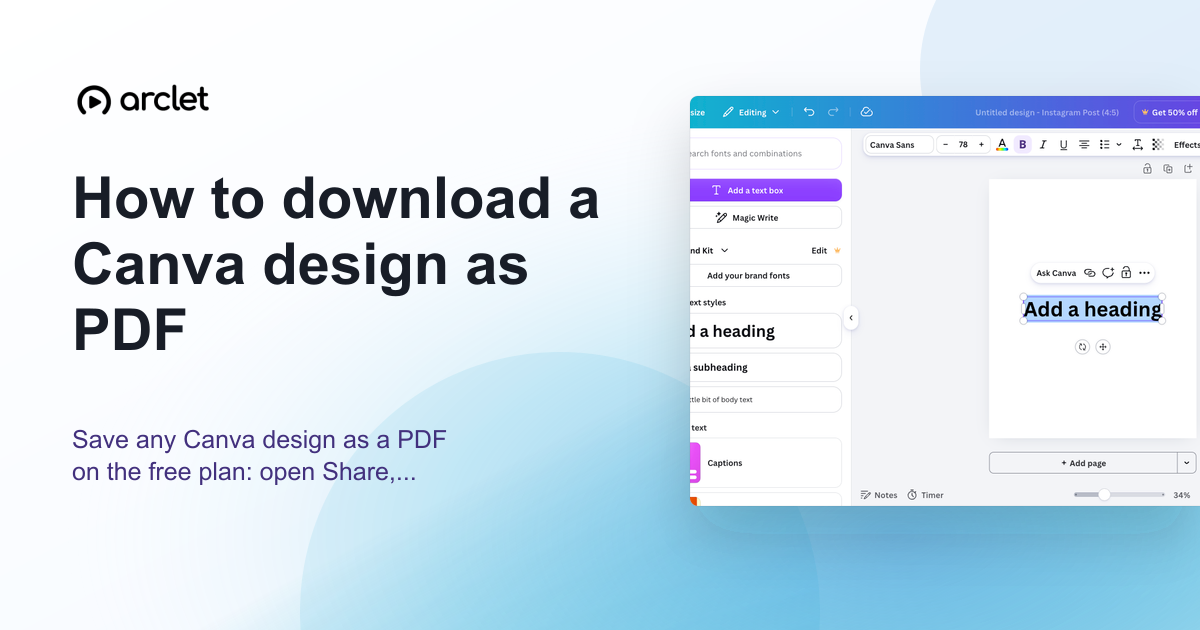
Save any Canva design as a PDF on the free plan: open Share, choose Download, set the file type to PDF, and click Download to save the file.
Quick answer
To download a Canva design as a PDF, click Share in the top right corner and choose Download. Open the File type menu, select PDF, which is listed as best for documents and printing, then click the Download button. The PDF saves to your computer and the process is free.
Steps at a glance
- Click Share in the top right corner
- Choose Download in the Share design panel
- Open the File type menu
- Select PDF from the list
- Click Download to save the file
Interactive demo
Summary
Canva exports any design to a PDF from the Share menu. The Download panel lets you pick the file type and, for PDFs, a Digital or Print preset.
Step-by-step guide
Step 1
Open the Share menu
Click Share in the top right corner of the editor. The Share design panel opens with sharing options and a row of actions.
Step 2
Choose Download
In the Share design panel, click Download. The panel changes to the Download settings and shows a File type menu, set to PNG by default.
Step 3
Open the file type menu
Click the File type menu to see every format Canva can export. Options marked Pro, such as the size slider, quality, and transparent background, need a paid plan, so leave them alone.
Step 4
Select PDF
Click PDF in the list. It is labelled Best for documents and printing. The panel updates with Presets for Digital and Print.
Step 5
Download the PDF
Choose Digital or Print if you need to, then click Download. Canva prepares the file and saves the PDF to your computer.
Why this matters
You have a finished flyer or document and need something you can email, attach, or send to a printer. Exporting it as a PDF keeps the layout and text exactly as designed, and takes less than a minute from the editor.
Frequently asked questions
Is downloading a PDF free in Canva?
Yes. The PDF file type and the Digital and Print presets were available without a Pro label.
What is the difference between the Digital and Print presets?
Digital is selected by default. Choose Print when the PDF is going to a printer.
Related guides
Continue with more step-by-step guides for getting work done.
 How to print from CanvaLearn how to print from Canva — choose export settings, enable bleed marks for professional results, and order prints directly.
 How to save a design in CanvaSave a Canva design to your account: name it in the Design title box, press ⌘ + S or Ctrl + S to confirm All changes saved, then return to Home.
 How to add a background in CanvaAdd a solid background colour to any Canva design: select the page, open the colour picker in the toolbar, pick a swatch, and close the panel.
 How to draw a line in CanvaLearn how to draw a line in Canva: add one from Elements, switch it to a dashed stroke, and drag the end point to stretch it across your design.
 How to embed a Canva design on a websiteCreate an embed link for a Canva design and copy the HTML embed code to paste into your website, so the design updates automatically on your page.
 How to export a Canva design as MP4Export a Canva design that contains a video as an MP4 on the free plan: open Share, choose Download, select MP4 Video, and click Download.
Create interactive demos like this one — free, no coding required.
Start for free →