How to export a Canva design as MP4
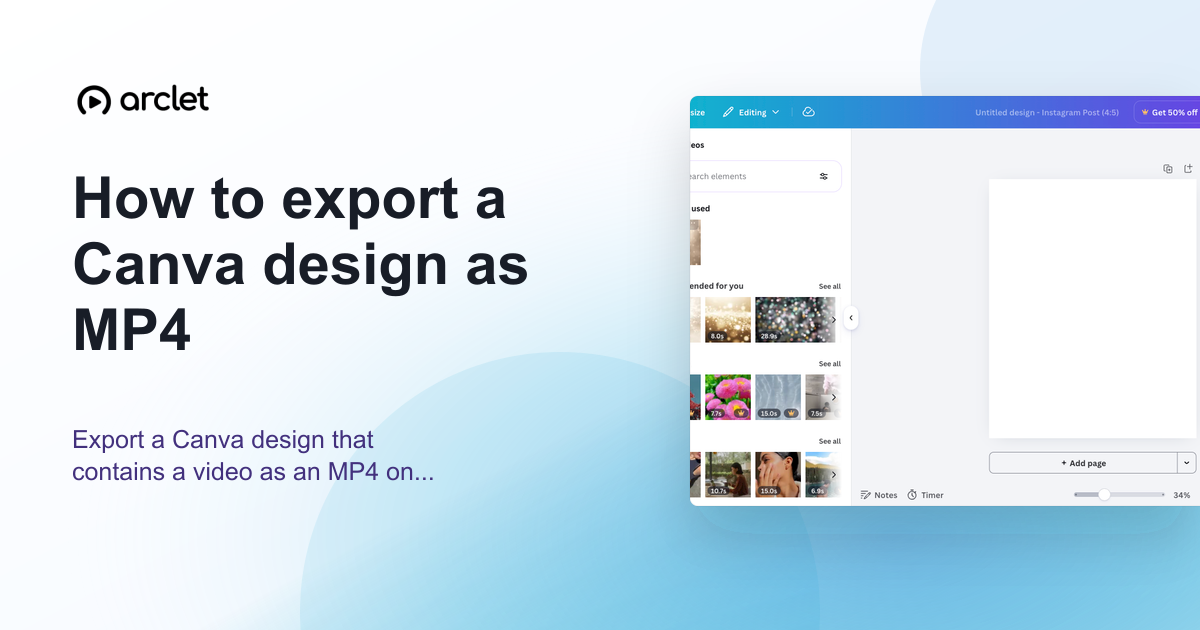
Export a Canva design that contains a video as an MP4 on the free plan: open Share, choose Download, select MP4 Video, and click Download.
Quick answer
To export a Canva design as an MP4, make sure it contains a video or animation, then click Share and choose Download. Open the File type menu, select MP4 Video, and click Download. The video renders and saves to your computer. Options labelled Pro, such as higher quality, are not needed.
Steps at a glance
- Add a free video to the page from the Videos panel
- Click Share in the top right corner
- Choose Download in the Share design panel
- Open the File type menu
- Select MP4 Video from the list
- Click Download to save the file
Interactive demo
Summary
Canva exports designs that contain video as MP4 files through the Share menu. The Download panel shows the file type and quality before you save.
Step-by-step guide
Step 1
Add a free video to the page
Open the Videos panel from the Elements tab and click a video without a crown badge. The crown marks Pro items. The video is placed on the page and stays selected.
Step 2
Open the Share menu
Click Share in the top right corner of the editor. The Share design panel opens with sharing options and a row of actions.
Step 3
Choose Download
In the Share design panel, click Download to open the download settings, which start with the File type menu.
Step 4
Open the file type menu
Click the File type menu. With a video on the page it already reads MP4 Video and is marked Suggested. Open the menu to see every available format.
Step 5
Select MP4 Video
Click MP4 Video in the list. It is described as High quality video. The panel shows a Quality slider, but the quality options marked Pro are not needed to export.
Step 6
Download the MP4
Click Download. Canva renders the video and saves the MP4 file to your computer.
Why this matters
You built a short animated post or clip and need a video file for social media or a presentation. Exporting it as an MP4 gives you a single file that plays almost anywhere, straight from the editor.
Frequently asked questions
Can I export an MP4 on the free plan?
Yes. MP4 Video was available from the File type menu without a Pro label, using a free video element.
What other formats can I export?
The File type menu also lists JPG, PNG, PDF, SVG, GIF, PPTX, and WebP. SVG is marked Pro.
Related guides
Continue with more step-by-step guides for getting work done.
 How to add a video to a Canva designAdd a free stock video to your Canva design from the Elements tab, then trim the clip with the toolbar so only the part you want plays in your page.
 How to add audio to a Canva presentationAdd a free audio track to a Canva design: open the Elements tab, choose Audio, pick a track and select it on the timeline to adjust it.
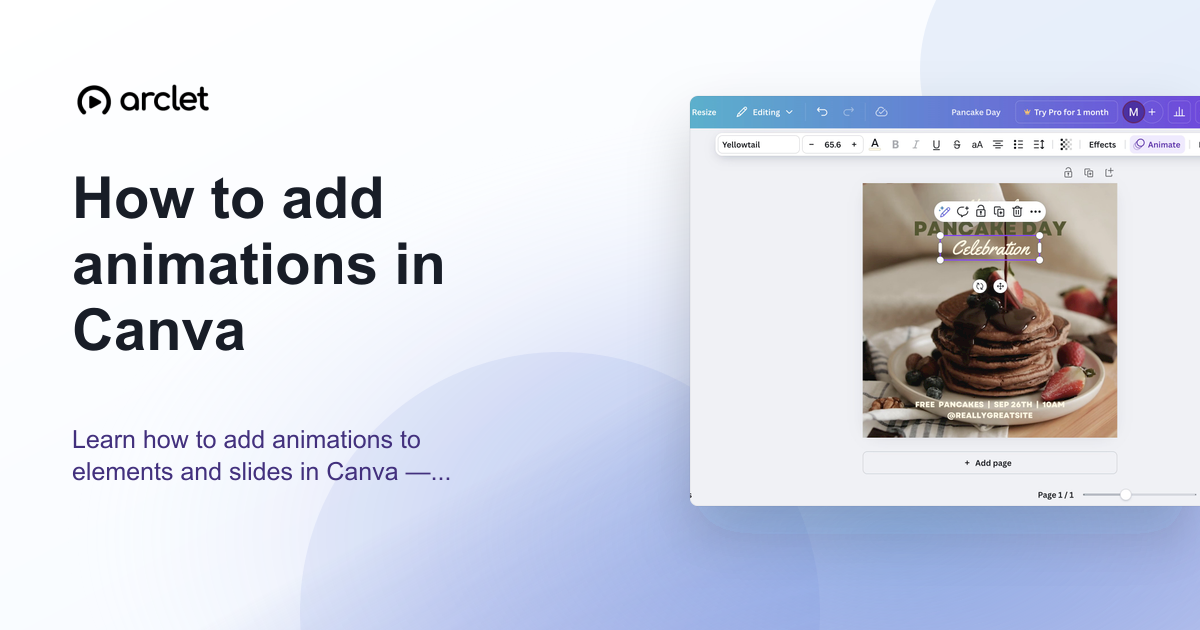 How to add animations in CanvaAnimate elements or whole pages in Canva: select, click Animate, pick an entrance, exit or continuous effect, then set speed. Includes an interactive demo.
 How to flip an image in CanvaFlip a photo in Canva with the Flip option in the toolbar. Add a free photo, select it, and choose Flip horizontal to mirror it on your design.
 How to group elements in CanvaLearn how to group elements in Canva so a heading and a shape move together as one object, using a selection box and the ⌘ + G shortcut on a free design.
 How to highlight words in CanvaLearn how to highlight words in Canva by selecting text, opening Effects, applying the Background effect, and choosing a highlight colour.
Create interactive demos like this one — free, no coding required.
Start for free →