How to use the video editor in Canva
Create a Canva video design, add a free stock video from Elements, open the trim controls, add a text overlay and press Play to preview the clip.
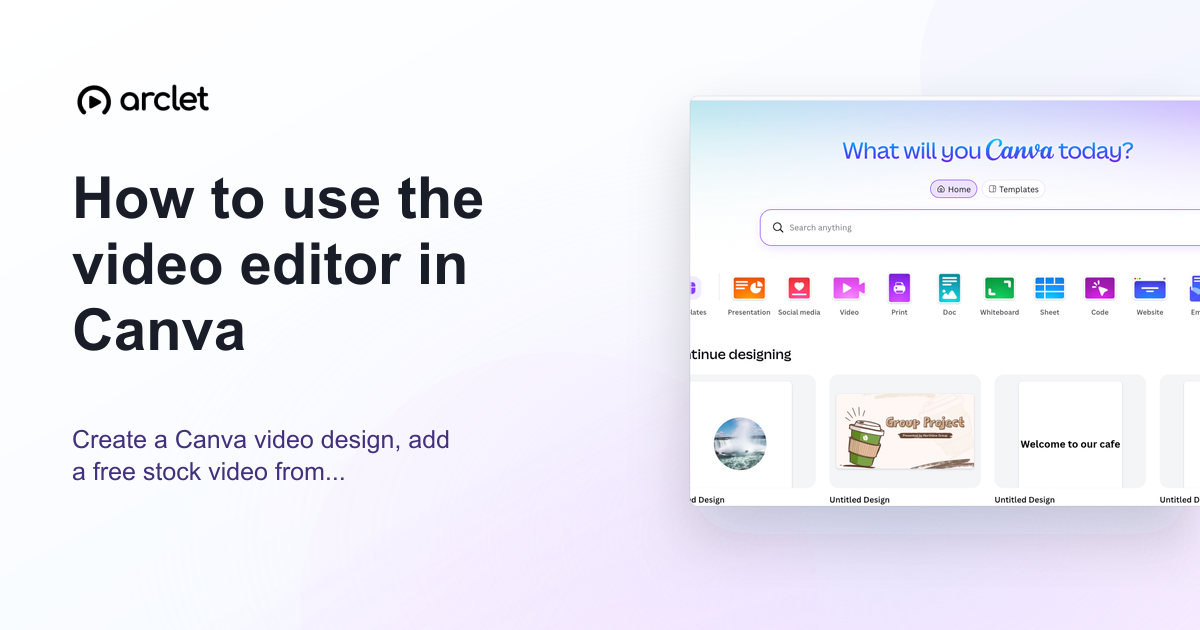
Quick answer
Create a Landscape Video design from Create a design, then open Elements and Videos and add a video without a crown. Select it and choose Trim to adjust the clip, press Done, add a heading from the Text tab as an overlay, and press Play to preview the result.
Steps at a glance
- Open Create a design and choose Videos
- Pick Landscape Video to open the editor
- Open Elements, then Videos, and add a free clip
- Select the clip and open its trim controls
- Press Done, add a heading from the Text tab
- Press Play to preview the video
Interactive demo
Summary
Canva's video editor lets you build a short video from a stock clip, a timeline and text overlays in one place. It is a quick way to produce a video without any separate editing software.
Step-by-step guide
Step 1
Open Create a design
From the Canva home page, click Create a design in the left navigation. A dialog opens with design categories and a search box.
Step 2
Choose Videos
In the dialog, click Videos in the category list. The video sizes appear on the right.
Step 3
Pick Landscape Video
Click Landscape Video. Canva opens the video editor with a blank page, a timeline underneath and a Play button.
Step 4
Open Elements
In the side panel, click the Elements tab. Canva shows a search box and a list of browse categories.
Step 5
Open Videos
Under Browse categories, click Videos. The panel lists stock clips, each with a length badge. Crown-marked clips need a paid plan.
Step 6
Add a free video
Click a clip that has no crown. It is added to the page and the timeline, and it stays selected.
Step 7
Trim the video
With the clip selected, click Trim a 8 seconds video in the toolbar above the canvas. Trimming handles appear on the clip.
Step 8
Finish trimming
Click Done to close the trim controls. The timeline shows the clip with its start and end edges.
Step 9
Add a text overlay
Click the Text tab, then click Add a heading. The heading is placed on top of the video as a separate element.
Step 10
Play the video
Click Play under the canvas to preview the clip with the text overlay. The timer shows the running time.
Why this matters
You need a short branded video for a post or an intro and have no editing software. Working through the clip, trim and text overlay in Canva gets you a previewable video in minutes, with no upload required.
Frequently asked questions
Do I need to upload my own footage?
No. This guide uses a stock clip from Elements and the Videos category.
Can I add text on top of the video?
Yes. Open the Text tab and click Add a heading to place text over the clip.
Related guides
Continue with more step-by-step guides for getting work done.
 How to add a video to a Canva designAdd a free stock video to your Canva design from the Elements tab, then trim the clip with the toolbar so only the part you want plays in your page.
 How to add text to a design in CanvaAdd text to a Canva design: open a blank design, use the Text panel to insert a heading, type your own words, and style them with the toolbar.
 How to add audio to a Canva presentationAdd a free audio track to a Canva design: open the Elements tab, choose Audio, pick a track and select it on the timeline to adjust it.
 How to use Magic Design in CanvaDescribe a design to Canva AI in plain words, answer or skip its follow-up questions, and open the finished Instagram post in the editor.
 How to add a background in CanvaAdd a solid background colour to any Canva design: select the page, open the colour picker in the toolbar, pick a swatch, and close the panel.
 How to add a border to a design in CanvaAdd a border to a Canva design: search Elements for a border, pick a free one, add it to the page, and resize it to frame your design.
Create interactive demos like this one — free, no coding required.
Start for free →