How to convert Figma designs to code
Copy CSS from any Figma frame using right-click Copy as code, so you can hand off styles to a developer or paste them into your project.
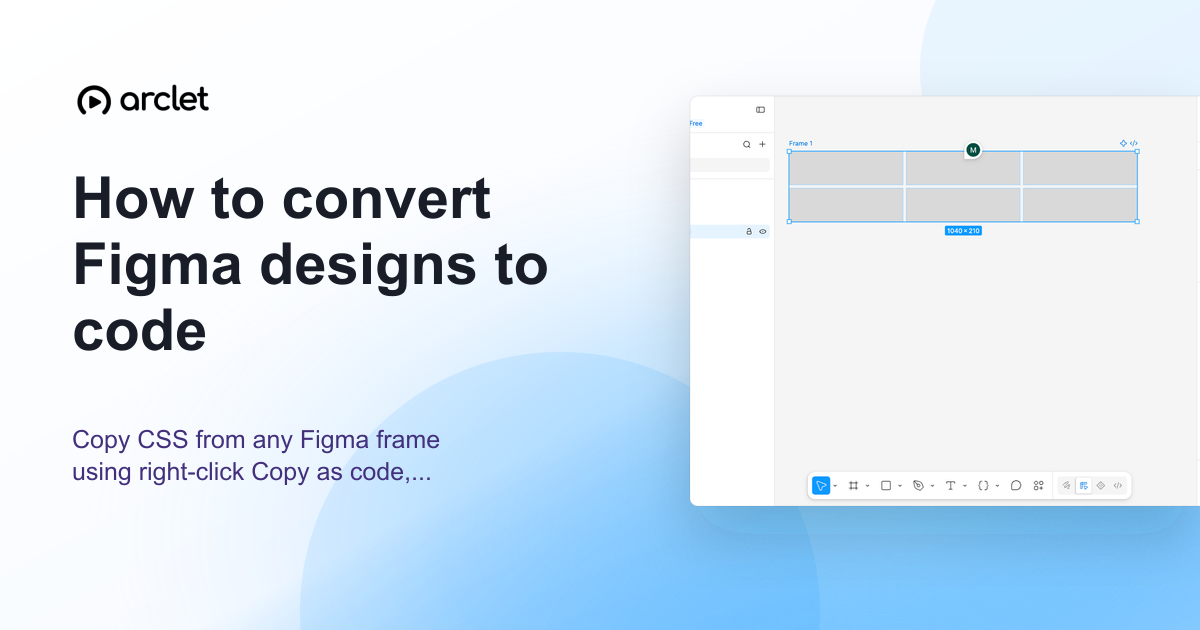
Quick answer
Select a frame in Design mode, right-click it, and open Copy/Paste as. Hover Copy as code, then click CSS to copy the layer's styles to your clipboard. Paste the result into your code editor. The free plan covers CSS output, while Tailwind and React code generation are listed under Dev Mode.
Steps at a glance
- Right-click the frame you want as code
- Hover Copy/Paste as in the context menu
- Hover Copy as code to see the formats
- Click CSS to copy the styles
- Paste the CSS into your code editor
Interactive demo
Summary
Figma can turn a selected layer into CSS straight from the right-click menu. It saves you from reading values off the Design panel one at a time and keeps handoff accurate.
Step-by-step guide
Step 1
Right-click the frame
In the Design tab, find Frame 1 in the Layers list or on the canvas. Right-click it to open the context menu for that layer.
Step 2
Open Copy/Paste as
In the context menu, hover Copy/Paste as. A submenu opens with options including Copy as code, Copy as SVG and Copy as PNG.
Step 3
Open Copy as code
Hover Copy as code. The format list shows CSS, CSS (all layers), iOS and Android.
Step 4
Copy the CSS
Click CSS to copy the selected layer's styles. Paste them into your code editor or send them to a developer.
Why this matters
You finished a layout and a developer needs the exact styles. Copying the CSS from the frame gives them real values instead of screenshots and guesses, so the build matches your design on the first pass.
Frequently asked questions
Which formats does Copy as code offer?
The list shows CSS, CSS (all layers), iOS and Android.
Can I copy a layer as something other than code?
Yes. The same Copy/Paste as submenu also offers Copy as SVG and Copy as PNG.
Related guides
Continue with more step-by-step guides for getting work done.
 How to export assets from FigmaLearn how to export a Figma layer as PNG and SVG assets by adding export settings, setting a 2x scale, and exporting every format in one click.
 How to create a frame in FigmaLearn how to create a frame in Figma: pick the Frame tool, draw it on the canvas, and set its width in the Design panel on a free account.
 How to access free templates in FigmaFind free templates in Figma Community: open Design resources, filter by Free price, and preview a template before you open it in your own file.
 How to create a component in FigmaTurn any shape into a reusable component in a Figma design file: select the layer, click Create component, then find it listed under Assets.
 How to create a local variable in FigmaLearn how to create a local variable in Figma: open the Variables panel, pick a type like Color, name it, set a value, and see it in the table.
 How to create a section in FigmaCreate a section in Figma to group frames on the canvas: pick the Section tool, drag around your frames, rename it, and confirm it in Layers.
Create interactive demos like this one — free, no coding required.
Start for free →