How to access free templates in Figma
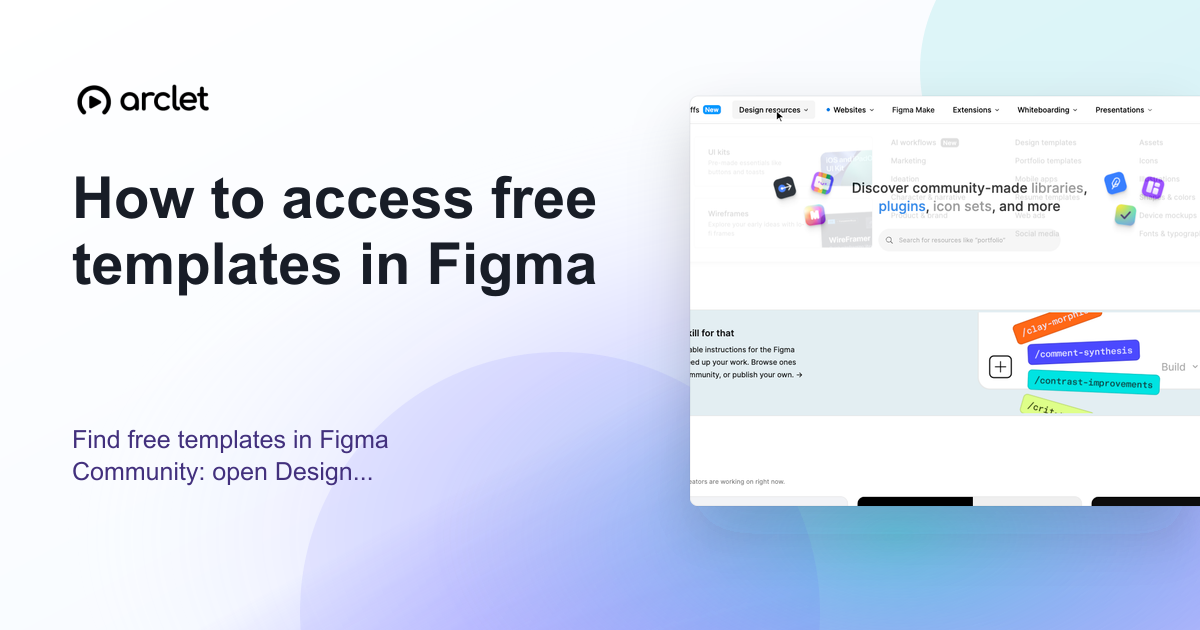
Find free templates in Figma Community: open Design resources, filter by Free price, and preview a template before you open it in your own file.
Quick answer
To access free templates in Figma, open the Community page, expand Design resources, and choose Design templates. Open the Filters menu, pick Free under Price, then select a template from the results. Its page shows an Open in Figma button, which brings the template into Figma.
Steps at a glance
- Open Design resources on the Community page
- Choose Design templates
- Open Filters and pick Free under Price
- Select a template from the results
- Find the Open in Figma button
Interactive demo
Summary
Figma Community hosts thousands of templates made by other designers, and many are free. Filtering by price lets you skip paid listings and start from a ready-made layout instead of a blank canvas.
Step-by-step guide
Step 1
Open Design resources
From the Community page, find the navigation bar along the top. Click Design resources to open its menu of resource types and categories.
Step 2
Choose Design templates
In the open menu, click Design templates. Figma opens a page that lists design templates made by the community.
Step 3
Filter to Free templates
Click Filters above the results, then look for the Price section. Select Free so the list no longer includes paid listings. The Filters button count goes up once the filter is applied.
Step 4
Open a free template
Browse the filtered results and click a template to open its page. Each listing in the results is labelled Free beneath its name, so you can confirm the price before you click.
Step 5
Find Open in Figma
On the template page, point at the Open in Figma button beside the title. This is the button you use to bring the template into Figma when you are ready to start working with it.
Why this matters
You need a starting point for a user journey map, portfolio, or app screen and do not want to design it from scratch. Filtering Community to free templates shows only what you can use at no cost, so you can pick one and begin working quickly.
Frequently asked questions
How can I tell a template is free?
Free listings show the label Free next to the creator name in the results, and the Price filter lets you show only Free listings.
Can I narrow the results further?
Yes. The Filters menu also has a Resource type section with Files, Plugins and Widgets, and an Includes section with options such as Code and Prototypes.
Related guides
Continue with more step-by-step guides for getting work done.
 How to navigate in FigmaLearn how to navigate in Figma: open the zoom menu, zoom in, zoom to fit the whole design, and select a layer in the Layers panel to jump to it.
 How to add a color style in FigmaLearn how to add a color style in Figma: open Styles in the Design panel, create a new color style, name it, set a hex value, and find it listed.
 How to add a comment in FigmaAdd a comment in Figma by choosing the Comment tool, clicking the canvas, typing your note, and sending it. Four steps, free plan, no setup needed.
 How to add a prototype link in FigmaLink a button to another frame in Figma. Open the Prototype tab, drag a connection to your destination frame, and set up a click interaction.
 How to add text styles in FigmaLearn how to add a text style in Figma: open Create text style, name it, set the font size, and save it so you can reuse it across your design file.
 How to adjust the nudge amount in FigmaLearn how to change the nudge amount in Figma from the Preferences menu, so the arrow keys move your layers by exactly the distance you choose.
Create interactive demos like this one — free, no coding required.
Start for free →