How to add a comment in Figma
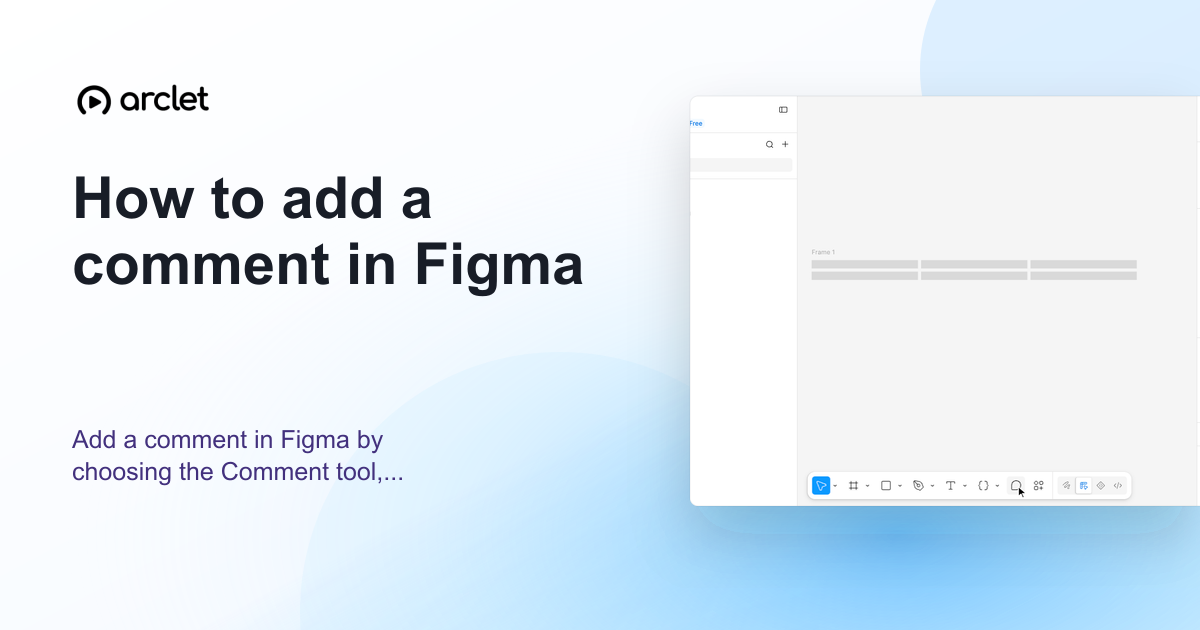
Add a comment in Figma by choosing the Comment tool, clicking the canvas, typing your note, and sending it. Four steps, free plan, no setup needed.
Quick answer
To add a comment in Figma, select the Comment tool in the bottom toolbar, click the spot on the canvas where your feedback belongs, type your message in the Add a comment box, and click Send. The comment is then posted to your file at the spot you clicked.
Steps at a glance
- Open your design file and find the bottom toolbar
- Select the Comment tool in the toolbar
- Click the canvas where the comment belongs
- Type your message in the comment box
- Click Send to post the comment
Interactive demo
Summary
Comments let you leave feedback on a specific spot in a Figma design file. Pin a note to the exact element you mean, so the context travels with the feedback.
Step-by-step guide
Step 1
Open the Comment tool
Open your design file and find the toolbar at the bottom of the canvas. Click Comment to switch to the comment tool. The right sidebar switches to the Comments panel.
Step 2
Click where the comment belongs
Click the canvas next to the element you want to talk about. The Comments panel explains that you can click anywhere in the file to leave a comment.
Step 3
Type your comment
A comment box opens at the spot you clicked. Type your note into the Add a comment field. The Send button is disabled until you enter some text.
Step 4
Post the comment
Click Send to post the comment. Your message is saved on the canvas.
Why this matters
You have a design open and spot something to fix, like spacing or a layout choice. A comment pinned to that spot keeps the feedback next to the element, so nobody has to guess which part you meant.
Frequently asked questions
Where do I add a comment in Figma?
Choose the Comment tool in the bottom toolbar, then click anywhere on the canvas to open a comment box.
Do I need a paid plan to comment?
No. This was done on a free plan file, using the Comment tool and the Send button.
Related guides
Continue with more step-by-step guides for getting work done.
 How to create a frame in FigmaLearn how to create a frame in Figma: pick the Frame tool, draw it on the canvas, and set its width in the Design panel on a free account.
 How to add a color style in FigmaLearn how to add a color style in Figma: open Styles in the Design panel, create a new color style, name it, set a hex value, and find it listed.
 How to add a prototype link in FigmaLink a button to another frame in Figma. Open the Prototype tab, drag a connection to your destination frame, and set up a click interaction.
 How to add text styles in FigmaLearn how to add a text style in Figma: open Create text style, name it, set the font size, and save it so you can reuse it across your design file.
 How to adjust the nudge amount in FigmaLearn how to change the nudge amount in Figma from the Preferences menu, so the arrow keys move your layers by exactly the distance you choose.
 How to align objects in FigmaLearn how to align objects in Figma: select several layers, then use the Alignment controls in the Design panel to line up tops and centers.
Create interactive demos like this one — free, no coding required.
Start for free →