How to adjust the nudge amount in Figma
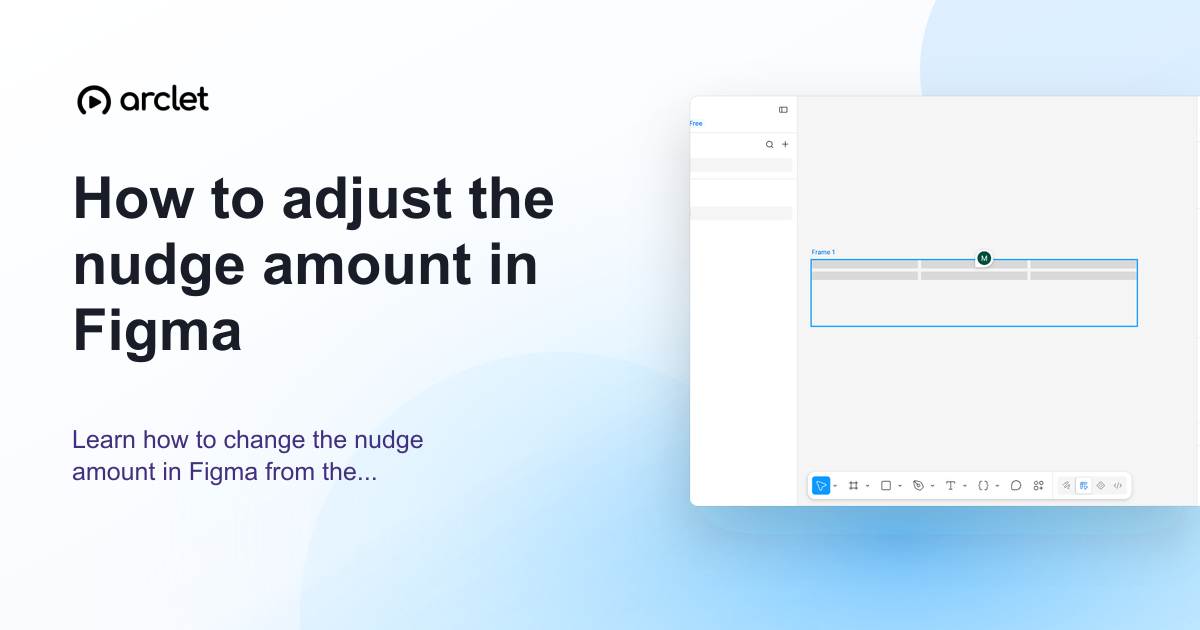
Learn how to change the nudge amount in Figma from the Preferences menu, so the arrow keys move your layers by exactly the distance you choose.
Quick answer
To adjust the nudge amount in Figma, open the Main menu, choose Preferences, then select Nudge amount…. Change the value in the Big nudge field, for example from 10 to 8, and press Enter. Then select a layer and hold Shift and press an arrow key to move it by the new amount.
Steps at a glance
- Open the Main menu.
- Choose Preferences.
- Select Nudge amount….
- Type a new value in the Big nudge field.
- Press Enter to apply it.
- Select a layer and hold Shift and press an arrow key.
Interactive demo
Summary
The nudge amount sets how far a selected layer moves when you press the arrow keys. Figma lets you set a small and a big nudge, so you can make fine or fast adjustments to match your layout grid.
Step-by-step guide
Step 1
Open the main menu
Open your design file, then click the Main menu button at the top of the left sidebar. A list of menu items opens.
Step 2
Open Preferences
Point at Preferences in the menu. A submenu of options opens beside it.
Step 3
Choose Nudge amount
At the bottom of the Preferences submenu, click Nudge amount…. A small dialog opens.
Step 4
Set the big nudge amount
The dialog shows Small nudge and Big nudge fields. Replace the value in Big nudge, for example change 10 to 8.
Step 5
Apply the new value
Press Enter while the Big nudge field is active to apply your value. The dialog closes.
Step 6
Nudge a layer by the big amount
Select a layer, such as Frame 1, then hold Shift and press an arrow key. The layer moves by the big nudge amount you set.
Why this matters
You are aligning elements to a grid and the default step is too large or too small. Setting the nudge amount once lets you move layers by the exact distance your layout needs, without dragging or typing positions.
Frequently asked questions
What are the two nudge fields?
The dialog has a Small nudge field and a Big nudge field. In this capture the small nudge was 1 and the big nudge started at 10.
How do I move a layer by the big nudge?
Select the layer and hold Shift and press an arrow key. The layer moves by the value in the Big nudge field.
Related guides
Continue with more step-by-step guides for getting work done.
 How to align objects in FigmaLearn how to align objects in Figma: select several layers, then use the Alignment controls in the Design panel to line up tops and centers.
 How to navigate in FigmaLearn how to navigate in Figma: open the zoom menu, zoom in, zoom to fit the whole design, and select a layer in the Layers panel to jump to it.
 How to add a color style in FigmaLearn how to add a color style in Figma: open Styles in the Design panel, create a new color style, name it, set a hex value, and find it listed.
 How to convert Figma designs to codeCopy CSS from any Figma frame using right-click Copy as code, so you can hand off styles to a developer or paste them into your project.
 How to create a component in FigmaTurn any shape into a reusable component in a Figma design file: select the layer, click Create component, then find it listed under Assets.
 How to create a frame in FigmaLearn how to create a frame in Figma: pick the Frame tool, draw it on the canvas, and set its width in the Design panel on a free account.
Create interactive demos like this one — free, no coding required.
Start for free →