How to navigate in Figma
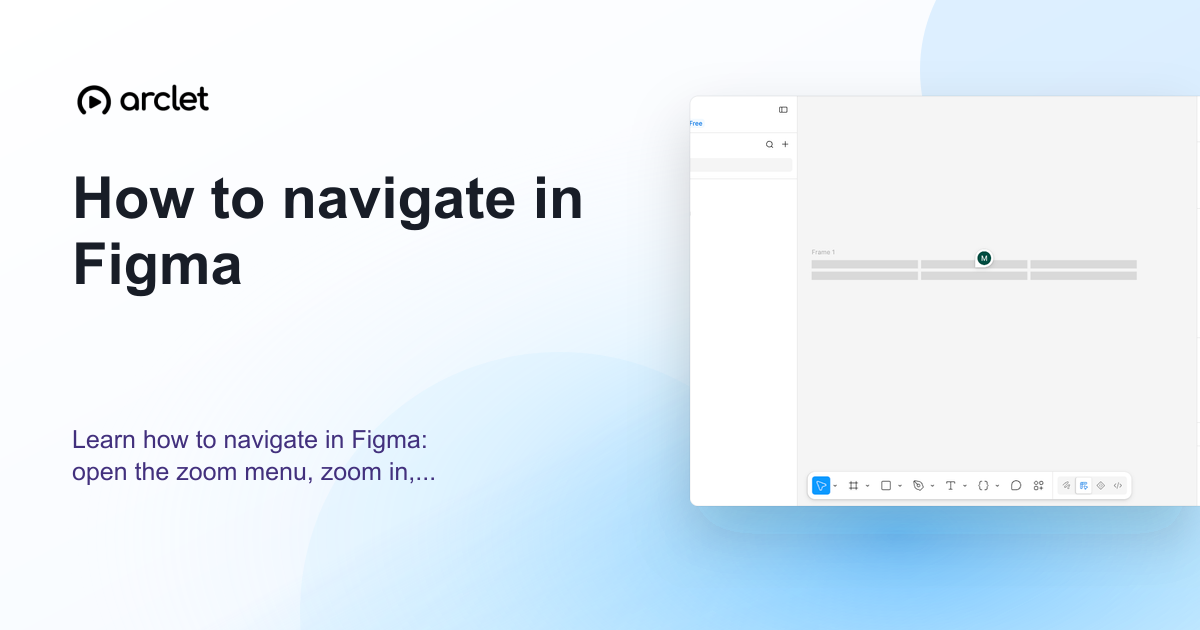
Learn how to navigate in Figma: open the zoom menu, zoom in, zoom to fit the whole design, and select a layer in the Layers panel to jump to it.
Quick answer
To navigate in Figma, open the zoom menu in the top right, choose Zoom in to get closer or Zoom to fit to see the whole design, then click a layer such as Frame 1 in the Layers panel to select it. The Pages list shows Page 1.
Steps at a glance
- Open the zoom menu in the top right
- Choose Zoom in to get closer
- Choose Zoom to fit to see the whole design
- Click a layer in the Layers panel to select it
- Check the Pages list for other pages
Interactive demo
Summary
Figma's zoom menu and Layers panel let you move around a design file quickly. You can zoom in on detail, fit everything on screen, and select a layer from the list to find it on the canvas.
Step-by-step guide
Step 1
Open the zoom menu
Click the zoom percentage in the top right of the canvas, labelled 55%, zoom and view options in this file. A menu opens with the zoom and view commands.
Step 2
Zoom in
In the menu, click Zoom in to get closer to your design. The zoom percentage changes to show the new level. The menu also lists Zoom out, Zoom to 50%, Zoom to 100% and Zoom to 200%.
Step 3
Zoom to fit the whole design
Open the zoom menu again and click Zoom to fit. Figma changes the zoom so the whole design fits on screen, which is handy when you have lost your place on the canvas.
Step 4
Select a layer to jump to it
In the Layers panel on the left, click a layer name such as Frame 1. The layer is selected on the canvas and its properties appear in the right sidebar, so you can find an object without scrolling.
Step 5
Check the pages list
Look at the Pages list above Layers. This file has one page, Page 1. If your file has more pages, they appear in this list.
Why this matters
You open a design file and the canvas is either too small to read or too crowded to find anything. Knowing the zoom menu and the Layers panel lets you get to any frame in seconds and keep working.
Frequently asked questions
Where is the zoom menu?
It is the zoom percentage button in the top right of the canvas, labelled with the current zoom and view options.
How do I see all my pages?
The Pages list sits above the Layers panel on the left. Each page in the file is listed there, for example Page 1.
Related guides
Continue with more step-by-step guides for getting work done.
 How to rename layers in FigmaRename layers in Figma from the Layers panel: double-click a layer name, type a new name, and press Enter so your design file stays easy to scan.
 How to create a frame in FigmaLearn how to create a frame in Figma: pick the Frame tool, draw it on the canvas, and set its width in the Design panel on a free account.
 How to add a color style in FigmaLearn how to add a color style in Figma: open Styles in the Design panel, create a new color style, name it, set a hex value, and find it listed.
 How to present a prototype in FigmaLearn how to present a prototype in Figma: open the Prototype tab, click Present, step through your frames, and close the preview when you finish.
 How to remove a component in FigmaLearn how to remove a component in Figma by detaching an instance into a plain frame, then deleting the main component if you no longer need it.
 How to undo changes in FigmaUndo a change in Figma from the main menu or with the keyboard shortcut. See where Undo lives under Edit and reverse your last action in seconds.
Create interactive demos like this one — free, no coding required.
Start for free →