How to undo changes in Figma
Undo a change in Figma from the main menu or with the keyboard shortcut. See where Undo lives under Edit and reverse your last action in seconds.
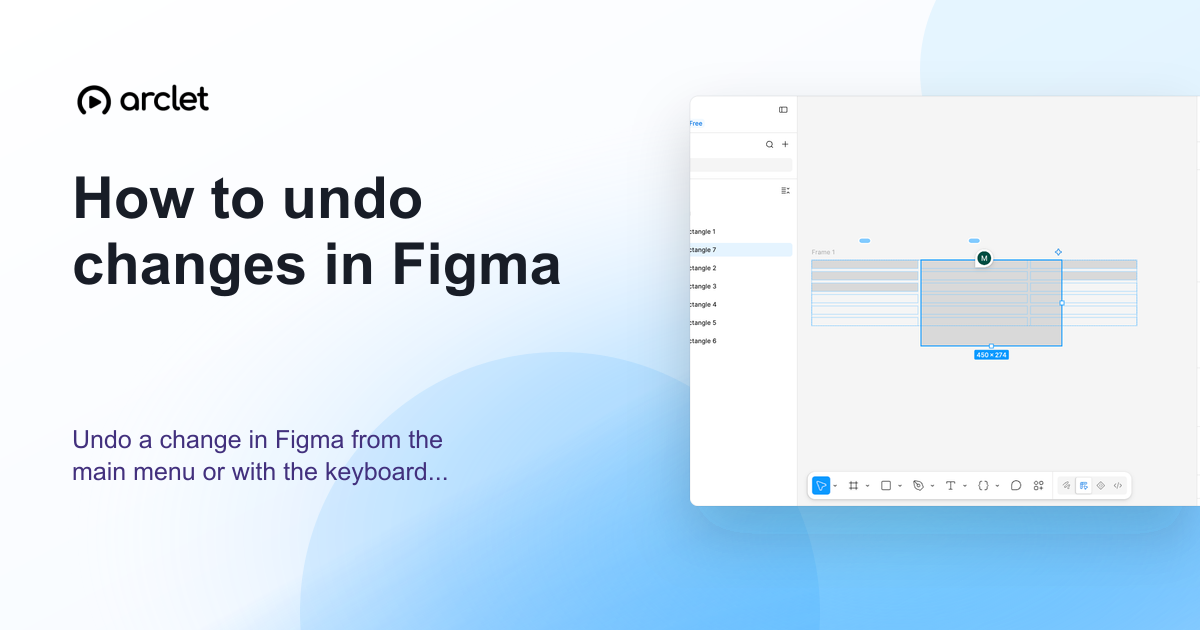
Quick answer
To undo a change in Figma, open the main menu, hover Edit, and choose Undo, which shows the ⌘Z shortcut beside it. You can also press ⌘Z on the canvas. Each undo reverses your most recent action, such as a rectangle you just drew, and Redo sits just below Undo in the same menu.
Steps at a glance
- Open the main menu in the top left.
- Hover Edit to open its submenu.
- Choose Undo to reverse your last change.
- Press ⌘Z to undo from the keyboard.
- Check the canvas and Layers panel for the change gone.
Interactive demo
Summary
Undo reverses your most recent action in a Figma file, so a stray shape or a wrong move costs one click instead of a rebuild. You can reach it from the main menu or with a keyboard shortcut.
Step-by-step guide
Step 1
Open the main menu
Click the Main menu button in the top left of the editor. The menu lists File, Edit, View and more.
Step 2
Open the Edit menu
Hover Edit in the main menu. A submenu opens beside it with the editing actions.
Step 3
Choose Undo
Click Undo ⌘Z at the top of the Edit submenu. Figma reverses your last action, so a rectangle you just drew disappears from the canvas and from the Layers panel.
Step 4
Press the undo shortcut
Make another change, then press ⌘Z. The shortcut does the same job as the menu item without opening any menu.
Why this matters
You just drew a shape in the wrong place, or moved something you meant to leave alone. Knowing where Undo lives, and its shortcut, lets you roll the file back one step at a time and keep designing without rebuilding anything.
Frequently asked questions
Where is Undo in Figma?
Open the main menu, hover Edit, and choose Undo. The menu item shows ⌘Z as its shortcut.
Is there a Redo option too?
Yes. The Edit submenu lists Redo with ⇧⌘Z right under Undo.
Related guides
Continue with more step-by-step guides for getting work done.
 How to duplicate objects in FigmaLearn how to duplicate objects in Figma from the Edit menu, then drag the copy aside, using a simple rectangle you can follow on the free plan.
 How to create a frame in FigmaLearn how to create a frame in Figma: pick the Frame tool, draw it on the canvas, and set its width in the Design panel on a free account.
 How to add a color style in FigmaLearn how to add a color style in Figma: open Styles in the Design panel, create a new color style, name it, set a hex value, and find it listed.
 How to ungroup elements in FigmaLearn how to ungroup elements in Figma: select a group in Layers, right-click, choose Ungroup, and get each object back as its own editable layer.
 How to use auto layout in FigmaLearn how to turn several layers into one auto layout frame in Figma, then change the gap and direction so the layers stay evenly spaced as they change.
 How to use Figma AI featuresLearn how to use Figma AI features: open Actions, run Make an image with a text prompt, and refine the generated image in a Design file.
Create interactive demos like this one — free, no coding required.
Start for free →