How to use Figma AI features
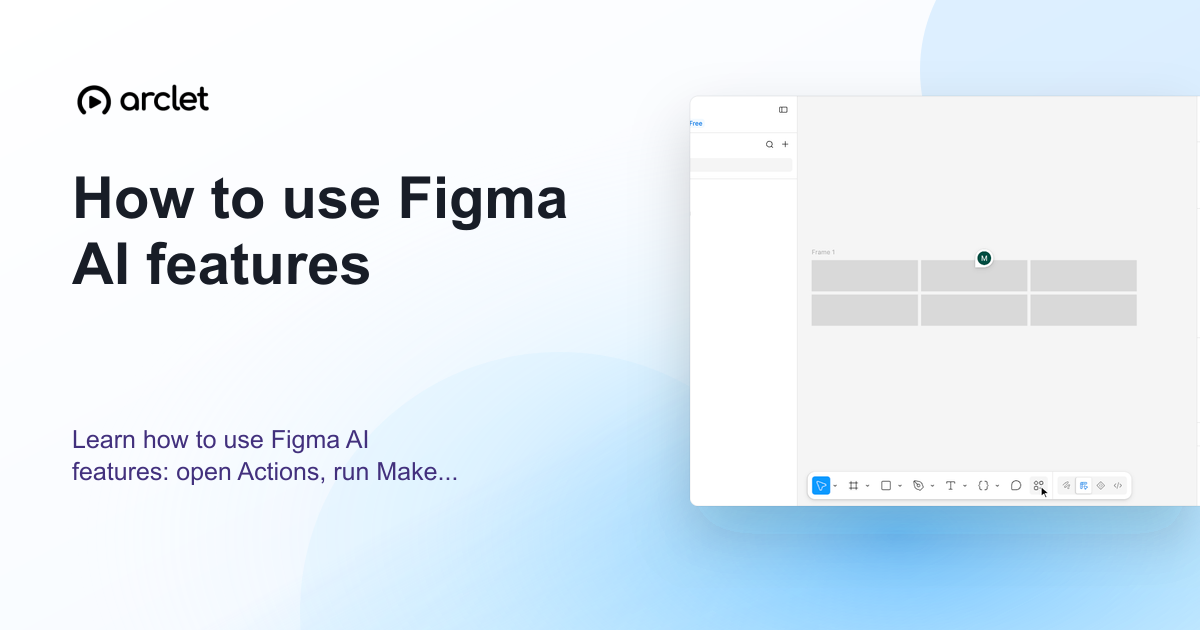
Learn how to use Figma AI features: open Actions, run Make an image with a text prompt, and refine the generated image in a Design file.
Quick answer
Open Actions from the toolbar, search for an AI action such as Make an image, describe what you want in the prompt box, and select Send. Figma generates the image on the canvas, and the toolbar that follows offers Edit with prompt so you can refine the result.
Steps at a glance
- Open Actions from the toolbar.
- Search for image and pick Make an image.
- Type a description in the prompt box.
- Select Send to generate the image.
- Review the result and refine it with Edit with prompt.
Interactive demo
Summary
Figma's AI actions live in the Actions search, next to everyday commands. Make an image turns a short text prompt into an image layer on your canvas, so you can fill a mockup without leaving your file.
Step-by-step guide
Step 1
Open Actions
In your Design file, select the Actions button in the toolbar at the bottom of the canvas. A search panel opens with suggestions and common settings.
Step 2
Search for an AI action
Type image in the search box. Results marked AI appear, such as Edit image with prompt. Select Make an image to add an empty image layer to the canvas.
Step 3
Describe the image you want
A prompt box opens next to the new layer. Click it and type a short description, such as a blue paper plane over a sunny sky.
Step 4
Send the prompt
Select Send to start generating. The prompt stays visible while Figma works on the image.
Step 5
Review the generated image
When the task finishes, the image fills the layer. A toolbar appears below it with Crop, Remove background, and Edit with prompt if you want to adjust the result.
Why this matters
You are mocking up a hero section and need a placeholder picture right now. Running an AI action from Actions gets you an image on the canvas in seconds, so you can keep designing instead of hunting for stock photos.
Frequently asked questions
Where do I find Figma AI features?
Open Actions from the toolbar and search for the task, for example image. AI actions are marked AI in the results.
Can I change the generated image afterwards?
Yes. With the image selected, a toolbar offers Edit with prompt, Remove background, and Crop.
Related guides
Continue with more step-by-step guides for getting work done.
 How to rename layers in FigmaRename layers in Figma from the Layers panel: double-click a layer name, type a new name, and press Enter so your design file stays easy to scan.
 How to undo changes in FigmaUndo a change in Figma from the main menu or with the keyboard shortcut. See where Undo lives under Edit and reverse your last action in seconds.
 How to access free templates in FigmaFind free templates in Figma Community: open Design resources, filter by Free price, and preview a template before you open it in your own file.
 How to use Figma SlidesCreate a Figma Slides file from the main menu, edit the title on your first slide, add a blank slide, and find the Present button to share your deck.
 How to use grid layout in FigmaLearn how to switch a Figma frame to grid layout, then set the gap between columns and rows so its content sits in an even grid on the canvas.
 How to use interactive components in FigmaMake a Figma component respond to clicks: add an interaction to one variant, set On click, and use Change to to switch to another variant.
Create interactive demos like this one — free, no coding required.
Start for free →