How to use Figma Slides
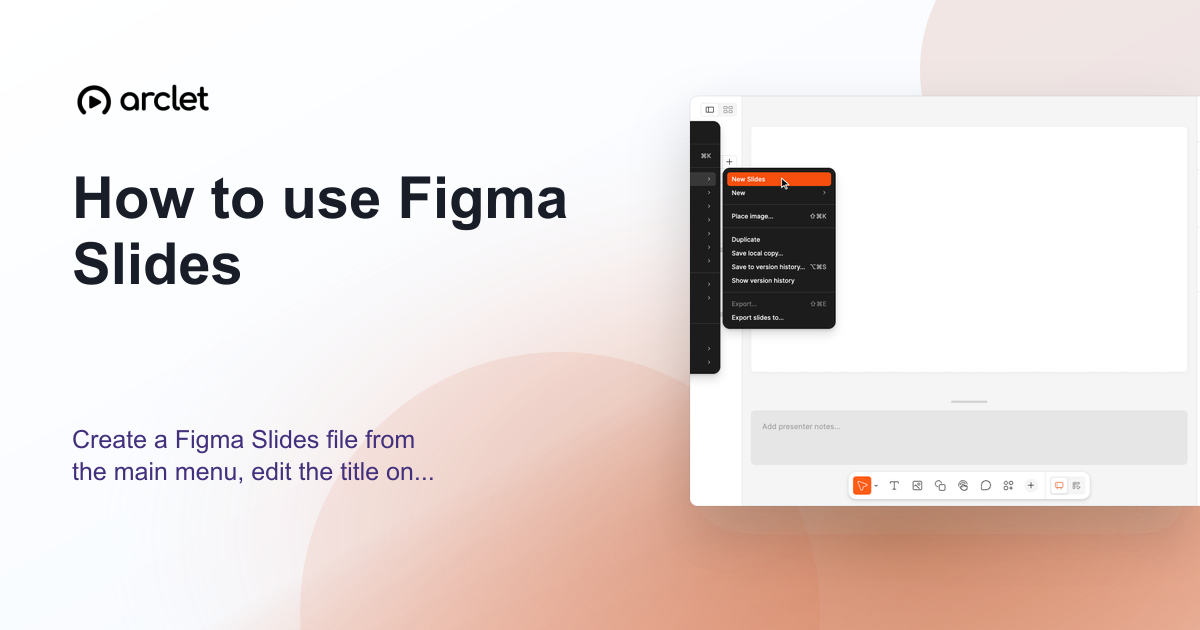
Create a Figma Slides file from the main menu, edit the title on your first slide, add a blank slide, and find the Present button to share your deck.
Quick answer
Open the main menu, choose File, then New Slides to create a Figma Slides file. Double-click the title text on the first slide to edit it, select Add blank slide to add more slides, and select Present to start presenting. All of this works on the free plan.
Steps at a glance
- Open the main menu and choose File, then New Slides
- Double-click the title text on the first slide
- Type your own title over the selected text
- Select Add blank slide to add another slide
- Select Present to start presenting
Interactive demo
Summary
Figma Slides lets you build a deck in the browser with a slide list on the left, a canvas in the middle, and design controls on the right. The free plan covers creating a file, editing slides, and presenting.
Step-by-step guide
Step 1
Create a Slides file
Open the main menu at the top left, hover over File, and choose New Slides. Figma opens a deck with the first slide already on the canvas and the slide list on the left.
Step 2
Edit the slide title
Double-click the title text on the first slide to start editing, then select all of the existing text. Type your new title and it replaces the whole line.
Step 3
Add a slide
Click outside the text to stop editing, then select Add blank slide above the slide list. A new blank slide appears in the list and opens on the canvas.
Step 4
Present your slides
Select Present at the top right, next to Share. This is where you start presenting the deck from the slide you have open.
Why this matters
You need a short deck for a team update and want it built where your design work already lives. Knowing how to create a file, edit a title, add slides, and reach Present gets you from blank file to a shareable deck quickly.
Frequently asked questions
Can I use Figma Slides on the free plan?
Yes. The capture ran on an account showing the Free label, and creating a file, editing a title, and adding a slide all worked.
Where do I find the Present button?
Present sits at the top right of the editor, next to Share.
Related guides
Continue with more step-by-step guides for getting work done.
 How to present a prototype in FigmaLearn how to present a prototype in Figma: open the Prototype tab, click Present, step through your frames, and close the preview when you finish.
 How to navigate in FigmaLearn how to navigate in Figma: open the zoom menu, zoom in, zoom to fit the whole design, and select a layer in the Layers panel to jump to it.
 How to access free templates in FigmaFind free templates in Figma Community: open Design resources, filter by Free price, and preview a template before you open it in your own file.
 How to use grid layout in FigmaLearn how to switch a Figma frame to grid layout, then set the gap between columns and rows so its content sits in an even grid on the canvas.
 How to use interactive components in FigmaMake a Figma component respond to clicks: add an interaction to one variant, set On click, and use Change to to switch to another variant.
 How to use a mask in FigmaLearn how to use a mask in Figma: select two overlapping shapes, choose Use as mask, and clip the top shape to the one below it in the Layers panel.
Create interactive demos like this one — free, no coding required.
Start for free →