How to use variables in Figma
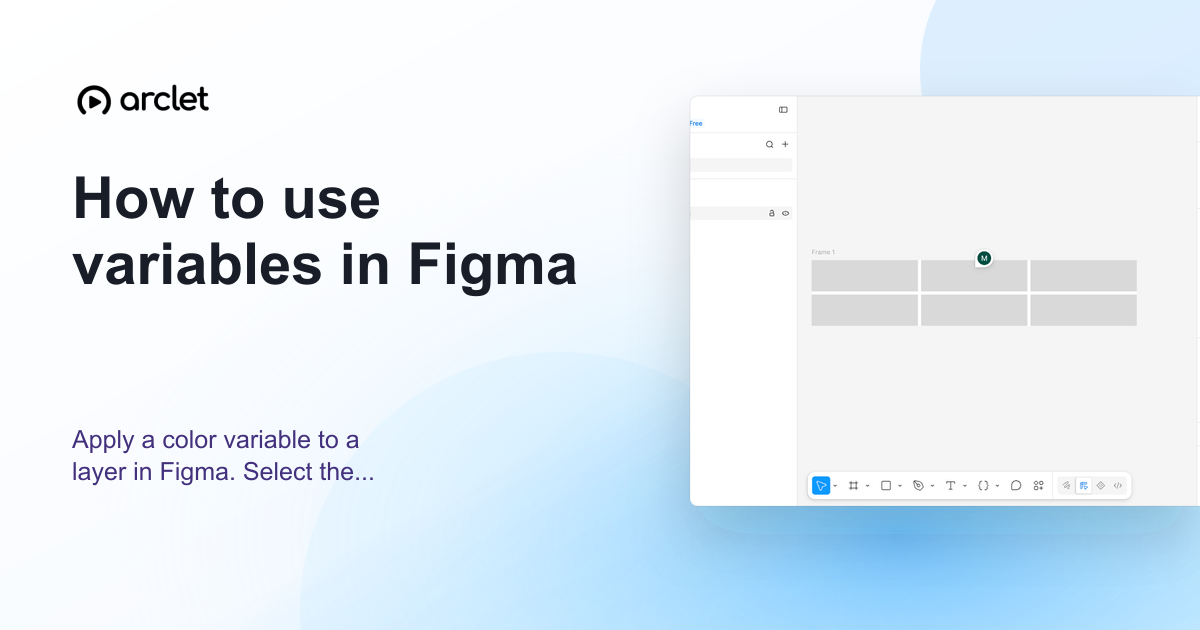
Apply a color variable to a layer in Figma. Select the layer, open the Fill picker, search the Libraries tab, and pick your variable for the fill.
Quick answer
To use a variable in Figma, select a layer and click the Fill, Apply styles and variables icon in the right sidebar. The picker opens on the Libraries tab. Search for your color variable, such as primary, and click it. The Fill row then shows the variable name instead of a hex value.
Steps at a glance
- Select the layer in the Layers panel
- Click the Fill, Apply styles and variables icon
- Search the Libraries tab for your variable
- Click the variable to apply it
- Check the Fill row shows the variable name
Interactive demo
Summary
Applying a color variable binds a layer's fill to a named value instead of a fixed hex code. The Fill picker lists your variables in its Libraries tab, so you can apply one in two clicks.
Step-by-step guide
Step 1
Select the layer to fill
Click Frame 1 in the Layers panel on the left, or click any layer on the canvas. The Design panel on the right shows the properties of the selected layer.
Step 2
Open the Fill color picker
In the Design panel, find the Fill section and click the Fill, Apply styles and variables icon. If the layer has no fill yet, click Add fill first. A picker opens beside the panel.
Step 3
Pick the variable
Make sure the Libraries tab is selected, since Custom only shows the color picker. Type the variable name in Search, then click primary in the results.
Step 4
Check the fill is bound to the variable
The Fill row now shows the variable name primary instead of a hex value, and the layer takes on the variable's color.
Why this matters
You have a layer filled with a one-off color and want it to follow a named brand value. Binding the fill to a variable means the layer now uses a shared, named color rather than a loose hex code.
Frequently asked questions
Which tab lists my variables?
The Libraries tab of the Fill picker lists variables. The Custom tab only shows the color picker.
Do I need to add a fill first?
Yes. If the layer has no fill, click Add fill in the Fill section, then open the picker.
Related guides
Continue with more step-by-step guides for getting work done.
 How to create a local variable in FigmaLearn how to create a local variable in Figma: open the Variables panel, pick a type like Color, name it, set a value, and see it in the table.
 How to add a color style in FigmaLearn how to add a color style in Figma: open Styles in the Design panel, create a new color style, name it, set a hex value, and find it listed.
 How to use grid layout in FigmaLearn how to switch a Figma frame to grid layout, then set the gap between columns and rows so its content sits in an even grid on the canvas.
 How to view version history in FigmaOpen Figma's version history from the main menu, then expand the autosave versions to see earlier saves of your design file on the free plan.
 How to access free templates in FigmaFind free templates in Figma Community: open Design resources, filter by Free price, and preview a template before you open it in your own file.
 How to add a comment in FigmaAdd a comment in Figma by choosing the Comment tool, clicking the canvas, typing your note, and sending it. Four steps, free plan, no setup needed.
Create interactive demos like this one — free, no coding required.
Start for free →