How to view version history in Figma
Open Figma's version history from the main menu, then expand the autosave versions to see earlier saves of your design file on the free plan.
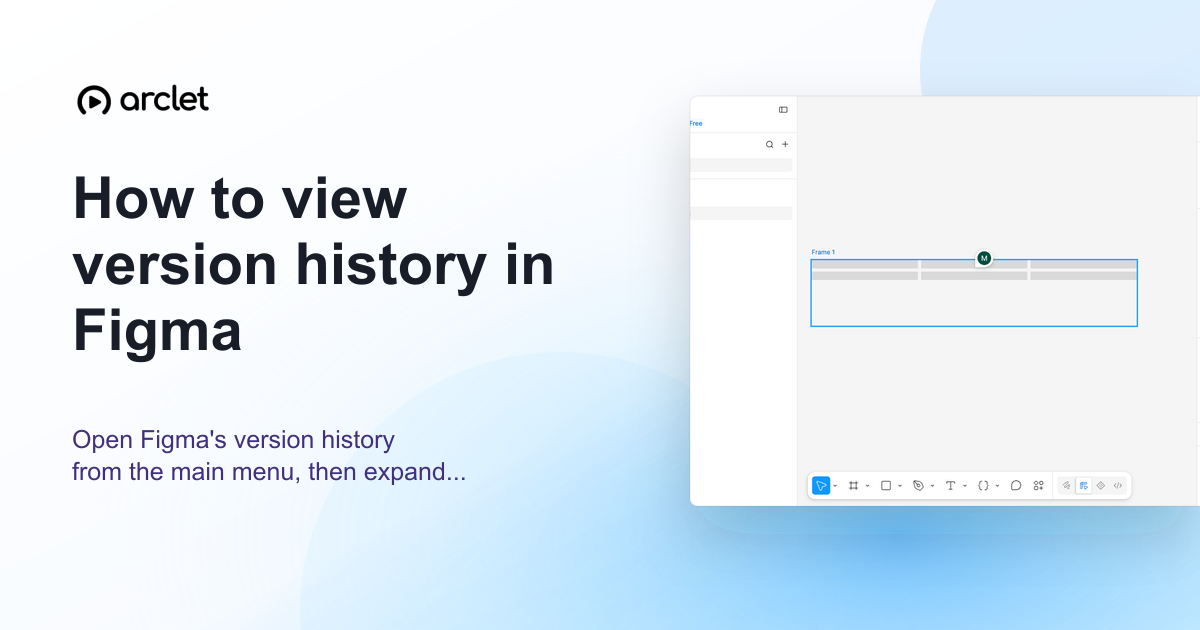
Quick answer
Open the main menu in Figma, choose File, then select Show version history. The Version history panel opens on the right. It lists Latest and a collapsed group of autosave versions. Click 3 autosave versions to expand the group and see earlier saves. On the free plan, versions past 30 days are not shown.
Steps at a glance
- Open the main menu
- Hover File in the menu
- Choose Show version history
- Find the Version history panel on the right
- Click the autosave versions to expand them
Interactive demo
Summary
Version history lists the saved states of a Figma file in a panel beside the canvas. It helps you see how a design changed and find an earlier save when you need one.
Step-by-step guide
Step 1
Open the main menu
With your design file open, click the Main menu button at the top of the left sidebar. A list of menus opens, including File, Edit, and View.
Step 2
Choose Show version history
Hover File to open its submenu, then click Show version history. The submenu also lists Save to version history… if you want to add your own save.
Step 3
Expand the autosave versions
The Version history panel opens on the right. It starts with Latest and a collapsed group named 3 autosave versions. Click 3 autosave versions to list the earlier saves. The panel also notes that versions past 30 days need an upgrade.
Why this matters
You changed a frame an hour ago and now you are not sure the edit was an improvement. Opening version history shows the saved states of the file, so you can see what exists before you decide to change anything.
Frequently asked questions
Where is version history in Figma?
Open the Main menu, hover File, and click Show version history. The panel opens on the right side of the file.
Can I add my own version to the history?
Yes. The panel has an Add to version history button, and the File submenu lists Save to version history….
Related guides
Continue with more step-by-step guides for getting work done.
 How to undo changes in FigmaUndo a change in Figma from the main menu or with the keyboard shortcut. See where Undo lives under Edit and reverse your last action in seconds.
 How to navigate in FigmaLearn how to navigate in Figma: open the zoom menu, zoom in, zoom to fit the whole design, and select a layer in the Layers panel to jump to it.
 How to add a color style in FigmaLearn how to add a color style in Figma: open Styles in the Design panel, create a new color style, name it, set a hex value, and find it listed.
 How to access free templates in FigmaFind free templates in Figma Community: open Design resources, filter by Free price, and preview a template before you open it in your own file.
 How to add a comment in FigmaAdd a comment in Figma by choosing the Comment tool, clicking the canvas, typing your note, and sending it. Four steps, free plan, no setup needed.
 How to add a prototype link in FigmaLink a button to another frame in Figma. Open the Prototype tab, drag a connection to your destination frame, and set up a click interaction.
Create interactive demos like this one — free, no coding required.
Start for free →