How to create a channel section in Slack
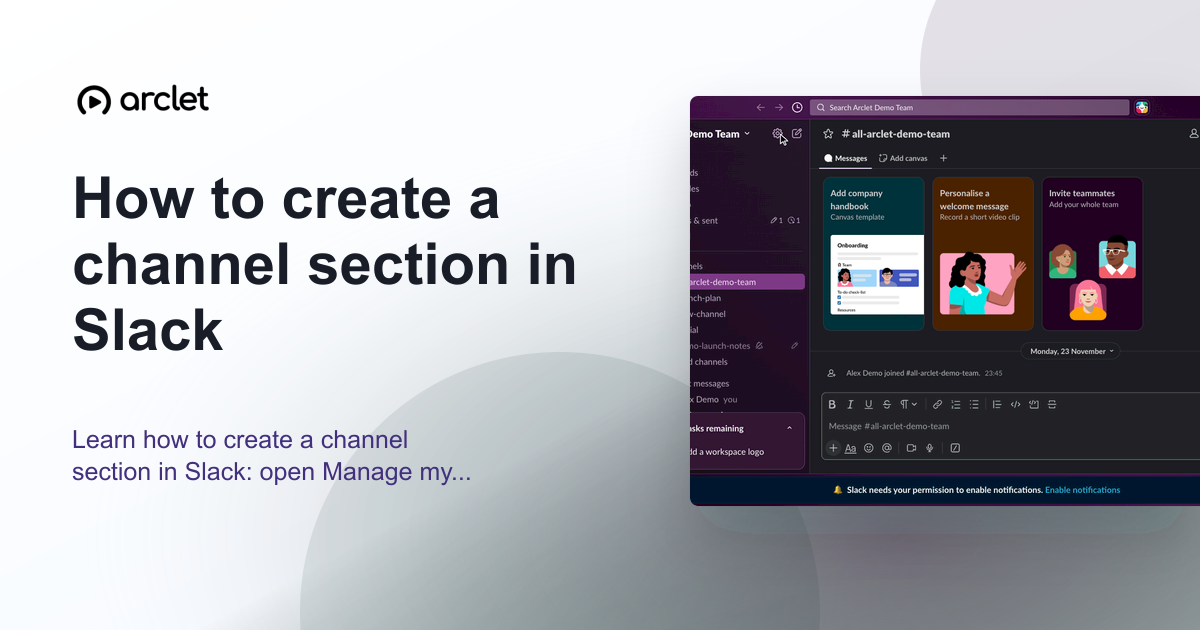
Learn how to create a channel section in Slack: open Manage my sidebar, choose Create your own…, name the section, and start grouping channels.
Quick answer
To create a channel section in Slack, click Manage my sidebar next to the workspace name, choose Create your own…, type a section name in the Create a section dialog, then click Create and add channels. The new section then appears in your sidebar so you can group related channels together.
Steps at a glance
- Click Manage my sidebar next to the workspace name.
- Choose Create your own… from the menu.
- Type a name in the Section name field.
- Click Create and add channels.
- Pick the channels you want in the new section.
Interactive demo
Summary
Channel sections let you group channels and direct messages in the Slack sidebar under a name you choose. They keep a busy sidebar organised so the conversations you check most are easy to find.
Step-by-step guide
Step 1
Open sidebar options
Find the Manage my sidebar button beside the workspace name at the top of the sidebar and click it. A menu opens with the sidebar filter and the channel section options.
Step 2
Choose Create your own
In the menu, the suggested channel sections include Daily reads, My team, Announcements and Social. To make a section with your own name, click Create your own….
Step 3
Name the section
The Create a section dialog opens. Click the Section name field and type a name for the section, for example Launch work.
Step 4
Create the section
Click Create and add channels. The dialog moves to step 2 of 2, where you can choose which conversations go into the section.
Why this matters
Your sidebar fills up quickly once you join several channels. You want project channels together and social ones out of the way, so you create a named section and move the right channels into it, then find them at a glance.
Frequently asked questions
Can I choose the channels for the section right away?
Yes. After you click Create and add channels, the dialog shows step 2 of 2 so you can pick the conversations to add.
Do I have to use the suggested section names?
No. The suggested names are optional, and Create your own… lets you type any name in the Section name field.
Related guides
Continue with more step-by-step guides for getting work done.
 How to add a description to a Slack channelAdd a description to a Slack channel so everyone knows what it is for. Open channel details, edit the Description on the About tab, and save it.
 How to archive a channel in SlackLearn how to archive a Slack channel from its details panel: open the Settings tab, choose Archive channel for everyone and confirm the prompt.
 How to create a Slack channelLearn how to create a Slack channel: open Add channels, name it, choose Public visibility, and select Create so your team has a focused place to talk.
 How to delete a channel in SlackLearn how to delete a channel in Slack from the channel details Settings tab, and what the confirmation says before the channel and its messages are removed.
 How to format messages in SlackUse the Formatting toolbar in the Slack message box to bold a word, turn a line into a bulleted list, and send the formatted message to a channel.
 How to forward a message in SlackForward a Slack message to another channel or person. Hover the message, select Forward message, choose a destination, add an optional note and select Forward.
Create interactive demos like this one — free, no coding required.
Start for free →