How to forward a message in Slack
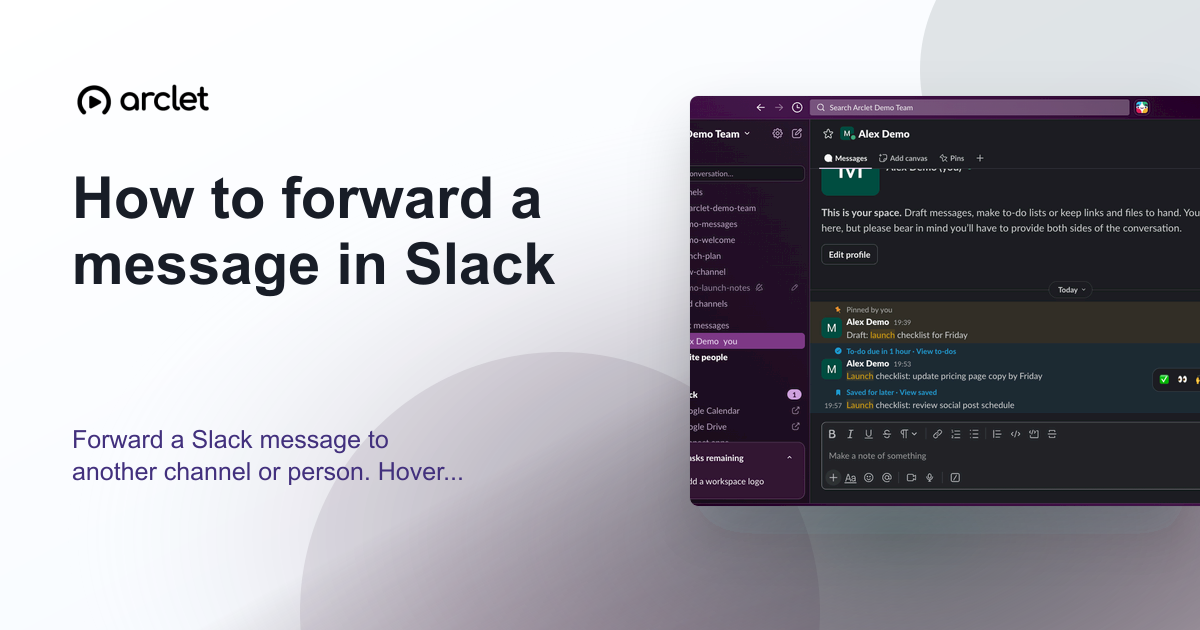
Forward a Slack message to another channel or person. Hover the message, select Forward message, choose a destination, add an optional note and select Forward.
Quick answer
Hover over the message, select Forward message, then search for the channel or person you want to send it to and pick it from the results. Add an optional note if you like, then select Forward to finish. You can forward to a channel or a person.
Steps at a glance
- Hover over the message you want to share.
- Select Forward message on the toolbar.
- Search for a channel or person in the dialog.
- Pick the destination from the results.
- Select Forward.
Interactive demo
Summary
Forwarding lets you share an existing Slack message somewhere else without retyping it. You choose the destination in a dialog and can add your own note.
Step-by-step guide
Step 1
Select Forward message
Hover over the message you want to share to show its toolbar. The toolbar includes Add reaction, Reply in thread, Forward message and More actions. Select Forward message.
Step 2
Choose where to forward it
A dialog titled Forward this private message opens with a Search for channel or person field. Select the field to see a list of channels and people, or type a name to narrow the results.
Step 3
Pick the channel
Type the name of the destination and select it from the results. The channel appears in the field as a chip, and a message box with the text Add a message if you like appears below it.
Step 4
Forward the message
Add a note if you want, then select Forward. The dialog also has a Copy link button if you only need a link to the message.
Why this matters
You posted a launch checklist item in one place, but the team that needs to act on it works in another channel. Forwarding it puts the original message in front of them without copying and pasting text.
Frequently asked questions
Can I add my own note when I forward?
Yes. The dialog has a text box labelled Add a message if you like, so you can write a note before you select Forward.
Can I copy a link instead of forwarding?
Yes. The same dialog has a Copy link button.
Related guides
Continue with more step-by-step guides for getting work done.
 How to add a description to a Slack channelAdd a description to a Slack channel so everyone knows what it is for. Open channel details, edit the Description on the About tab, and save it.
 How to archive a channel in SlackLearn how to archive a Slack channel from its details panel: open the Settings tab, choose Archive channel for everyone and confirm the prompt.
 How to bookmark a message in SlackBookmark a Slack message by saving it for later. Open the message menu, select Add to saved, then find it again from Saved in the sidebar.
 How to manage notifications for a channel in SlackLearn how to manage notifications for a channel in Slack: open Edit notifications in the channel header and choose All new posts, Just mentions or Mute and hide.
 How to mark a message as unread in SlackMark a Slack message as unread so you remember to come back to it. Open the message menu, choose Mark unread, and look for the New marker in the channel.
 How to mute a channel in SlackMute a Slack channel from the sidebar so it stops competing for your attention. Right-click the channel and pick Mute and hide, then check the icon.
Create interactive demos like this one — free, no coding required.
Start for free →